


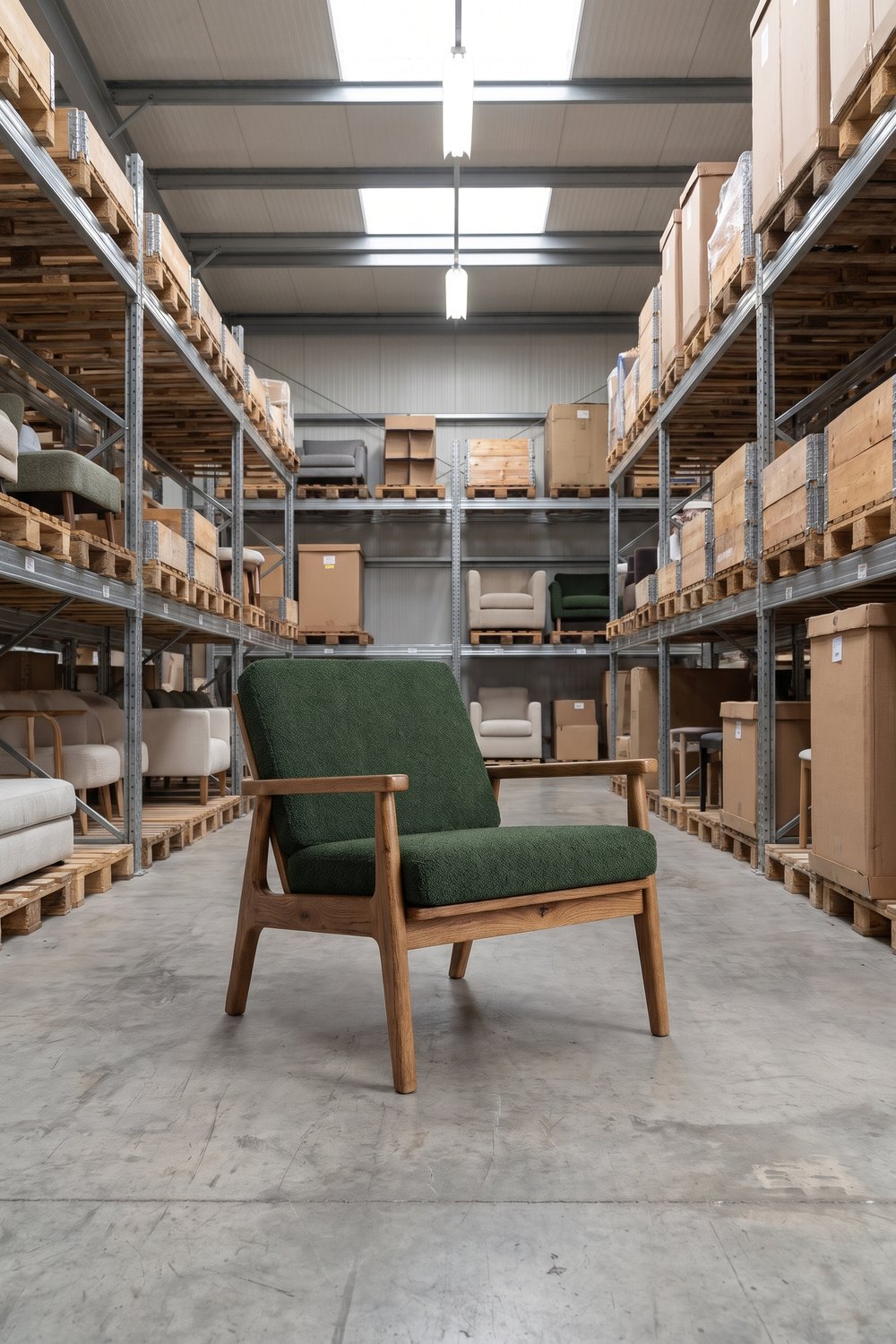
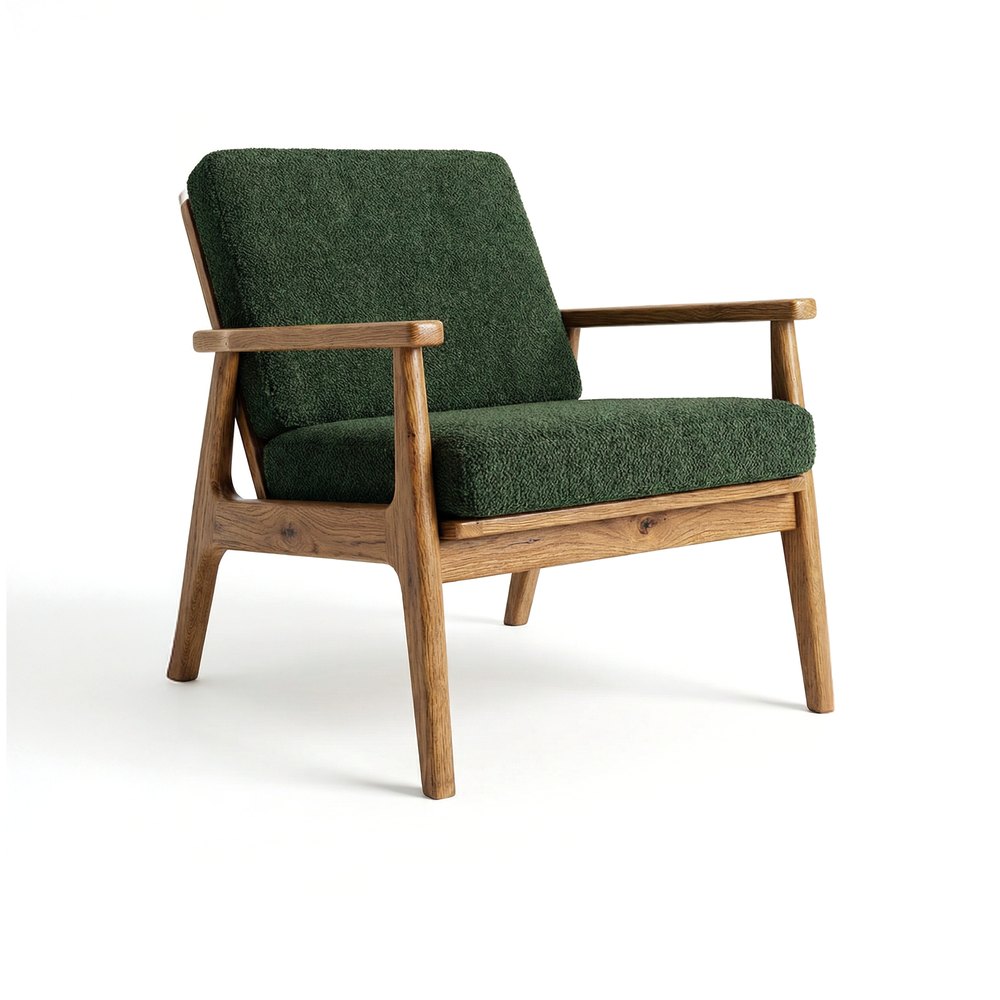
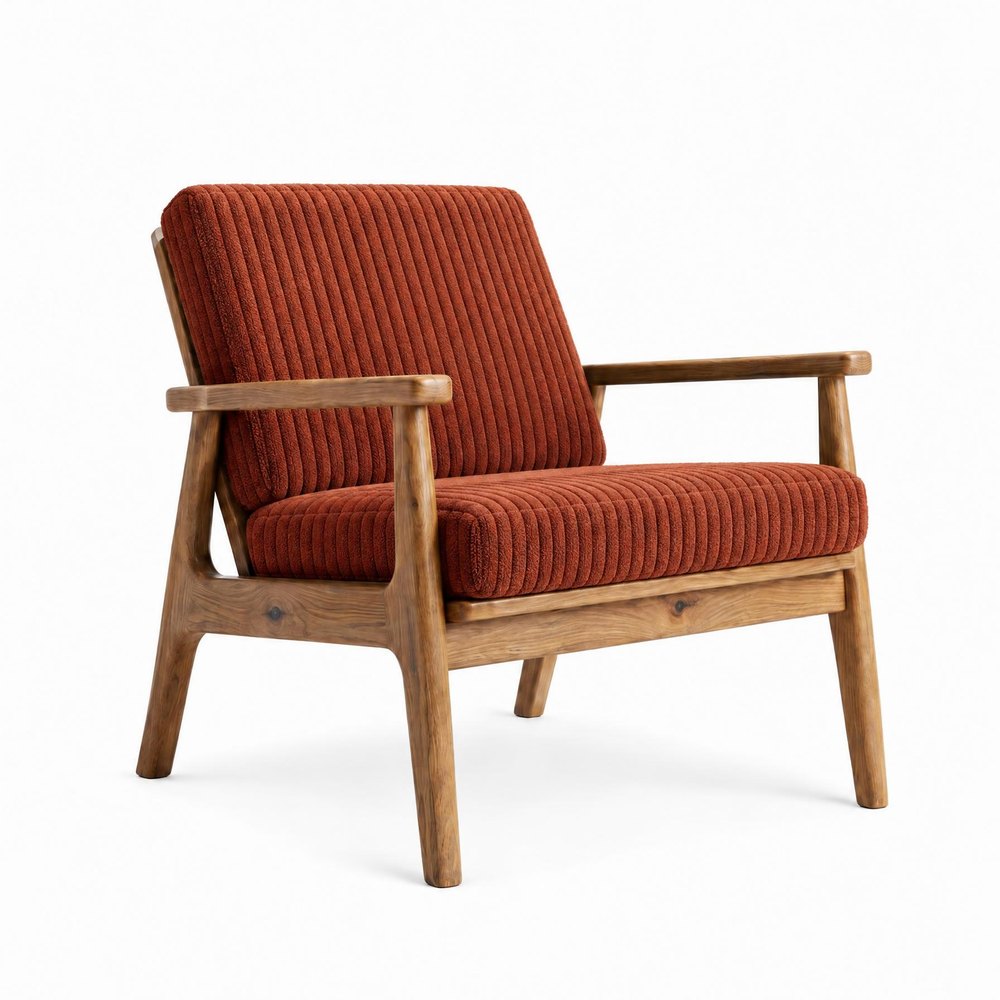
A packshot is a product photo on a white or plain background, showing the product on its own with no interior or props. In the furniture industry it’s the basic photo of every model: it shows the shape, material and colour of the piece, and online shops and marketplaces use it as the main image. A furniture packshot doesn’t have to come from a studio: in Sopla.app you can create one even from an ordinary photo of the piece taken in a warehouse. From there, you can create photos on a coloured studio background, lifestyle photos in furnished rooms and photos with people.
 WAREHOUSE PHOTO
 PACKSHOT
What is a packshot
A packshot is a photo of a product cut out from its surroundings: the piece stands on a white or single-colour background, in even light, with nothing else in the frame. The name comes from advertising, where the “pack shot” was the shot of the product in its packaging at the end of a commercial. Today the term covers any catalogue photo of the product on its own.
A packshot answers the question “what exactly does this piece look like?”. The question “how will it look in my home?” is answered by other types of photos, which you create from the packshot:
| What it shows | Where it works | |
|---|---|---|
| Packshot | The piece alone on a white or plain background | Main image in an online shop or on a marketplace, variant overviews, catalogue |
| Studio photo | The piece on a coloured studio background, with shadow and light like in a studio | Social media, ads, banners, catalogue covers |
| Lifestyle photo | The piece in a furnished room | Product page gallery, catalogue, seasonal campaigns |
| Photo with people | The piece in use, with people or pets | Ads, social media, showing the scale of the piece |
A packshot from a warehouse or showroom photo
Not every piece has a studio photo. Often all you have is a phone photo taken in a warehouse, on the production floor or in a showroom, with shelving, boxes and other furniture in the background. You can make a packshot from that photo too:
- upload the photo of the piece as a packshot and choose the furniture type,
- in the style step, open the STUDIO tab and choose PACKSHOT,
- set the aspect ratio and click CREATE.
Sopla removes the background and places the piece on white. The photo costs 10 credits and is usually ready in about a minute. You download the finished packshot and use it like any other photo, including as the starting point for more photos.
For a good result, the warehouse photo should show the whole piece, in focus and unobstructed: no boxes in front of the legs and no other furniture touching the sides. Compare the finished packshot with the original photo: the angle of the piece or a detail may differ slightly.
Furniture packshot photography: how to take a good photo
A packshot is usually taken by a photographer in a studio or by the manufacturer in its own facility. You can also take one yourself if you have a light background and even light. Whoever takes the photo, check five things:
- The whole piece in frame. No cropped legs, sides or backrests, with a small margin around the piece.
- A plain, light background. White or a single colour, with no creases, no shadows on the wall and no other objects.
- Even, soft light. You can see the fabric texture, the wood grain and the stitching, and the shadows are subtle.
- Sharp focus across the whole piece. From the front edge of the seat to the backrest. A phone on a tripod works too, if there’s enough light.
- The same conditions for every shot. The same distance, camera height and light, so that packshots from different sides match.
One packshot isn’t enough for a product page. Customers want to see the piece from several sides, so it’s worth preparing a full set of shots for every model:
| Shot | What it’s for |
|---|---|
| Front at an angle (3/4) | Main image: shows the shape of the piece best |
| Straight on | Comparing variants and colour overviews |
| Side | Profile, seat depth, leg shape |
| Back | Finish of the back, important for pieces placed in the middle of a room |
| Detail | Fabric, stitching, hardware, legs |
| Another version of the piece | Sofa bed opened out, wardrobe open, table extended |
What to do with a packshot next: studio backgrounds
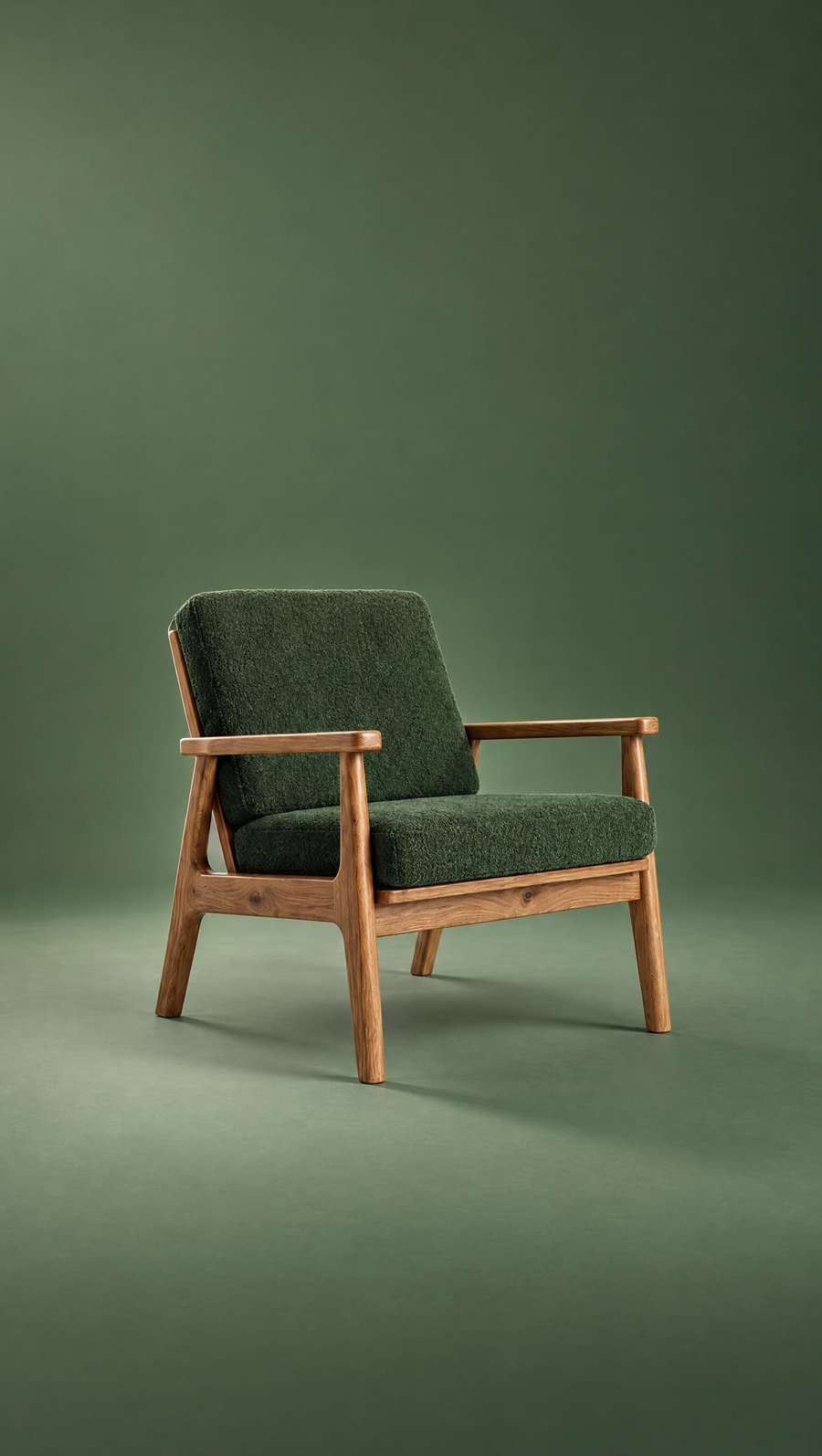
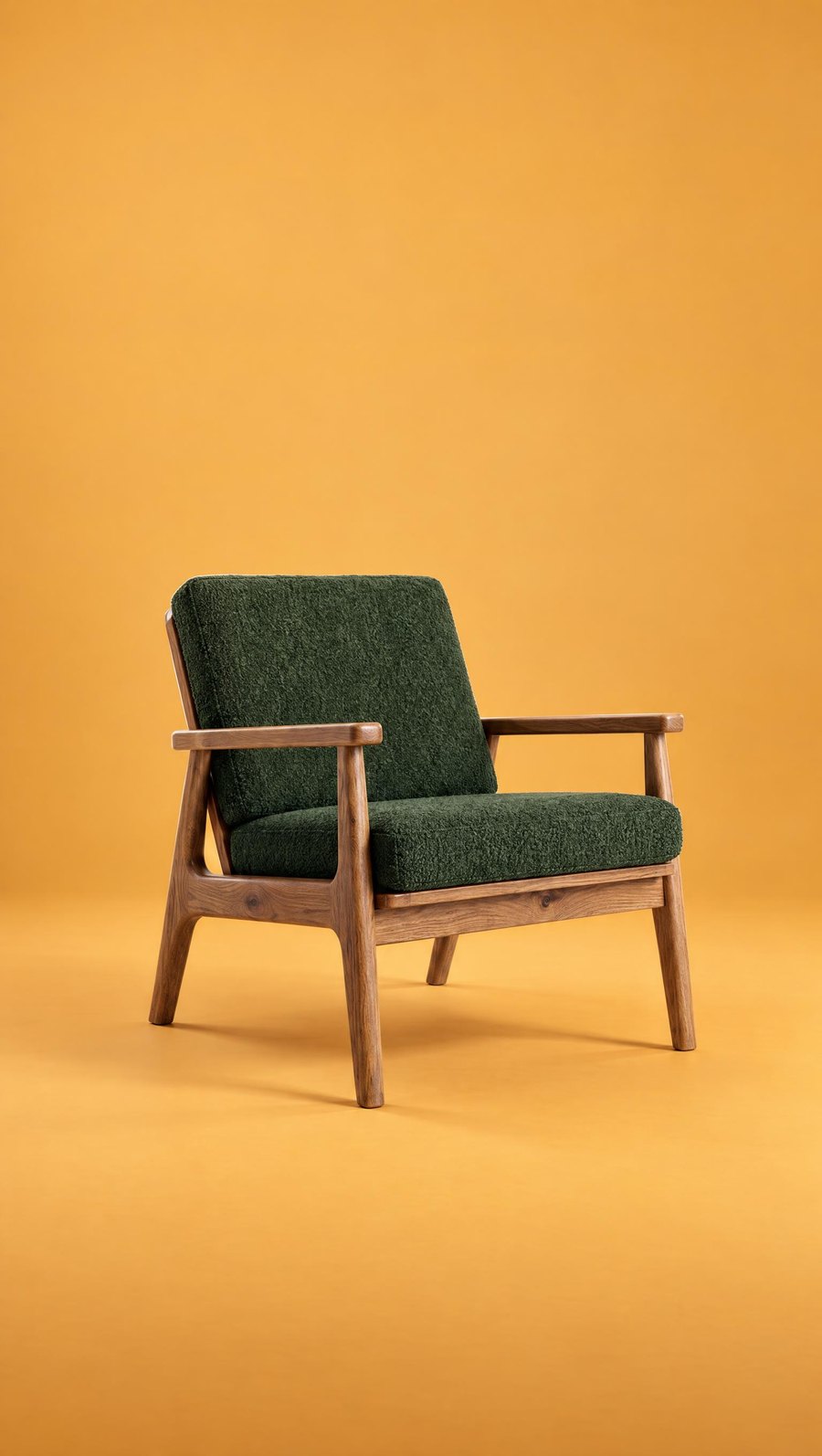
The simplest next step after a packshot is a studio photo. The piece stays alone in the frame, but it gets a coloured background, a shadow and light like in a photo studio. These photos stand out more on social media and in ads than a white background, while keeping the focus on the product.
In Sopla, studio backgrounds are in the style step, on the STUDIO tab:
| Style | Background | When to choose it |
|---|---|---|
| MATCH | In the colour of the piece | Calm, elegant photos, tone on tone with the product |
| CONTRAST | In a colour that contrasts with the piece | Ads and posts that need to catch the eye |
| LIGHT | Light, off-white | Catalogue, website, photos for light layouts |
| DARK | Dark | Premium collections, strong contrast with light wood and fabric |
| PACKSHOT | White, background removed | Main marketplace image, a clean packshot from any photo |
 MATCH
 CONTRAST
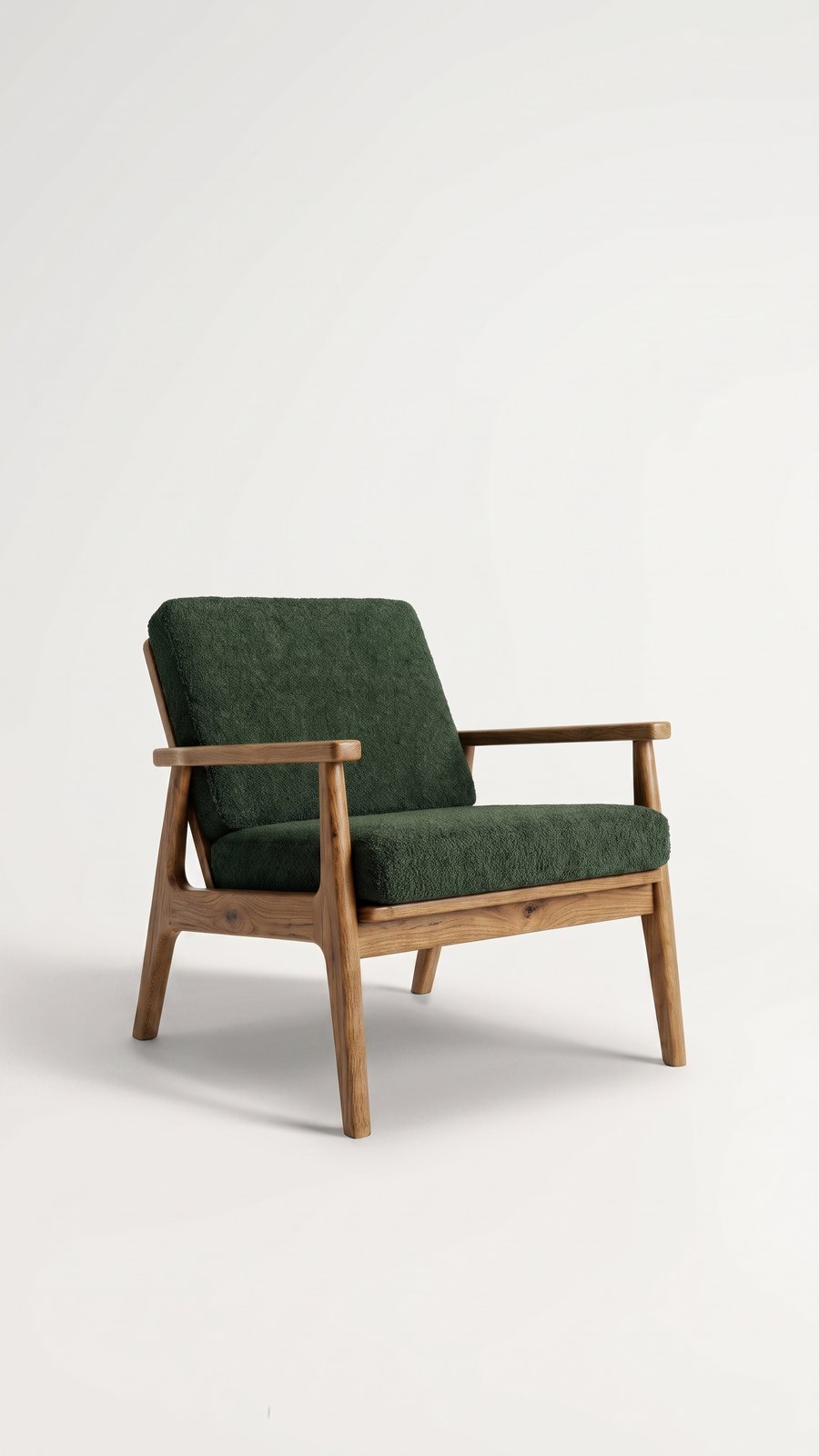 LIGHT
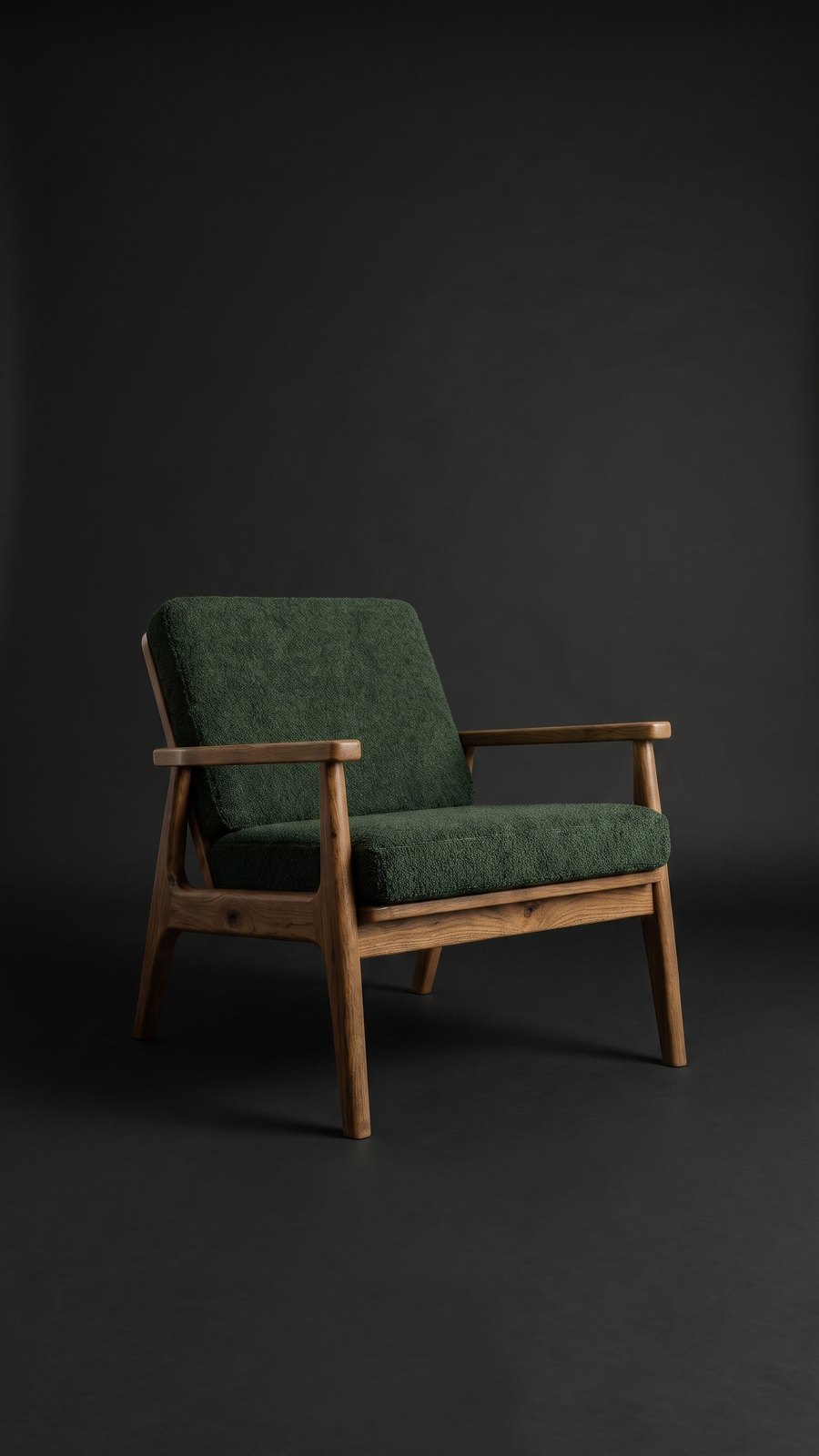 DARK
A studio photo costs the same as any other photo in Sopla: 10 credits. It’s usually ready in about a minute.
One background for every shot: a studio photo series in 4 steps
Got packshots of a piece from several sides and want to show them all on the same coloured background? You could create a studio photo from each packshot separately, but each of those photos is created from scratch: the shade of the background, the colour gradient and the shadow will differ a little. In a product gallery, that shows straight away.
A better way: create one studio photo, then create the other shots on it with the ANGLE edit. The piece turns in place to match the uploaded packshot, while the background, light and framing stay the same. That’s how the four armchair photos below were created.
Step 1. Prepare packshots from several sides
Front at an angle, both sides and the back, each shot on a light background and in the same conditions.
FRONT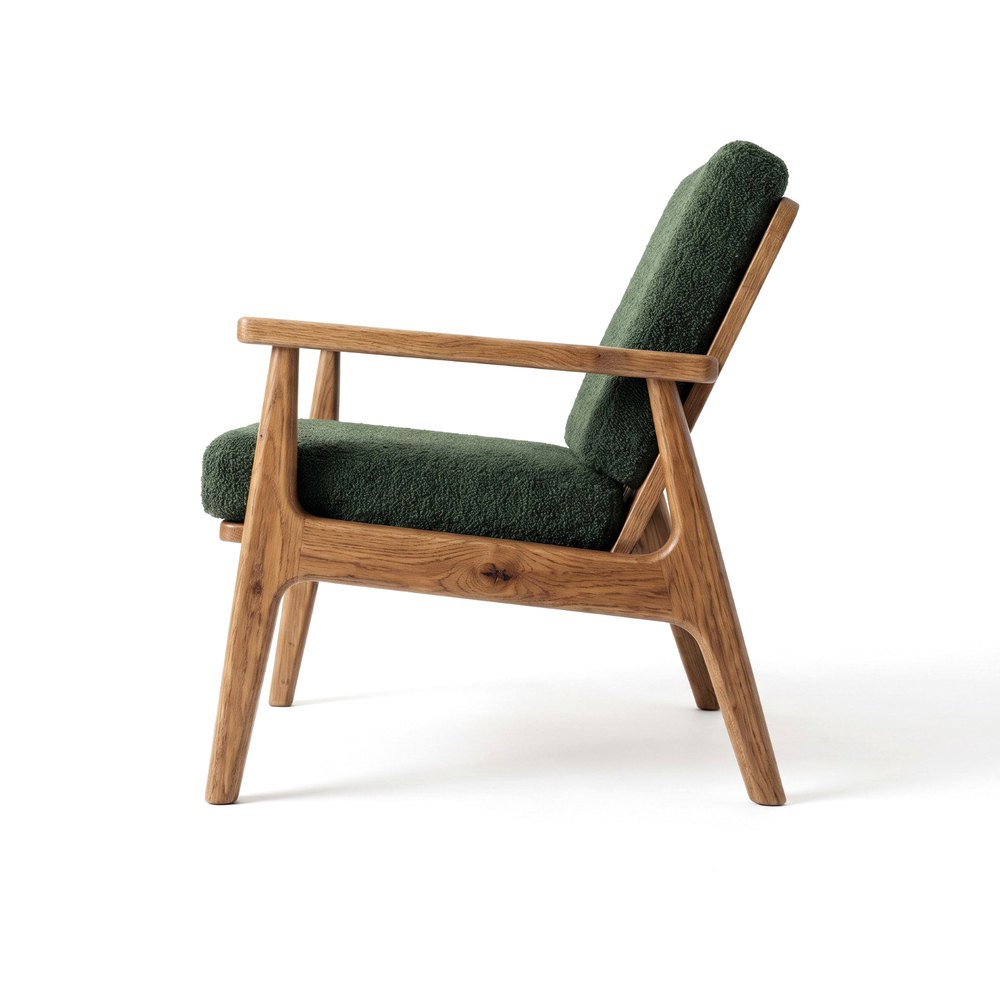 SIDE
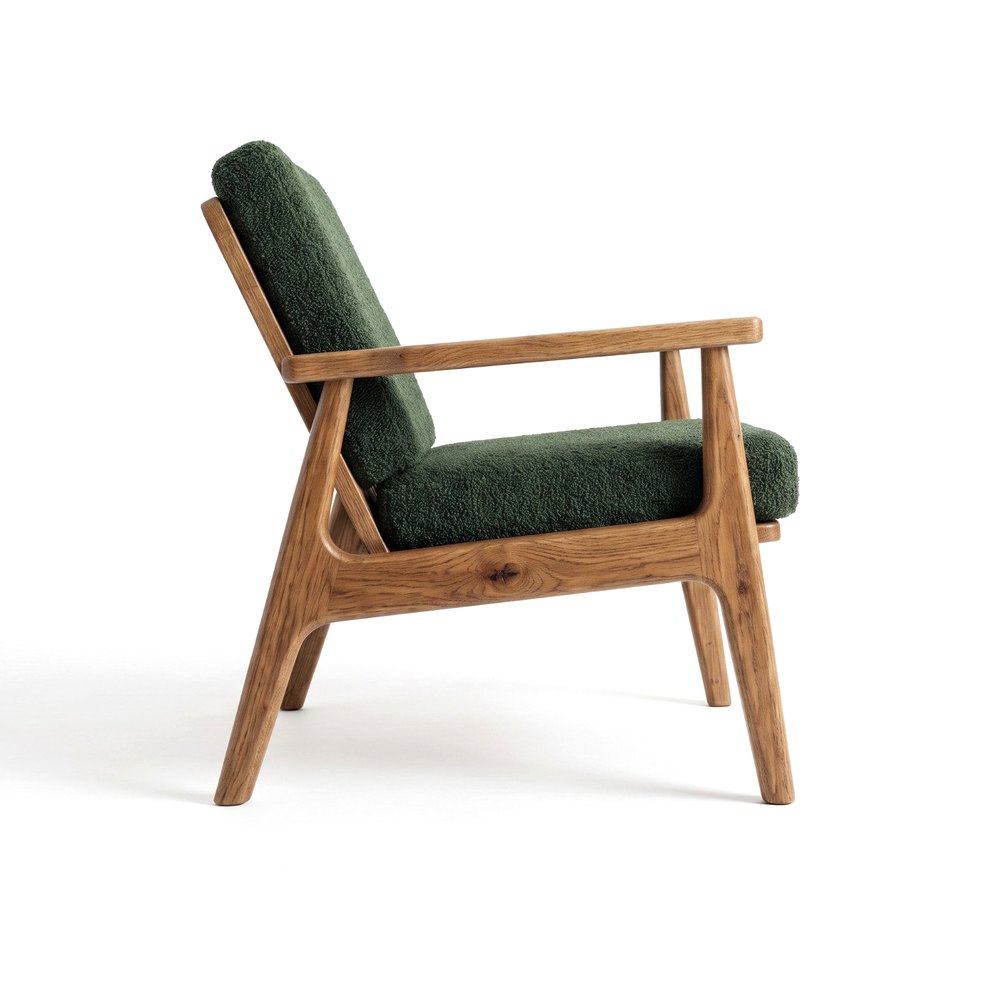 SIDE
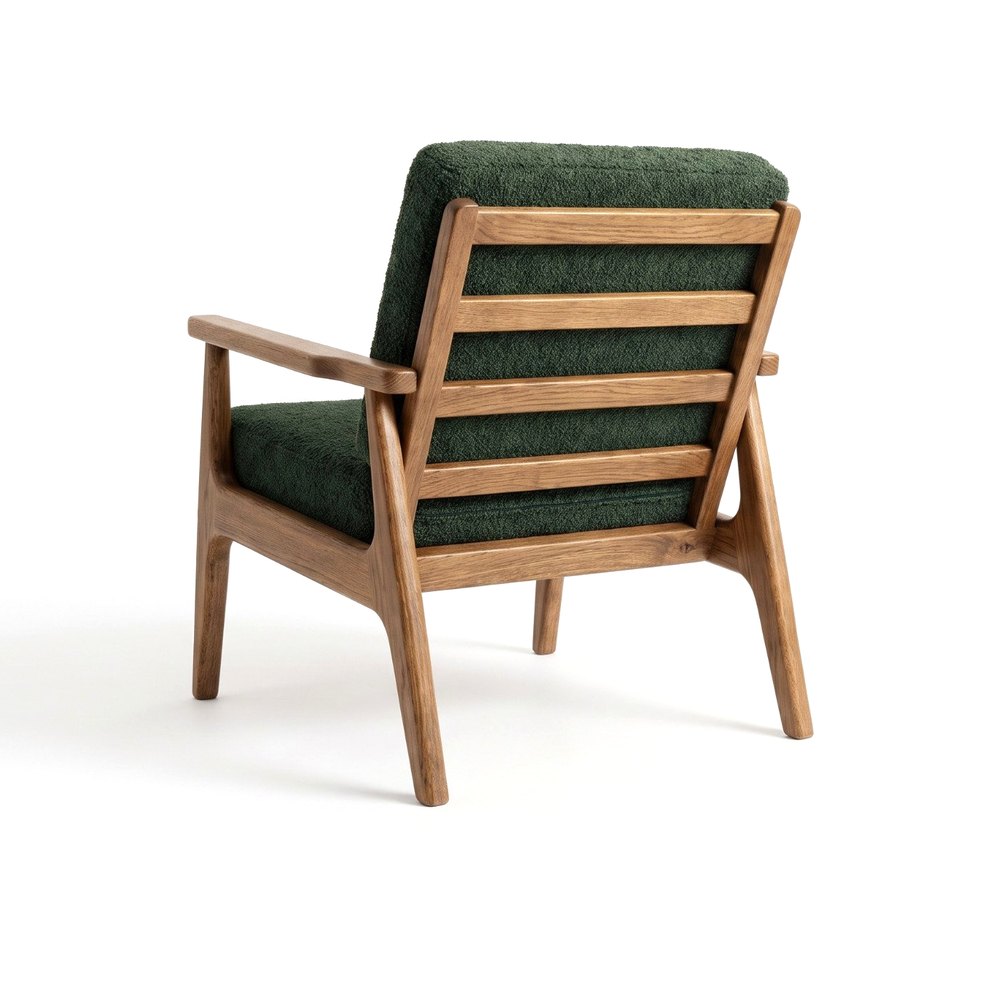 BACK
Step 2. Create a studio photo from the front packshot
Click NEW PHOTO, upload the front packshot and choose the furniture type. In the style step, open the STUDIO tab and choose a background, for example CONTRAST. Set the aspect ratio and click CREATE. This photo will be the base for the whole series (10 credits).
Step 3. Turn the piece with the ANGLE edit
Open the finished photo and choose the ANGLE edit. In the THE PIECE FROM ANOTHER SIDE field, upload the side packshot, and under WHAT TO TURN? select Turn the piece. The armchair turns in place, while the background, light and framing stay unchanged (5 credits).
Step 4. Repeat the edit for the other packshots
Make each ANGLE edit on the first photo, not on the previous edit. That way every shot has the same base and the same background. Compare each photo with its packshot: the angle of the piece or a detail may differ slightly. If something doesn’t match, repeat the edit.
CONTRAST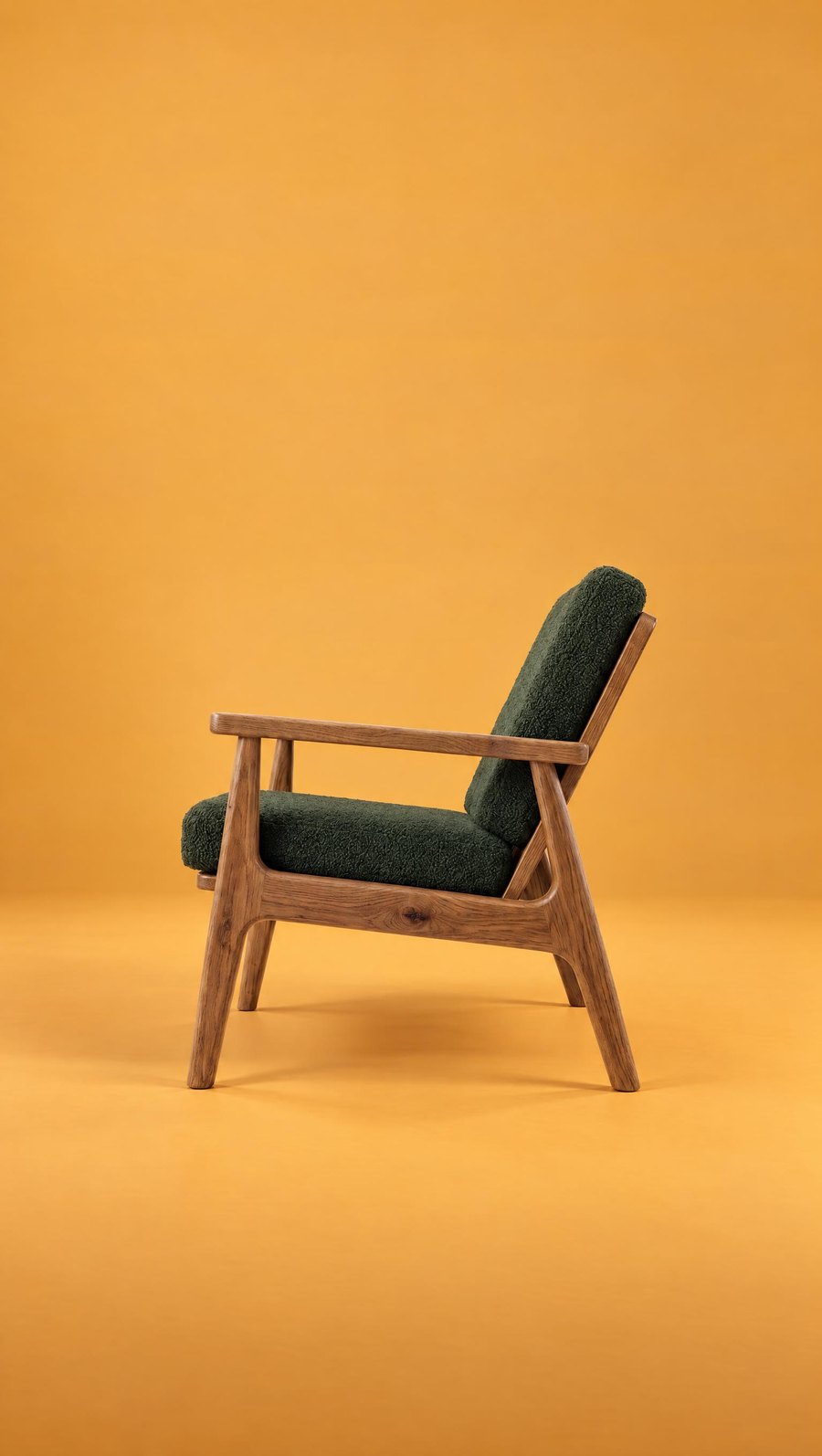 ANGLE
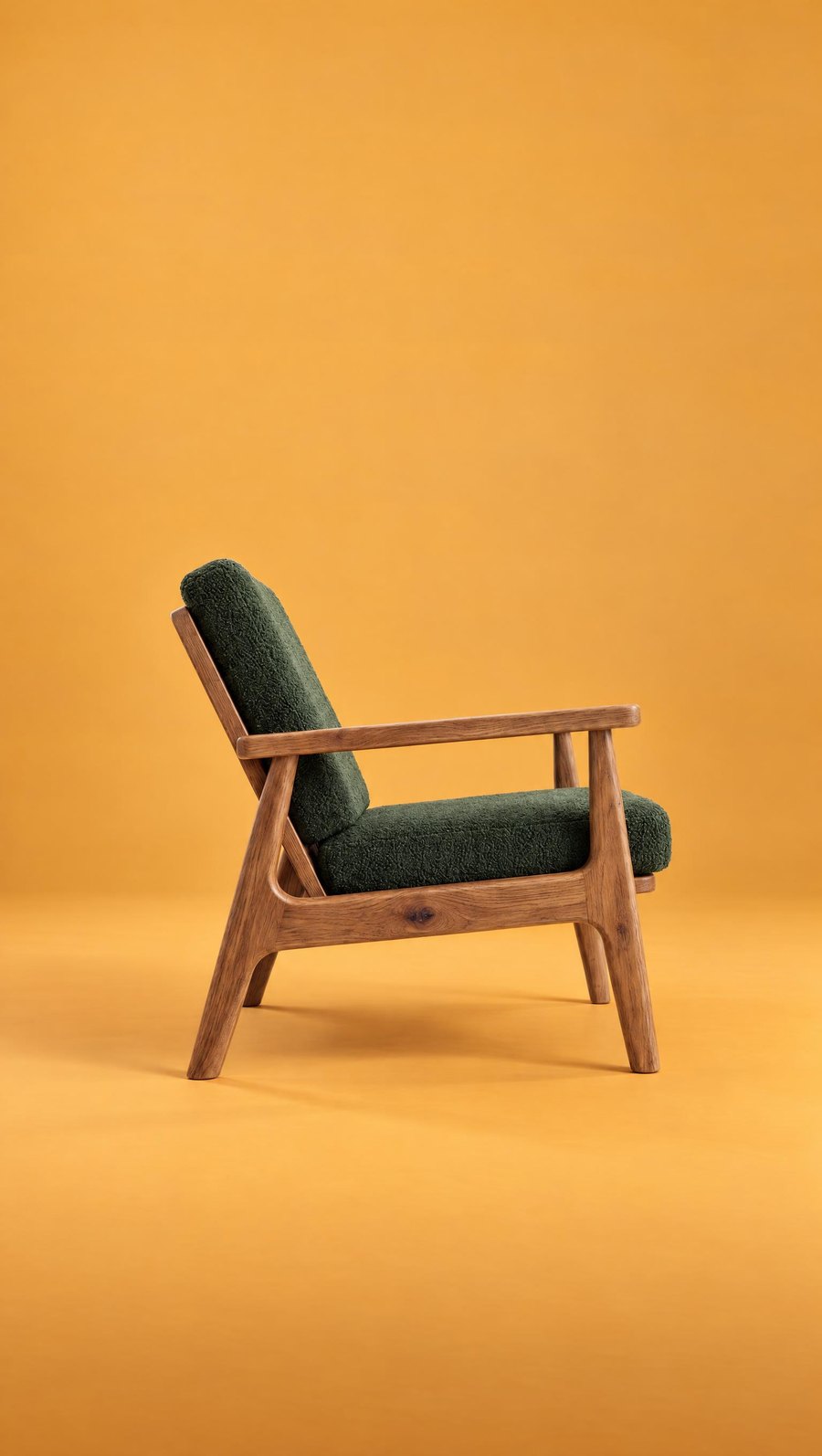 ANGLE
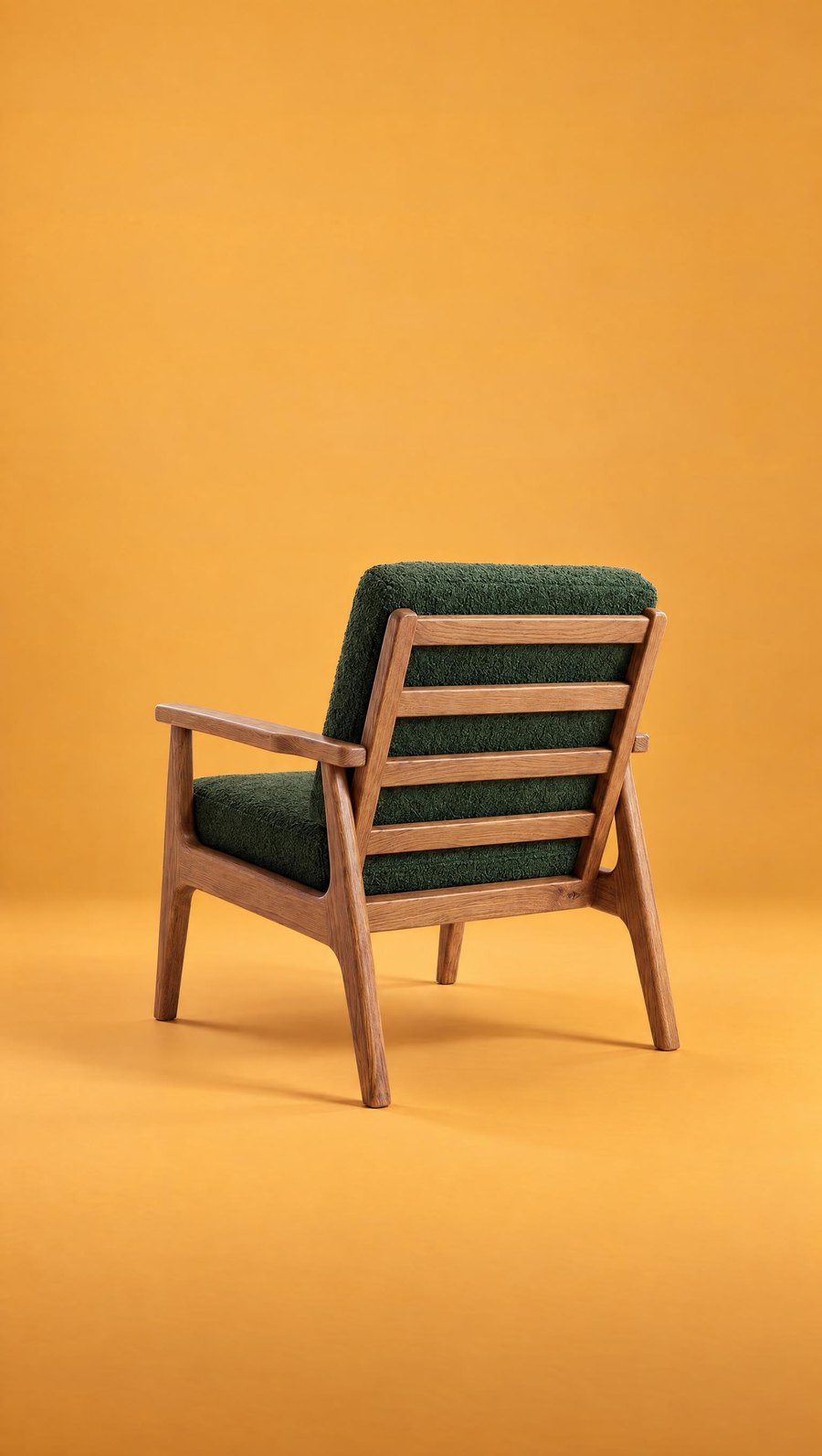 ANGLE
The whole series of four shots costs 25 credits: 10 for the first photo and 5 for each ANGLE edit. Four separate studio photos would cost 40 credits and have four slightly different backgrounds.
A packshot in a room: lifestyle photos
From the same front packshot you can also create lifestyle photos. Instead of a studio background, you choose an interior style, for example WARM MINIMAL, SCANDINAVIAN, OFFICE or the seasonal WINTER+XMAS, and Sopla places the piece in a furnished room. You can choose from home interiors, an office, outdoor settings and seasonal styles, as well as your own interior, such as your showroom. We cover the whole process in our guide Furniture lifestyle photos from a packshot.
PACKSHOT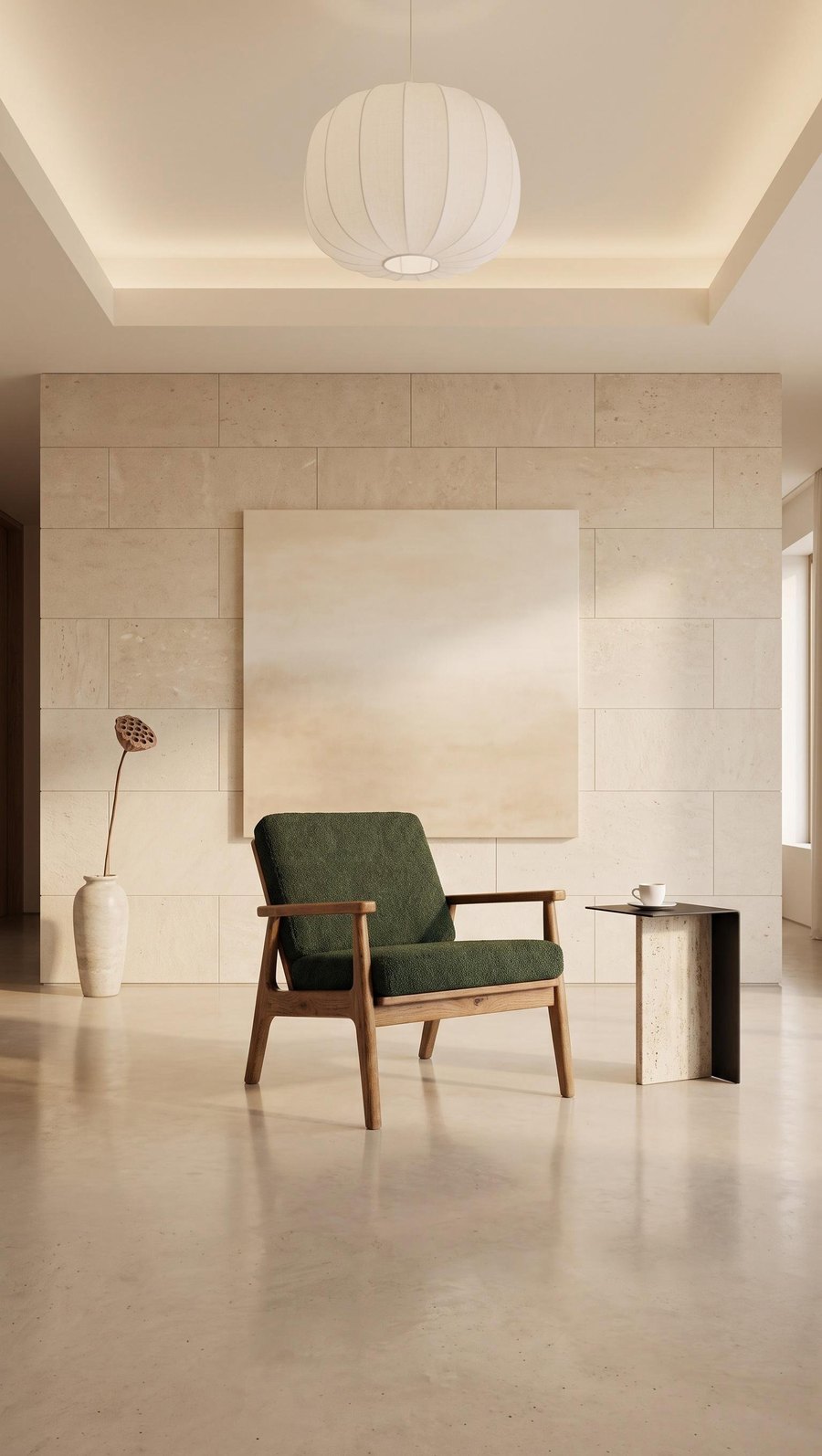 WARM MINIMAL
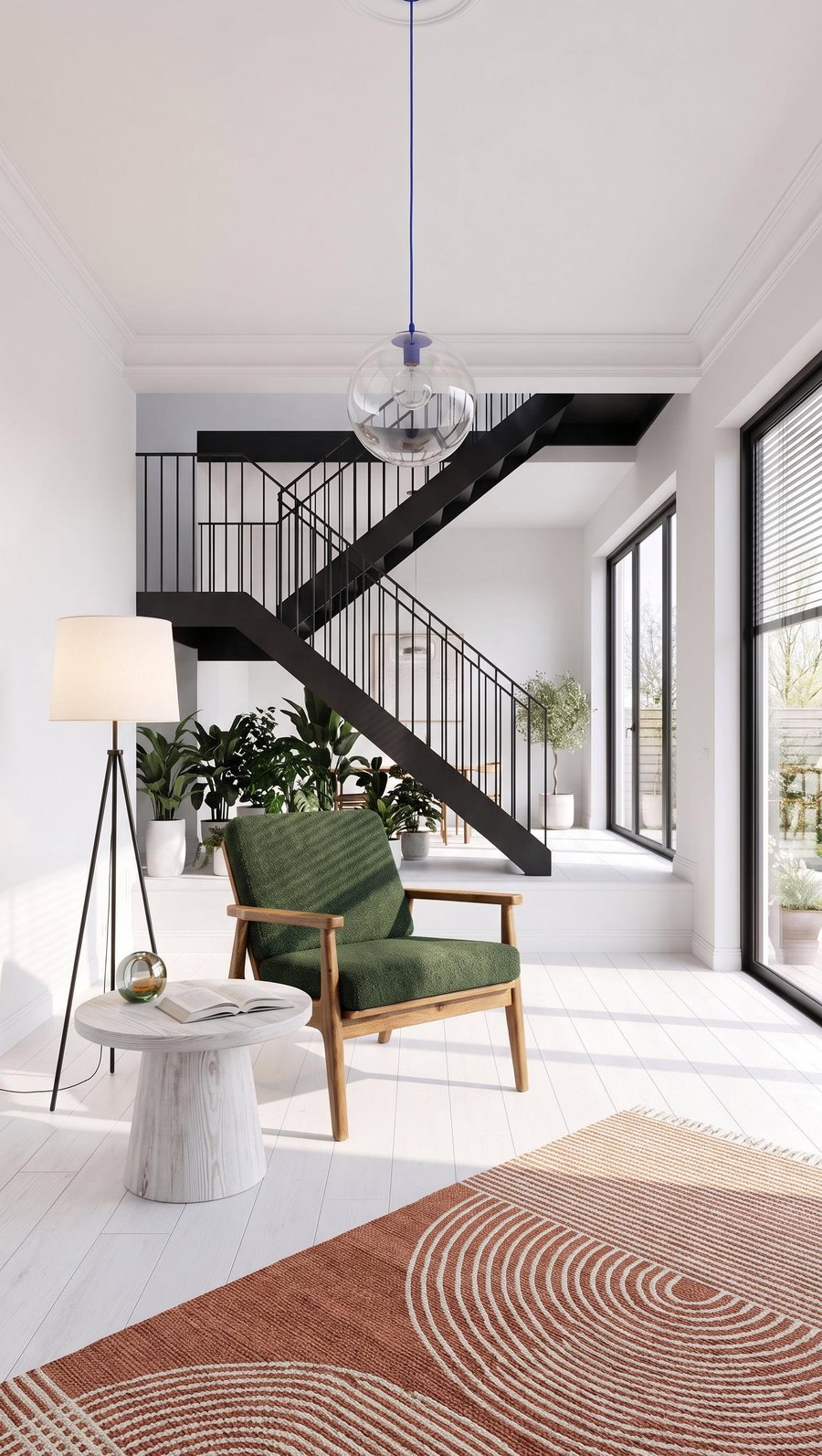 SCANDINAVIAN
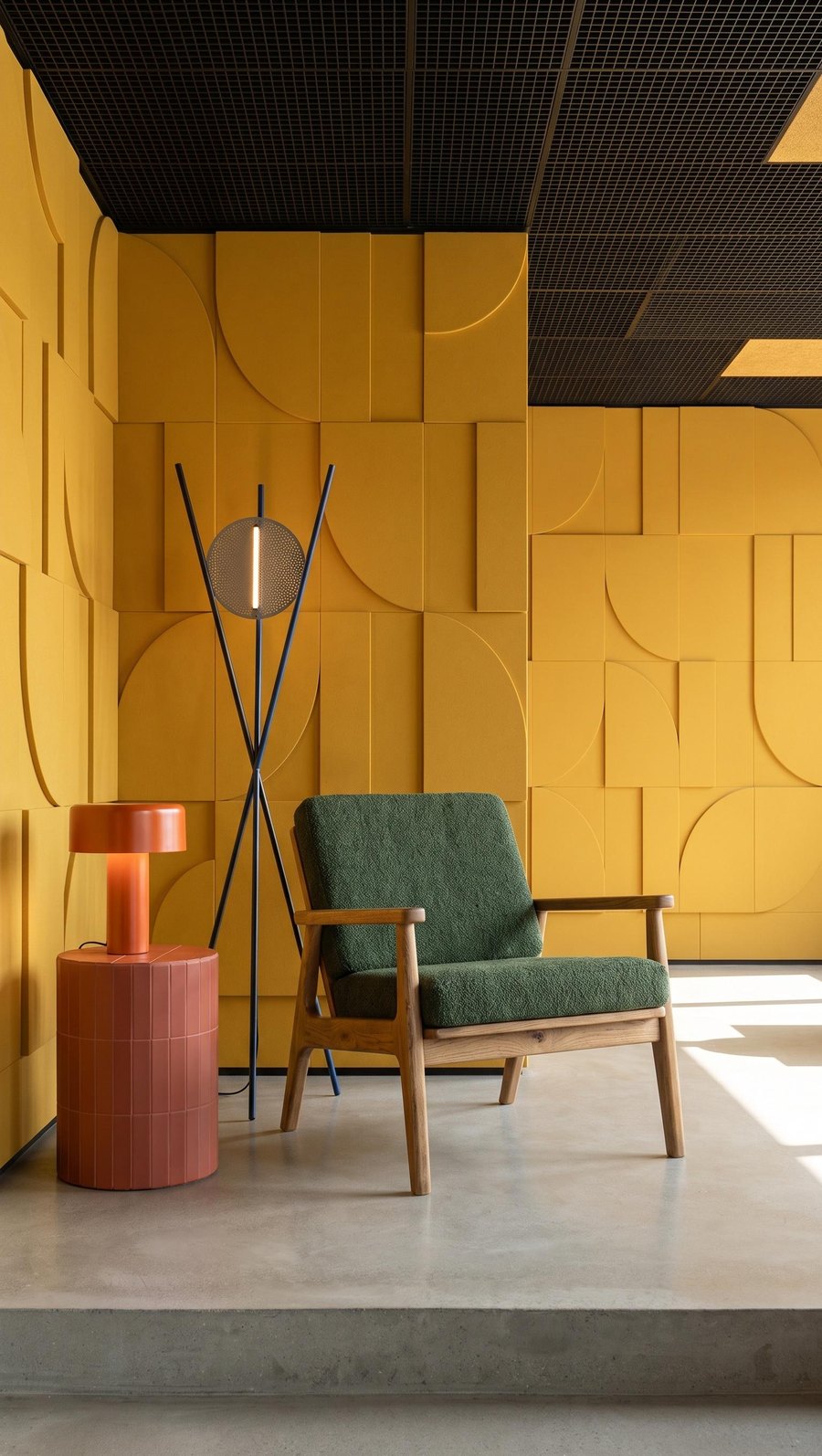 OFFICE
What else you can create from one packshot
You can keep changing a finished studio or lifestyle photo. The most useful options are:
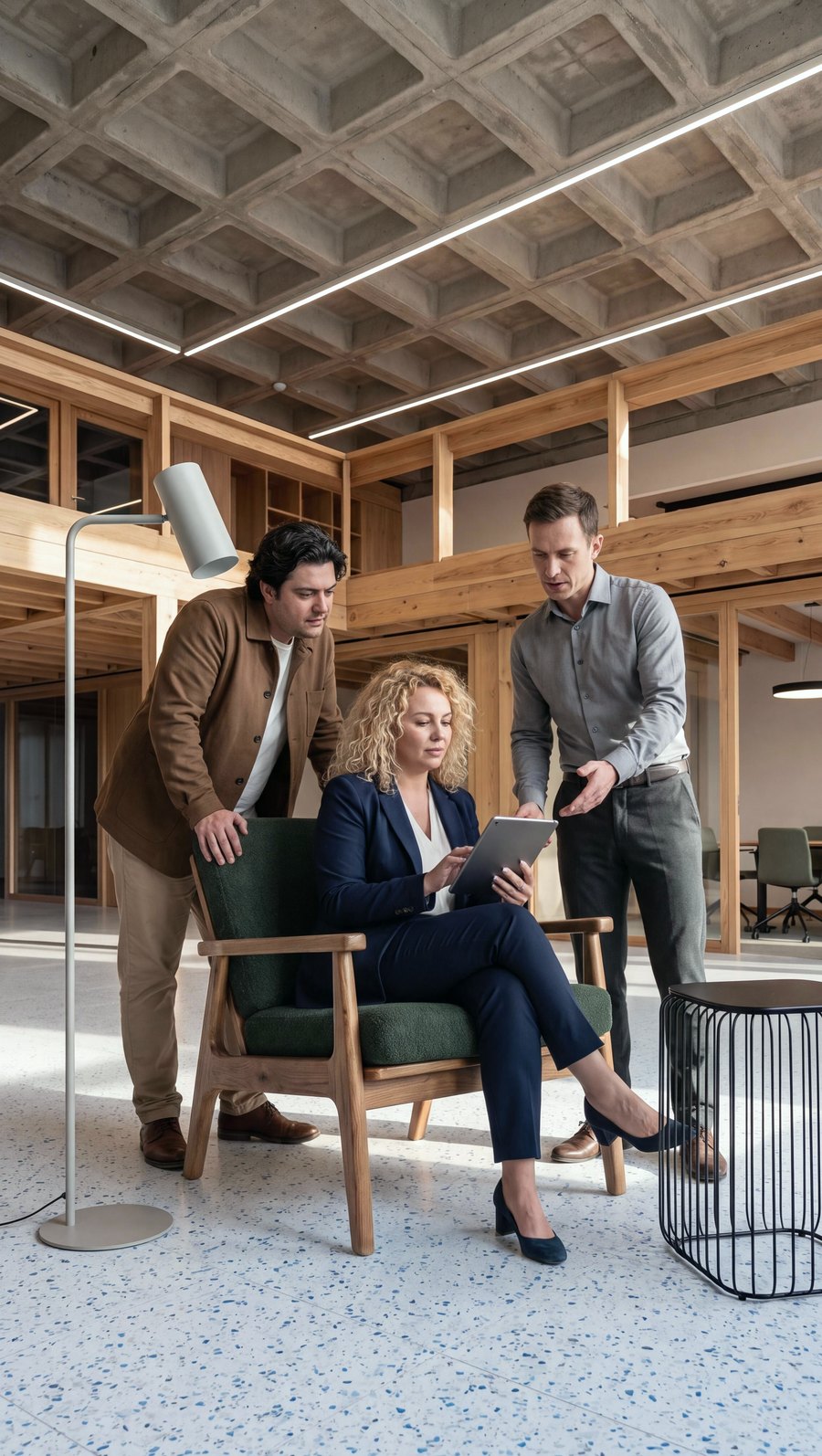
- People and pets: the ADD PEOPLE button adds one of 13 scenes to the photo, for example office workers, a family or a dog. It shows the piece in use and its scale (10 credits).
- Product variants: another colour or material, up to 5 at once, or a photo of another version, for example a sofa bed opened out (5 credits each).
- Versions for each channel: a new aspect ratio, the piece’s dimensions in centimetres on the photo (no credits) and a 4K version for print.
- Video: a short 1080p video from a finished photo, for reels and ads.
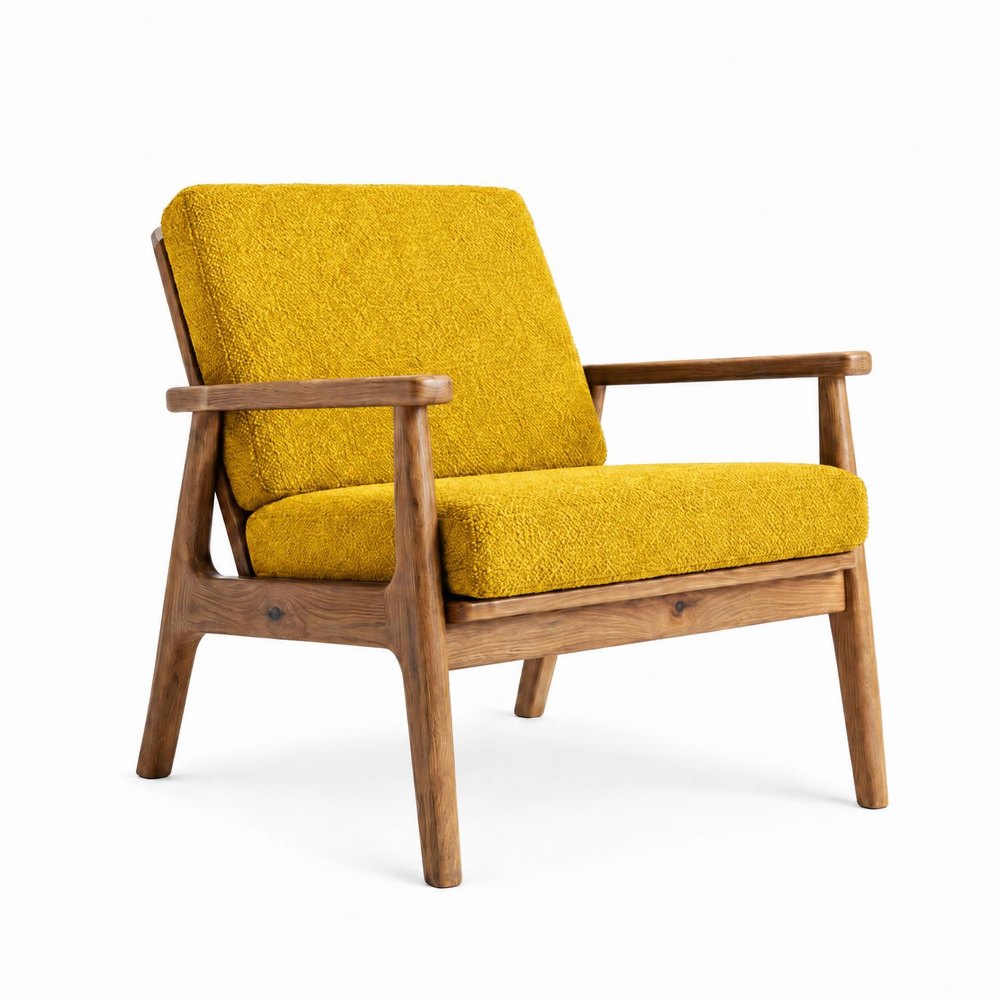 COLOR
 MATERIAL
 PEOPLE
How much it costs in Sopla
| What you create | Credits |
|---|---|
| Studio or lifestyle photo from a packshot | 10 |
| Packshot on a white background (PACKSHOT style) | 10 |
| ANGLE edit | 5 |
| ADD PEOPLE | 10 |
| Series of 4 shots on one background (1 photo and 3 ANGLE edits) | 25 |
Plans differ only in the number of credits, and every plan includes all styles and features. See the plans.
Frequently asked questions
What is a packshot?
A photo of the product alone on a plain, usually white background, with no interior or props. In the furniture industry it’s the basic photo of every model, used as the main image in online shops and on marketplaces.
How is a packshot different from a lifestyle photo?
A packshot shows the piece on its own, while a lifestyle photo shows it in a furnished room. A packshot answers the question of what the product looks like, and a lifestyle photo the question of how it will look at home. Online shops usually need both.
What background should I use for a furniture packshot?
White or a light single colour, with no creases and no shadows on the wall. On many marketplaces, Amazon for example, the main image must have a pure white background.
How many packshot angles does one piece of furniture need?
Usually four: front at an angle, side, back and a close-up of the material. For pieces with several versions, such as a sofa bed, add a shot of each version.
Can I take a packshot with my phone?
Yes. What matters most is sharp focus across the whole piece and the whole piece in frame. The background doesn’t have to be perfect: even from a warehouse photo, the PACKSHOT style in Sopla will create a packshot on a white background.
What format should a packshot be?
Any. You can upload a packshot in any aspect ratio, and you create the finished photos in one of 7 formats: 9:16, 4:5, 1:1, 5:4, 3:2, 2:3 and 16:9. You can also download a photo and crop it yourself.
Which packshot software should I choose?
To remove the background and nothing else, a background removal tool is enough. If you then want to create studio photos, lifestyle photos and video from your packshot, choose an app that does it all in one place. In Sopla you upload a packshot once and use it for every photo that follows.
How do I create several studio photos of a piece on the same background?
Create one studio photo from the front packshot, then add the other shots with the ANGLE edit and the “Turn the piece” option, uploading packshots from the other sides. The background, light and framing stay the same.
Does the furniture in a studio photo look the same as in the packshot?
In most photos, yes, because Sopla starts from your packshot, not from a description. Sometimes the angle of the piece or a detail changes, so it’s worth comparing every photo with the packshot before you publish.
Got packshots? Upload them and create your first studio photo series.