
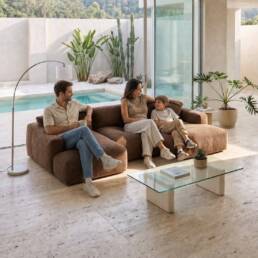
How many photos does a furniture product page need, and which ones?
A furniture product page usually works best with 6-8 photos and a short video: a packshot on white, two or three lifestyle photos in different interiors, a photo with people that shows scale, a photo with dimensions, a close-up of the material and photos of the piece's versions, such as a sofa unfolded into a bed. If the piece comes in several colours, each colour should have its own photos. Below you'll find every type of photo in gallery order, and a complete set for one sofa created in Sopla.app.
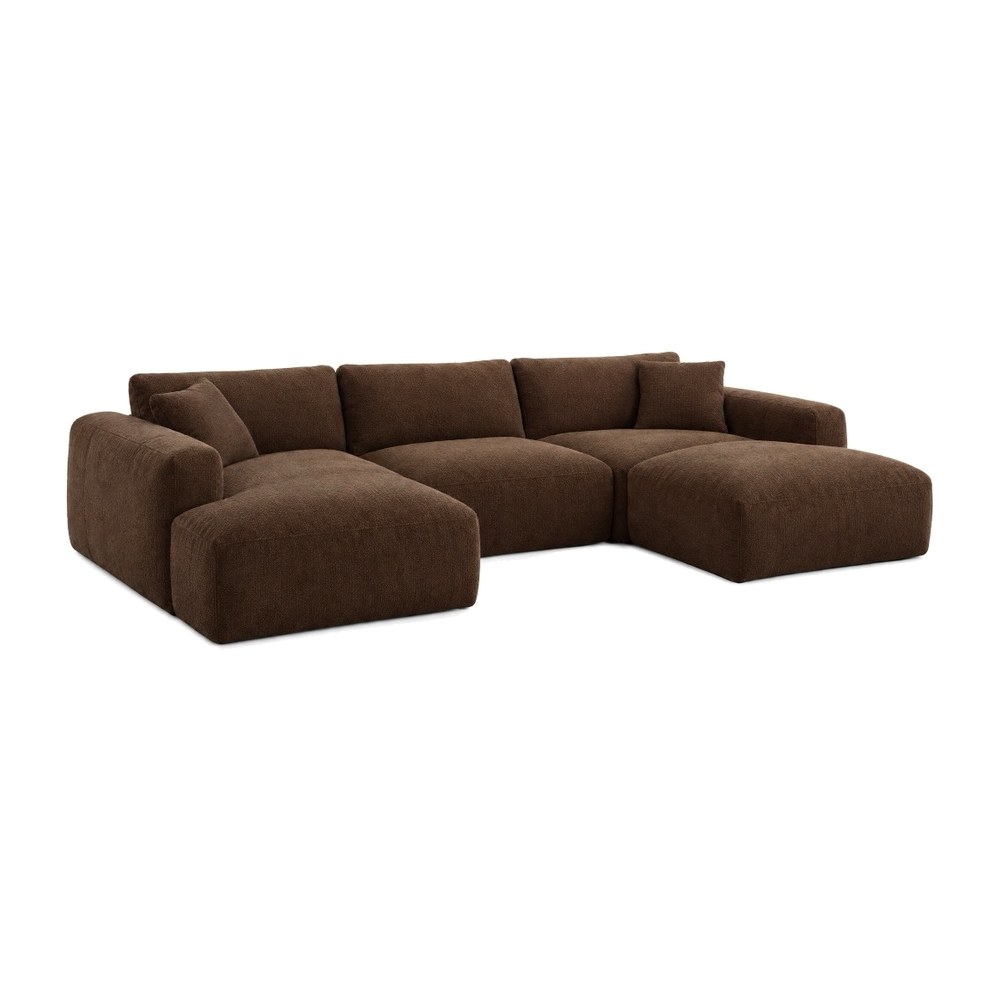 PACKSHOT
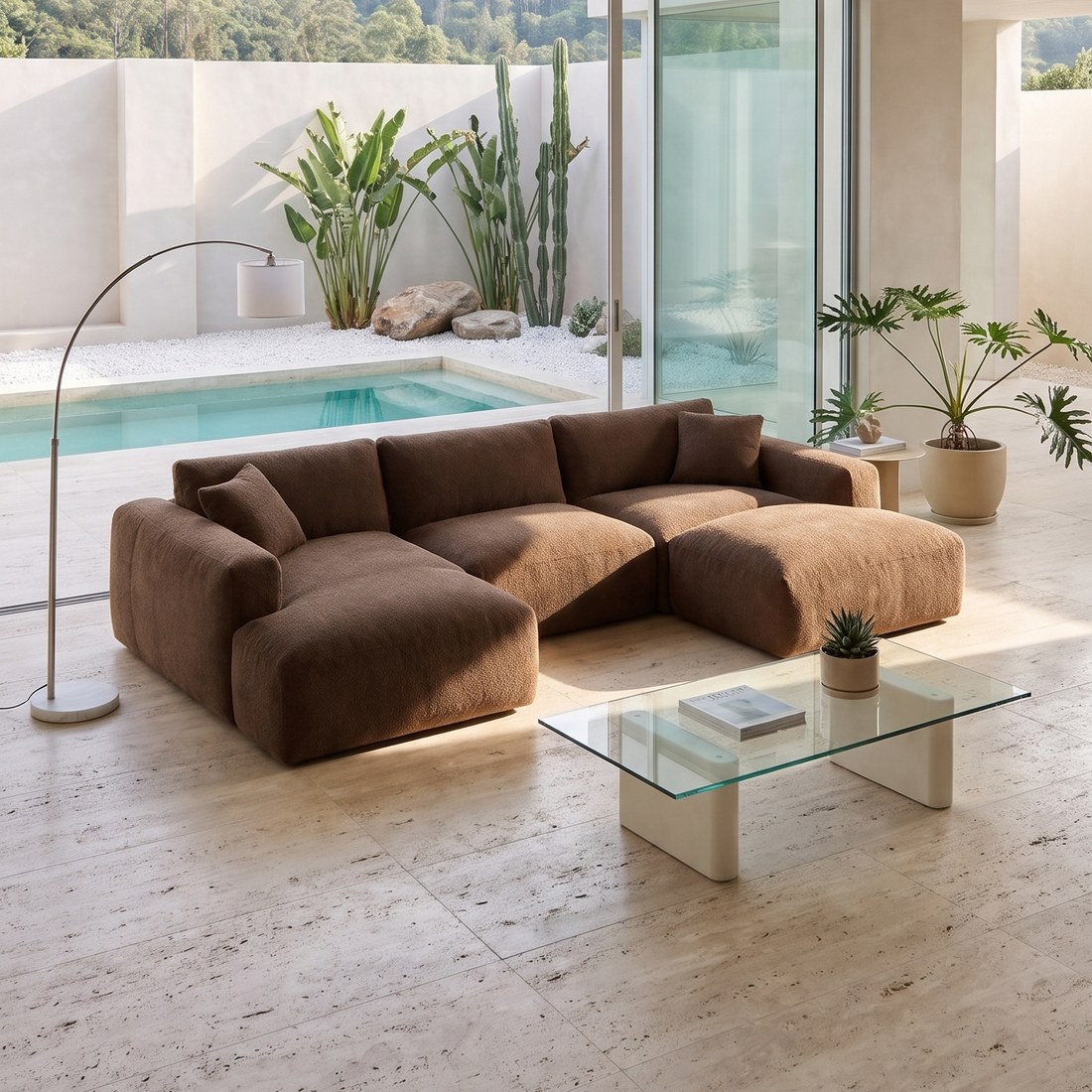 MODERN
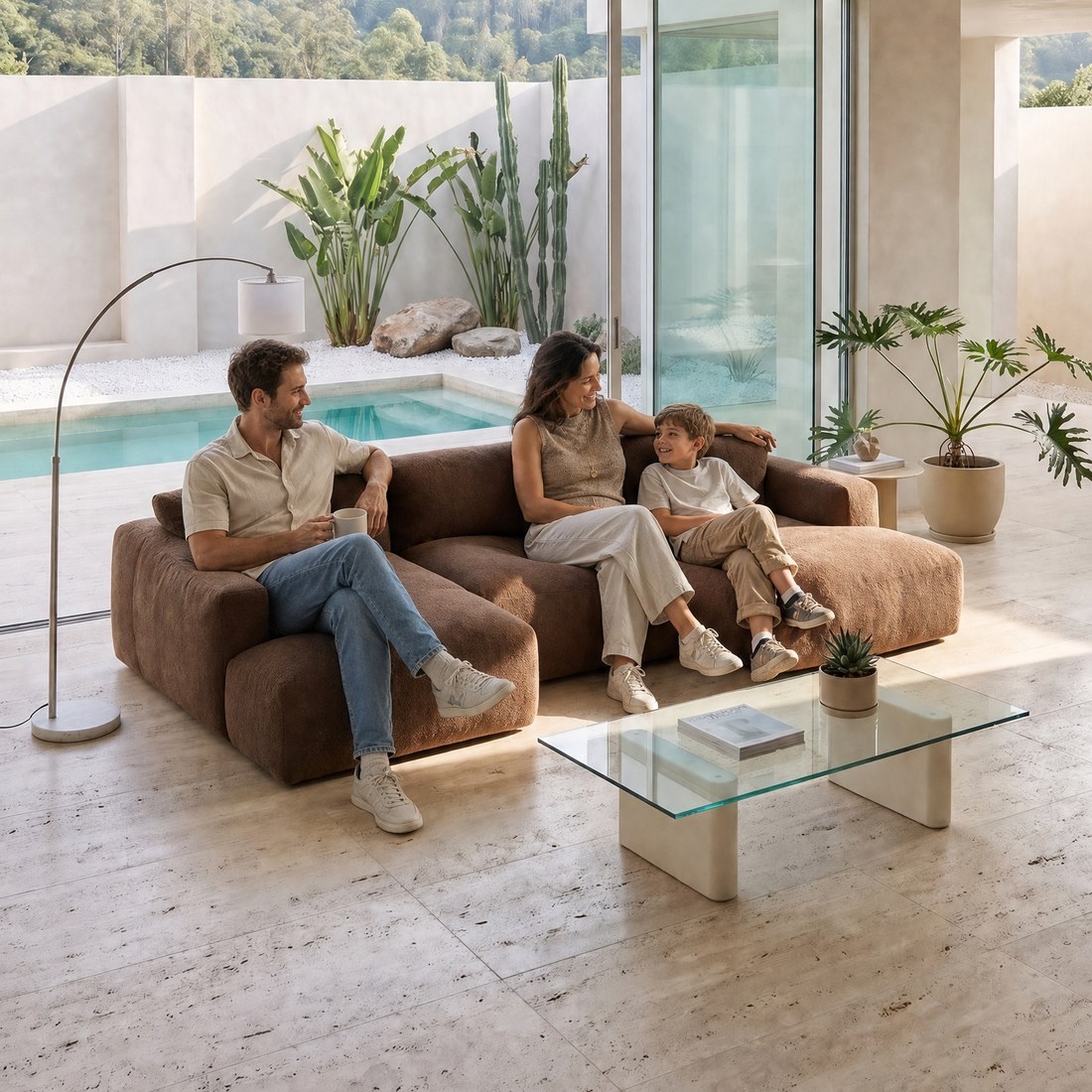 FAMILY
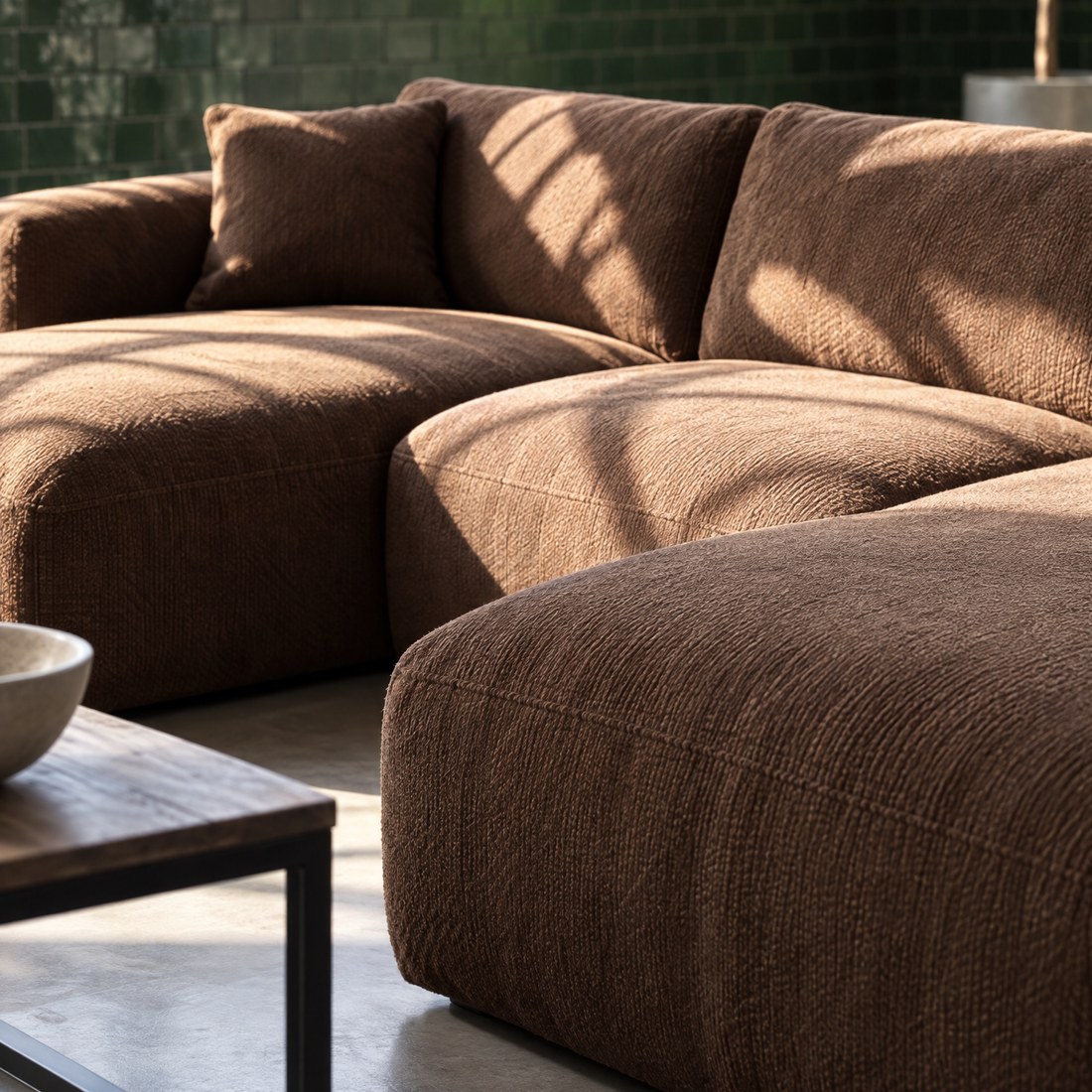 ZOOM
Why photos decide a furniture purchase
You can't touch or measure furniture online, so shoppers look for answers in the photos. In Baymard Institute's 2024 research, 79% of participants shopping for furniture and home decor started by looking at the photos on the product page, compared with an average of 46% on sites selling other products.
Shoppers look for several answers in the photos at once: what the piece looks like, whether it suits their home, whether it will fit and what it's made of. In Baymard's 2026 survey of 1,598 US shoppers, the most useful information for judging whether furniture will fit was dimensions in the description (49%) and photos with dimensions (42%), followed by customer photos and lifestyle photos (38% each).
One or two photos can't answer all of that. Baymard found that many sites show too few photos and too few types of shot, and that participants did better on sites with plenty of photos that each showed something different.
Which photos a furniture product page should show
Each photo in the gallery answers one question a shopper has. This is the full set:
| Photo | Question it answers | How many | How to create it in Sopla |
|---|---|---|---|
| Packshot on white | What does the piece look like? | 1 | A packshot from a photographer or the PACKSHOT style |
| Other sides | What does it look like from the side and back? | 1-2 | Packshots from other sides or the ANGLE edit |
| Lifestyle photos | Will it suit my home? | 2-3 | Interior styles or your own interior |
| Photo with people | How big is it? | 1 | ADD PEOPLE |
| Dimensions | Will it fit in my room? | 1 | DIMENSIONS |
| Close-up | What is it made of? | 1-2 | ZOOM |
| Versions and functions | How does it unfold, open, what's inside? | One per function | VARIANT |
| Colours | What does it look like in my colour? | A set per colour | COLOR, MATERIAL or VARIANT |
| Video | What does it look like in motion and in the room? | 1 | MAKE VIDEO |
Not every piece needs every type. A chair has no sleeper version, and a chest of drawers in one colour doesn't need variant photos. A simple piece is fine with 6 photos, while a corner sofa in four colours needs a dozen or more.
The order of photos in the gallery
Shoppers see the first photos in the product list and in the gallery preview, so the most important answers go first:
- Main photo. A packshot or a lifestyle photo, but the same type across the whole category: packshots and lifestyle photos mixed side by side in a product list look messy. On marketplaces the main photo is usually a packshot on white, as we explain in Furniture photos for Amazon, Wayfair and other marketplaces.
- Your best lifestyle photo. The piece in an interior your customers will like.
- Photo with people. It shows the size of the piece straight away.
- Dimensions. The answer to whether it will fit.
- Close-up of the material.
- Other sides and a second lifestyle photo.
- Versions and functions: the sofa unfolded, the storage open, the table extended.
- Video, if your shop lets you add it to the gallery.
Lifestyle photos: two or three different interiors
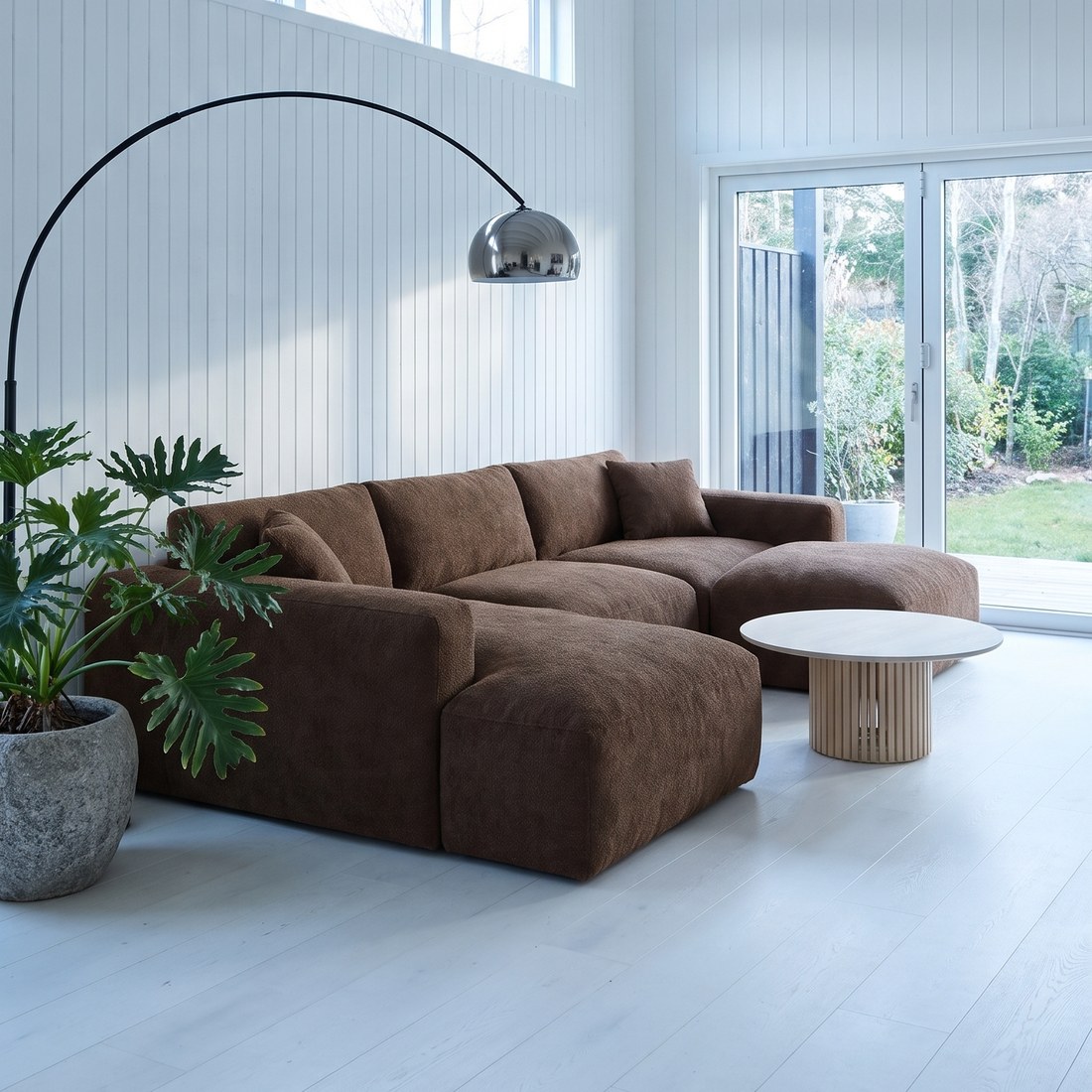
One lifestyle photo shows the piece in one interior. Someone with a bright Scandinavian flat won't always picture a sofa from a dark industrial loft in their home. Two or three lifestyle photos in different styles let every shopper find an interior close to their own.
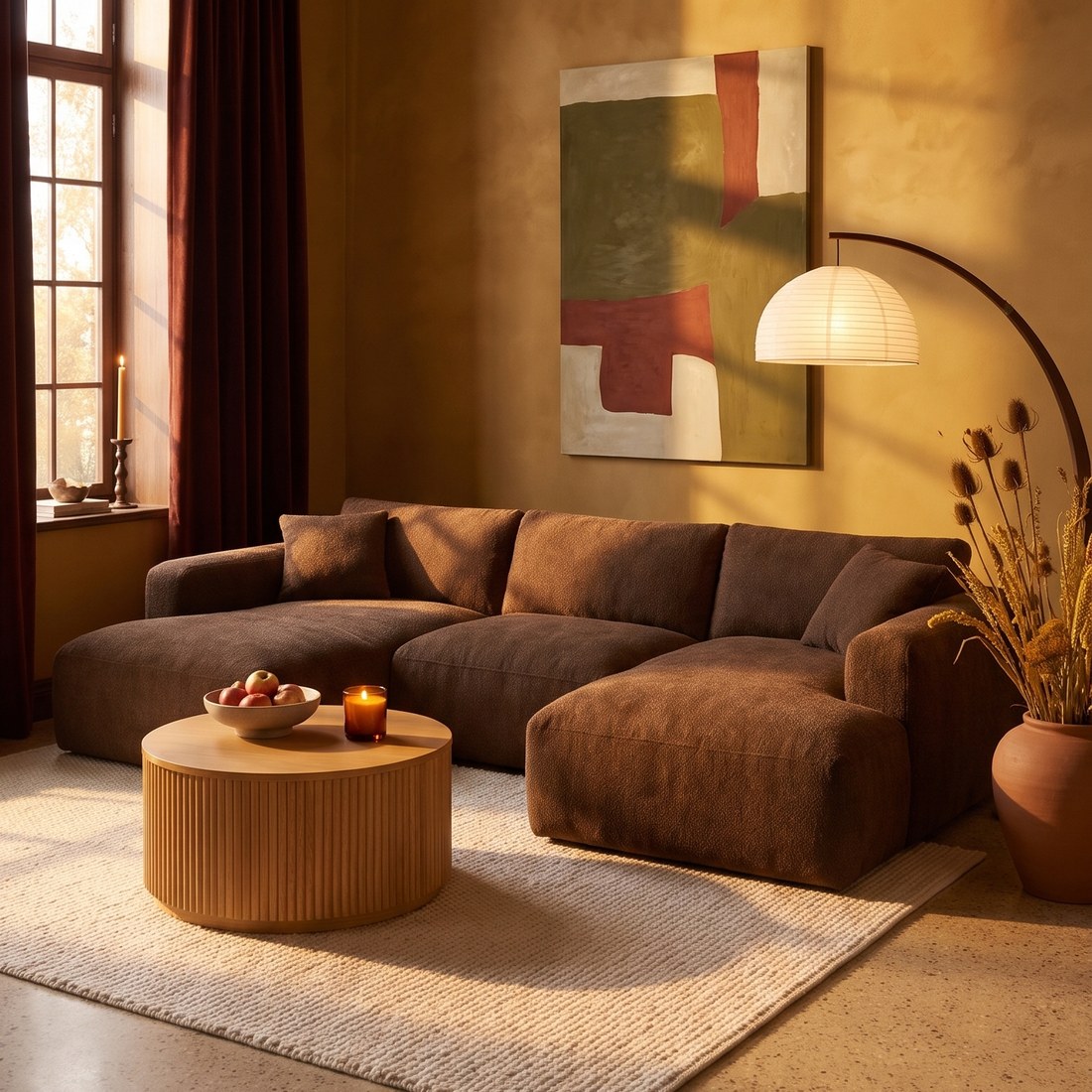 AUTUMN
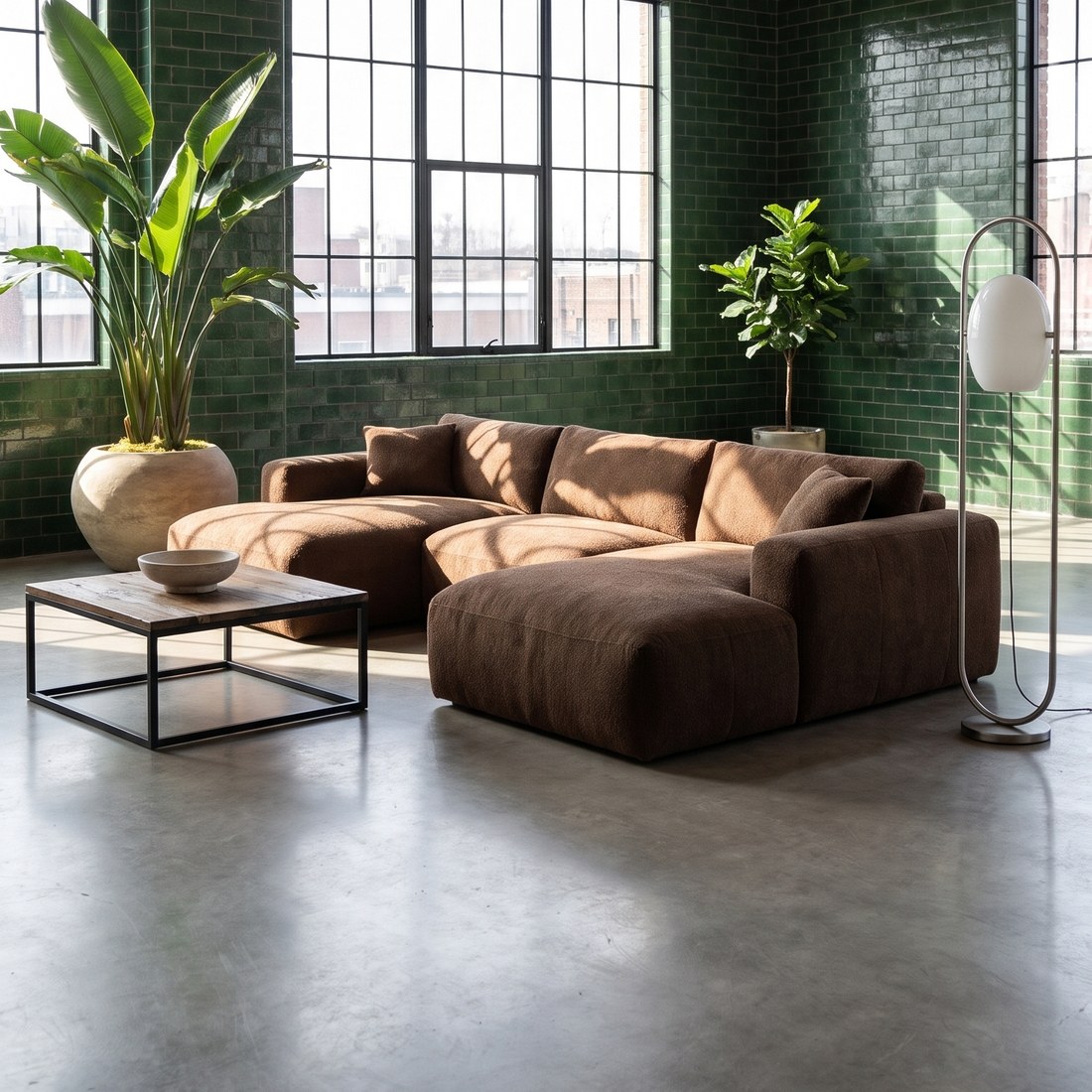 INDUSTRIAL
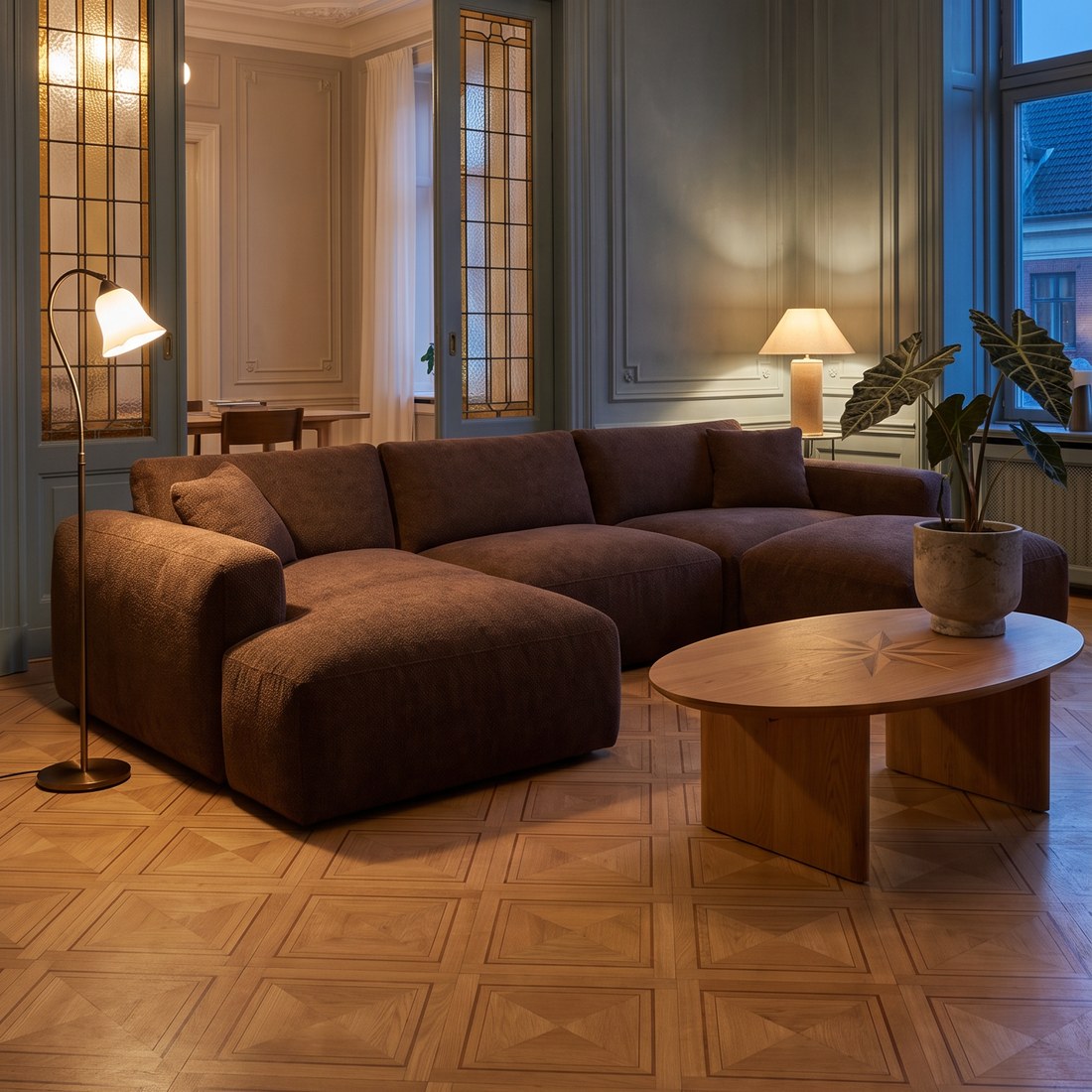 OLDTOWN
 SCANDINAVIAN
In Sopla you upload a packshot, choose one or more styles and create up to 5 photos at once (10 credits per photo). If all your products should stand in the same room, save that interior once and choose it instead of a style. Compare each photo with the packshot: in most photos the piece is the same, but the angle or a detail can differ. If that happens, create the photo again with the same settings. The whole process is in our guide to furniture lifestyle photos from a packshot.
A photo with people shows scale
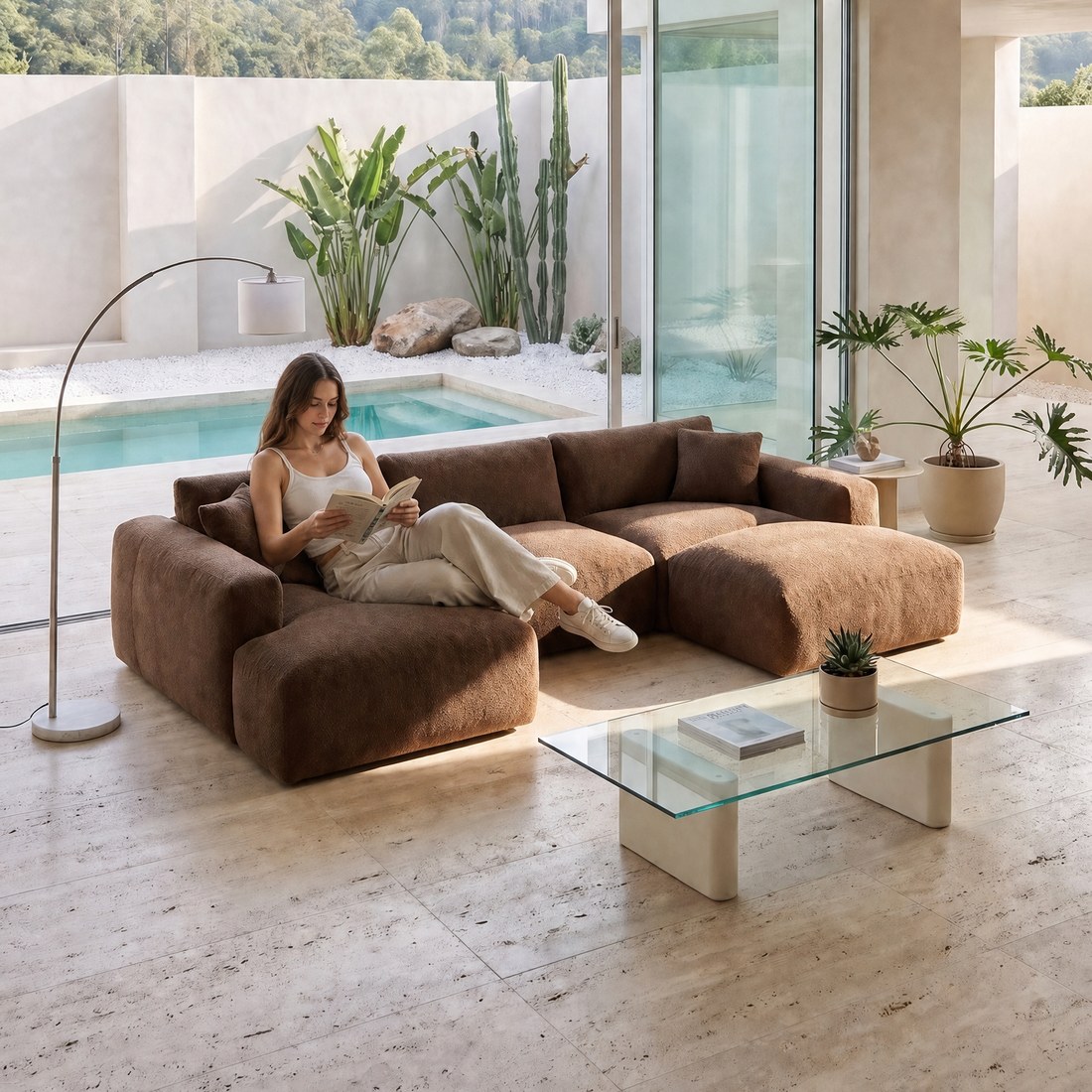
The numbers in the description say how many centimetres the piece measures, but only a person next to it shows how big it really is: whether the whole family fits on the sofa, or whether the armchair is too low. Baymard calls these "In Scale" photos and recommends them on furniture product pages.
 GIRL
 DOG
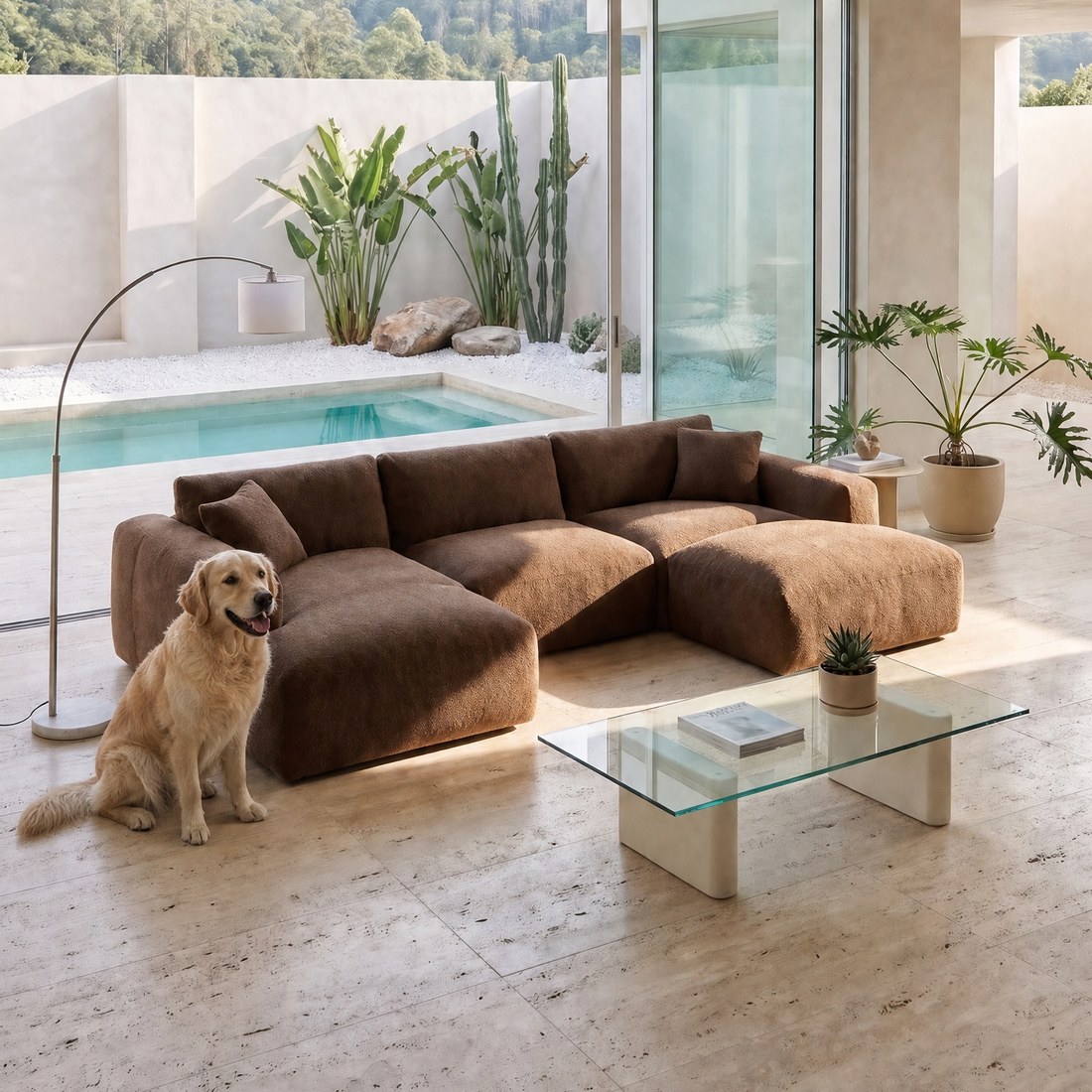
Open a finished lifestyle photo, click ADD PEOPLE and choose one of 13 scenes, such as FAMILY, GIRL, FRIENDS or DOG (10 credits). Sopla adds people to the same room, and the sofa and framing stay unchanged.
Dimensions and close-ups
A photo with dimensions answers the question furniture shoppers ask most: will it fit in my room? Open a packshot and click DIMENSIONS: you draw dimension lines on the photo, type the numbers, and Sopla adds the unit. You download the file with DOWNLOAD WITH DIMENSIONS, at no cost in credits. We show it step by step in the guide to furniture photos for marketplaces.
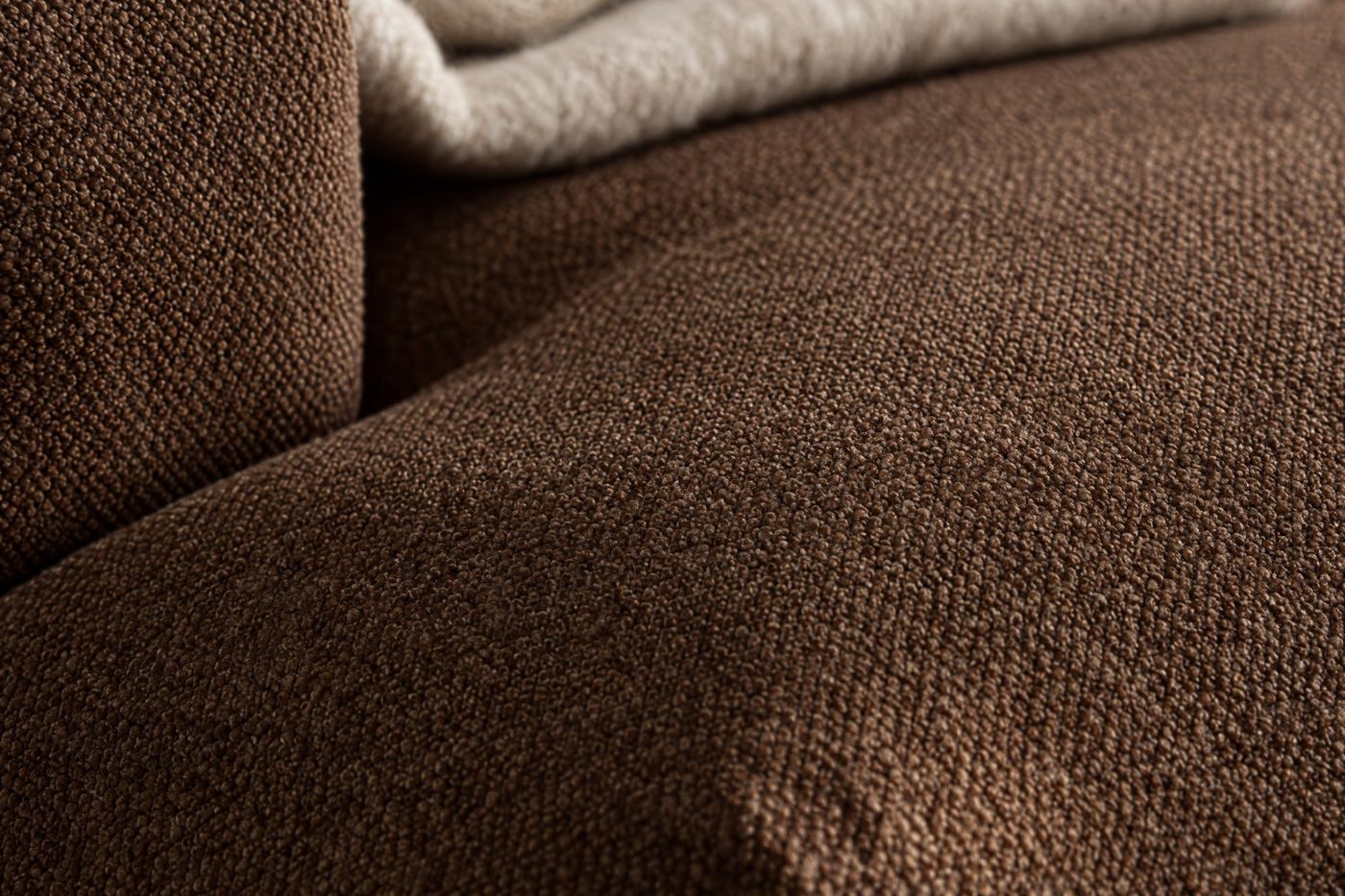
A close-up shows what you can't see in a photo of the whole piece: the weave of the fabric, the wood grain, the stitching, the handles. On a finished photo, click ZOOM and select the part that should fill the frame (5 credits). 2K photos also let shoppers zoom in on the product page, which Baymard found they expect on every furniture photo.
Versions and functions
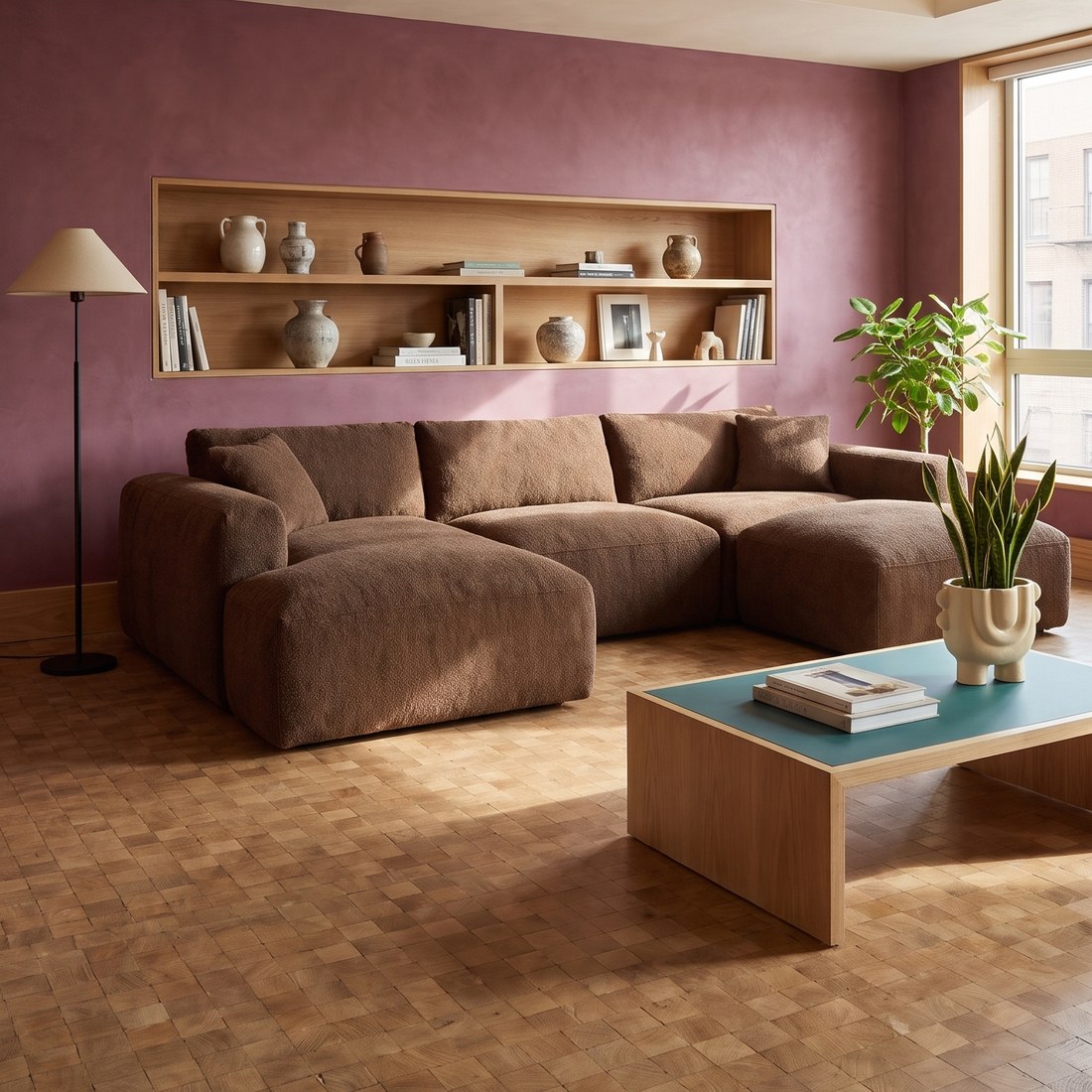
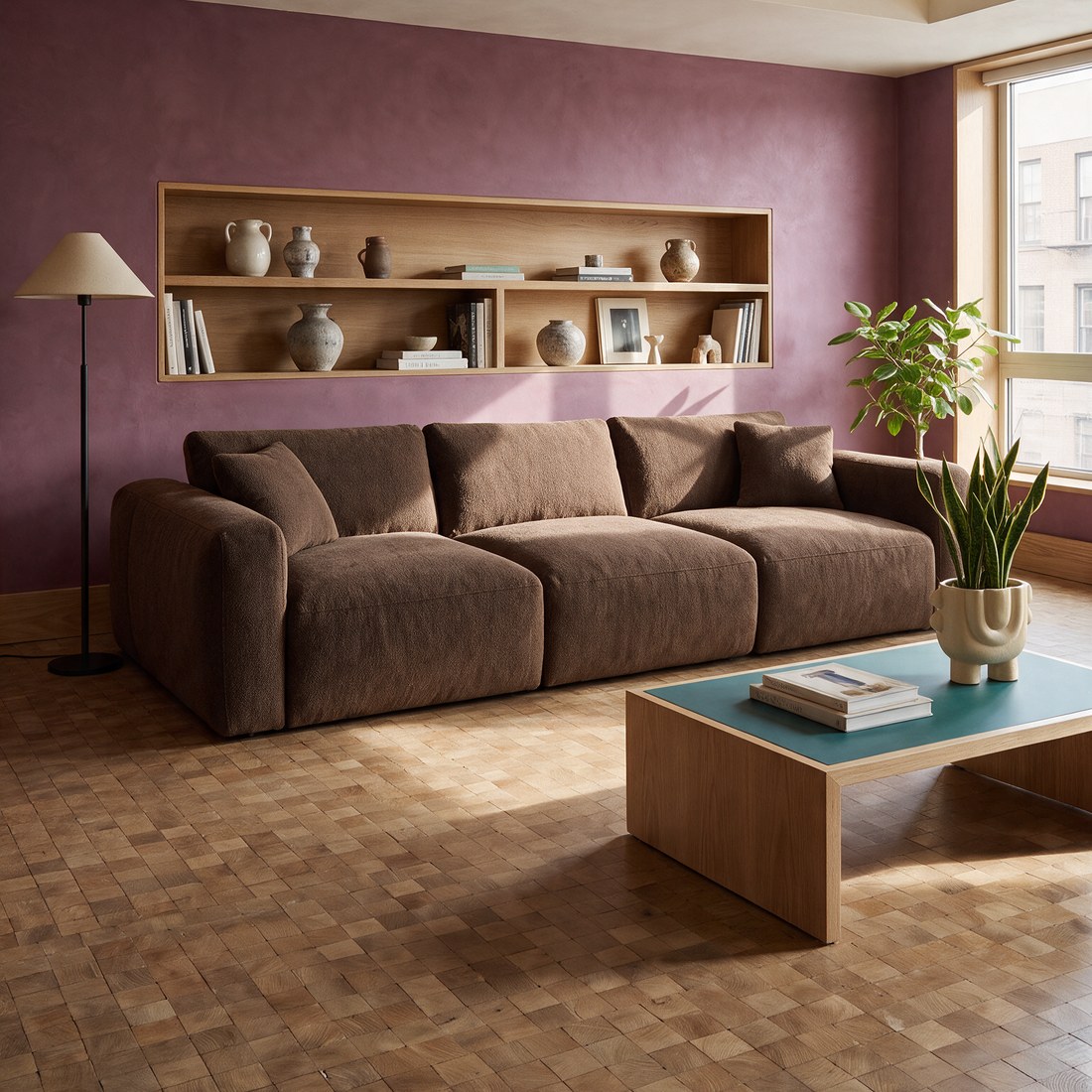
A sofa bed, a chaise with storage, an extending table: shoppers want to see the piece in every state before they pay for the function. The VARIANT edit changes the piece on a finished photo and keeps the same room, framing and angle.
 ORIGINAL
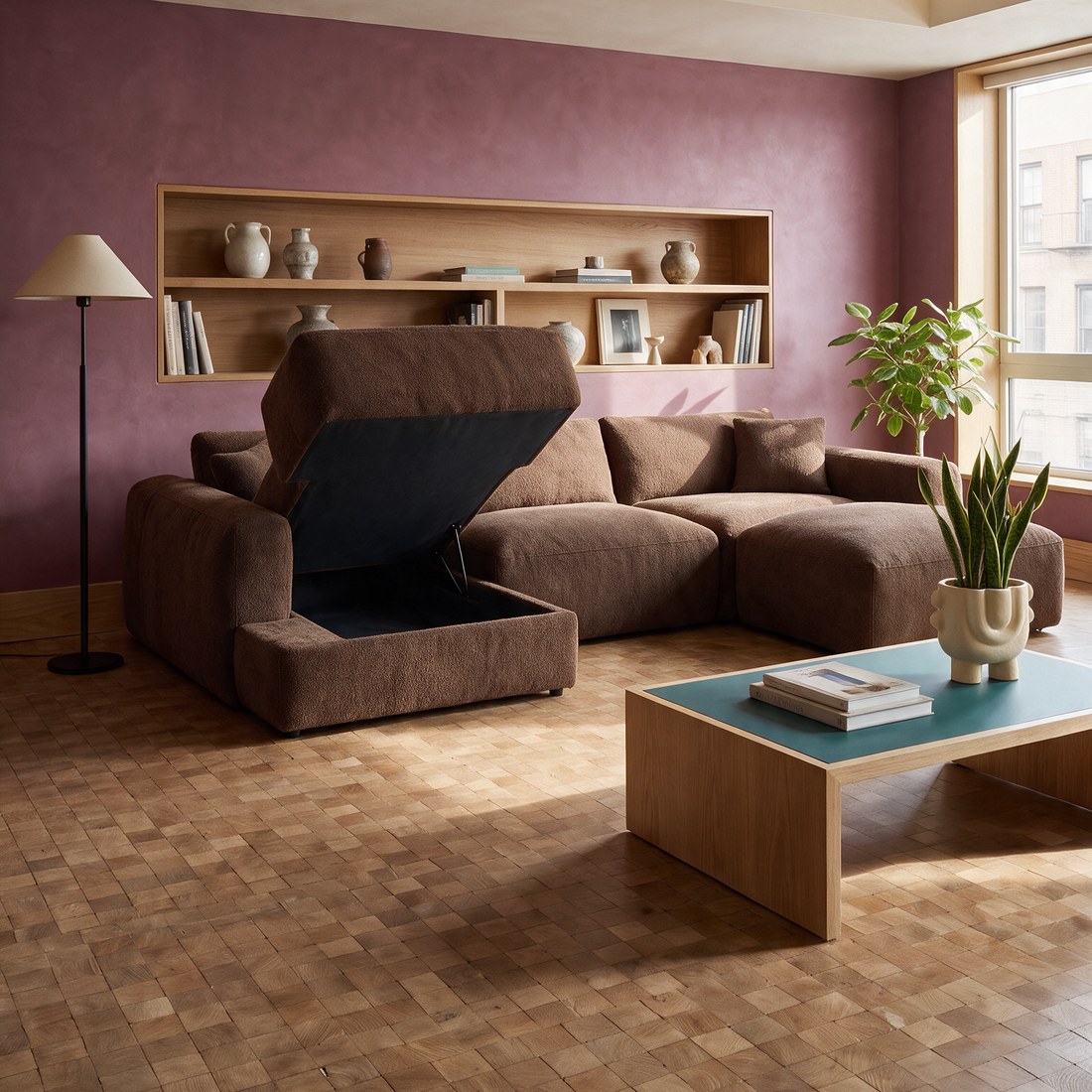 OPEN STORAGE
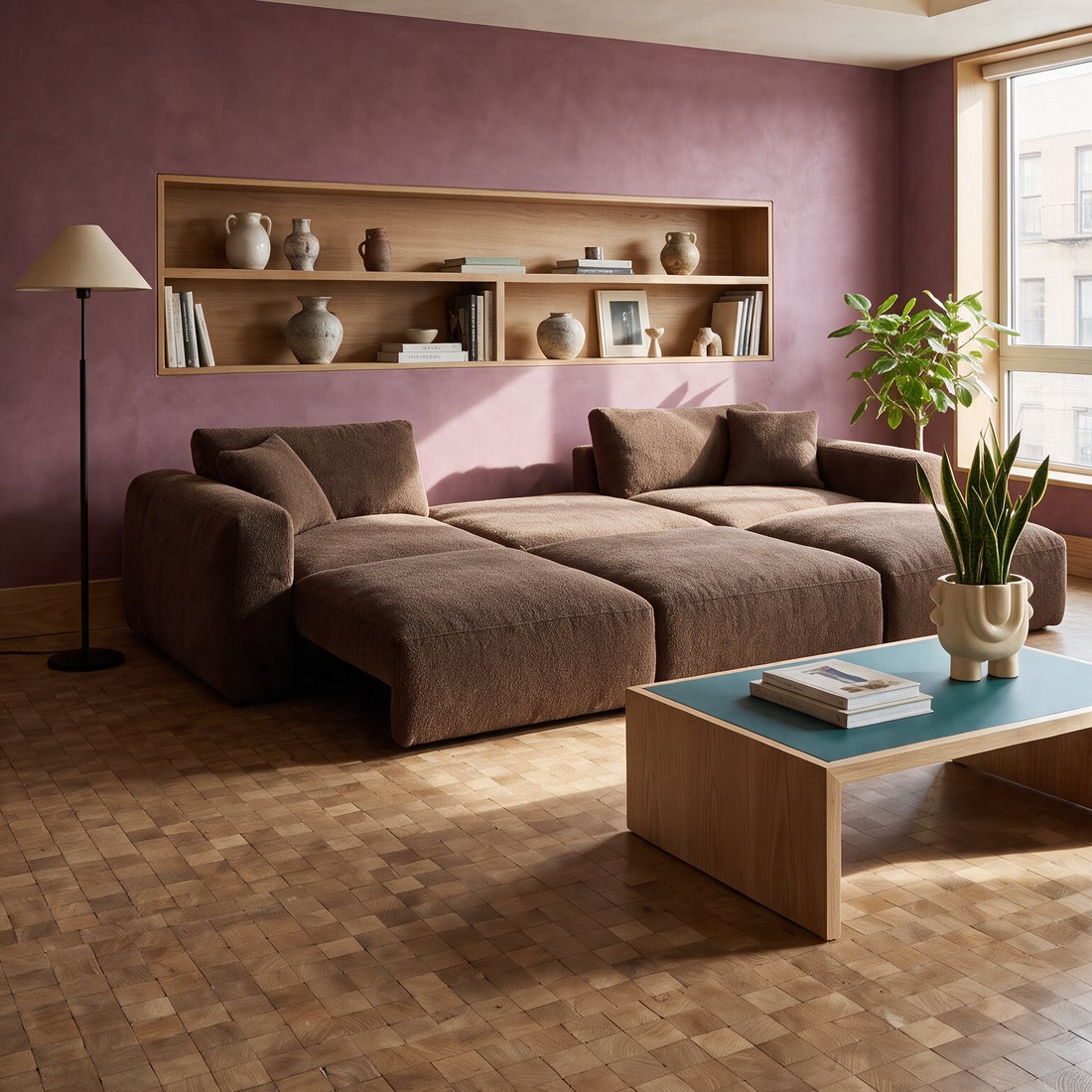 UNFOLDED
 ANOTHER MODEL
On a finished photo, click VARIANT and upload a photo of the piece in another version, for example a packshot of the unfolded sofa. Sopla checks the photo, recognises the piece and its state, and then creates a new photo in the same room (5 credits).
Colours and materials: each with its own photos
When a shopper picks a colour on the product page, the gallery should show the piece in that colour. Photos in one colour only, with a small fabric swatch next to them, raise doubts: in Baymard's research one participant put off a purchase for several weeks because she wasn't sure the colour in the photo matched the swatch.
Each colour should have at least a packshot and one lifestyle photo. Sopla gives you three ways to create them:
- COLOR: up to 5 colours at once, from the RAL palette or as a HEX code, each colour as a separate photo in the same framing.
- MATERIAL: up to 5 materials at once, with a pattern scale of your choice.
- VARIANT: when you have a photo of the piece in another fabric, Sopla transfers that finish onto the finished photo. It's the best option when the colour has to match the real fabric.
Each of these edits costs 5 credits per photo. Compare the colour in the photo with the swatch. For a tricky shade, create the photo again or use the VARIANT edit with a photo of the real fabric.
Video on the product page
In a short video the camera moves around the piece, so shoppers see it from several sides and how much space it takes up in the room. On a finished photo, click MAKE VIDEO and choose a format: one 5-second shot (10 credits) or a 10-second one (15 credits), three 5-second shots (20 credits) or a video with people. Videos are 1080p, so they work on the product page, in reels and in ads.
What a full set for one sofa costs
| What you create | Credits |
|---|---|
| Packshot on white (PACKSHOT style) | 10 |
| 3 lifestyle photos in different styles | 30 |
| Photo with people (ADD PEOPLE) | 10 |
| Photo with dimensions (DIMENSIONS) | 0 |
| 2 close-ups (ZOOM) | 10 |
| 2 versions of the sofa (VARIANT) | 10 |
| 4 extra colours (COLOR) | 20 |
| Video, one 5-second shot | 10 |
| Total | 100 |
The START plan (200 credits a month) covers two such sets. If you already have a packshot from a photographer, take off 10 credits. Plans differ only in the number of credits, and each includes all styles and features. See the plans.
A whole collection in one order
A furniture shop usually has dozens of products, and each one needs its own set. A few things speed up the work:
- Photo batch: upload many packshots at once, Sopla recognises the type of each piece, and you set styles and ratios for the whole group. Details in our guide to the furniture photo batch.
- Your own interior: save a room once and place more pieces in it. All your product pages then have consistent photos.
- Packshots from other sides: upload photos of the back and side of the piece in the photo creator, and Sopla reproduces its shape more accurately in lifestyle photos. How to prepare a packshot is covered in Furniture packshot.
Frequently asked questions
How many photos should a furniture product page show?
Usually 6-8 photos and a short video: a packshot, two or three lifestyle photos, a photo with people, dimensions and a close-up of the material. A piece with functions or in several colours needs more, because each version and each colour has its own photos.
Should the first photo be a packshot or a lifestyle photo?
Both work, as long as the first photo is the same type across the whole category. On marketplaces the main photo is usually a packshot on white, while many brands open with a lifestyle photo in their own shop.
Why add a photo with people to a product page?
It shows scale better than numbers. Shoppers see straight away whether a family fits on the sofa or whether a table is high enough. In Sopla you create one with ADD PEOPLE on a finished photo, for 10 credits.
How do I show furniture dimensions in a photo?
Draw dimension lines on the packshot and type the numbers. In Sopla the DIMENSIONS feature does this: it adds the unit itself, and you download the file in full resolution at no cost in credits.
Does every colour need its own photos?
Ideally yes: at least a packshot and one lifestyle photo in each colour. Shoppers choose a colour and want to see the piece in exactly that colour. With the COLOR edit you can create up to 5 colours at once in the same framing.
Is it worth adding a video to a furniture product page?
Yes, if your shop lets you add it to the gallery. A video shows the piece from several sides and its size in the room. In Sopla it's created from a finished photo, from 10 credits for 5 seconds.
What resolution do product page photos need?
High enough for zoom to work. Photos from Sopla are 2K as standard, which means at least 2048 px on the longer side.
Does the furniture in Sopla photos look the same as in the packshot?
In most photos yes, because Sopla creates them from your packshot. Sometimes the angle of the piece or a detail changes, so compare each photo with the packshot before adding it to your shop.
Create a full set of product page photos from one packshot.

Furniture photos for Amazon, Wayfair and other marketplaces: requirements and formats
The main image of a piece of furniture on Amazon is a packshot on a pure white background (RGB 255, 255, 255), with the product filling about 85% of the frame and no text, logos or borders. Lifestyle photos can be the main image only for a few product types, including sofas and beds. Walmart also asks for white, but lets large items such as furniture be shown in a setting. Size: 2048 px on the longer side is the safest choice, because it's above every platform's zoom threshold and in line with the 2000 × 2000 px that Wayfair recommends. In the gallery, marketplaces allow lifestyle photos, details and often dimensions. Below you'll find the requirements of the platforms popular in the US and UK in one table, and a complete set of listing photos prepared in Sopla.app.
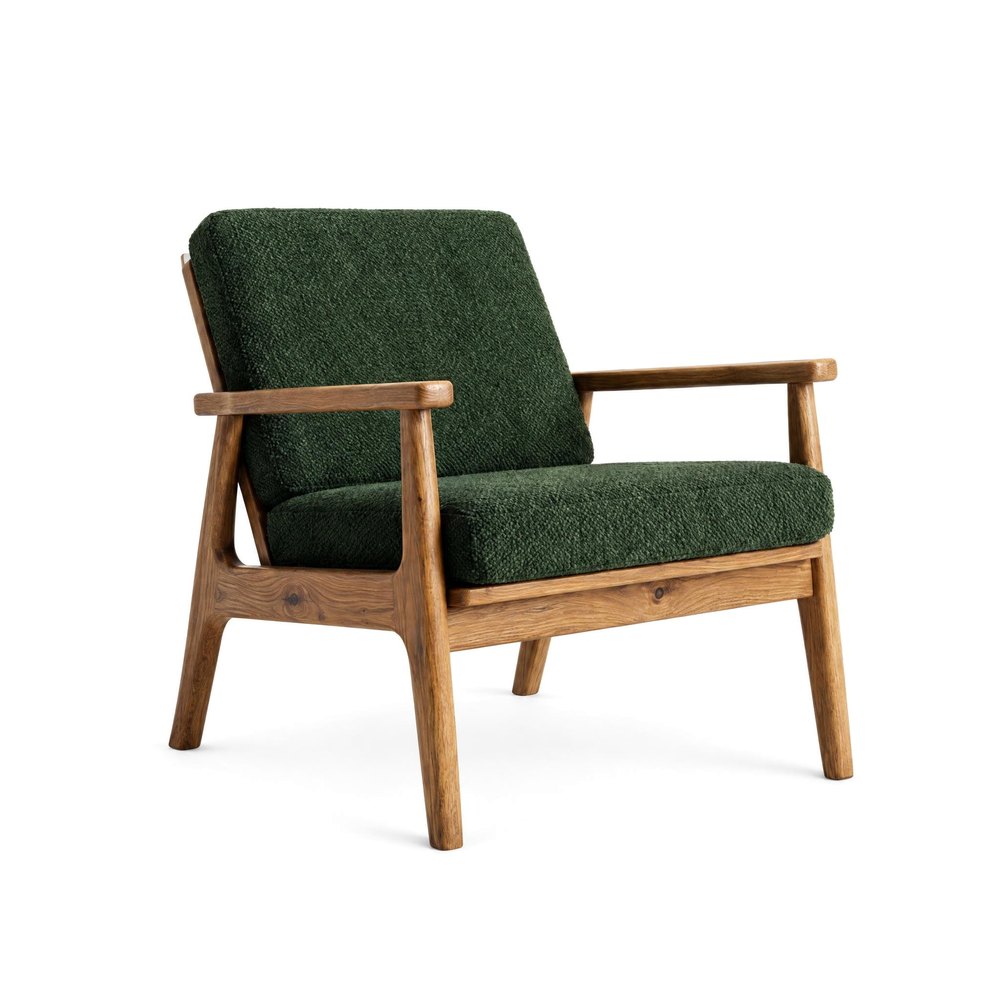 PACKSHOT
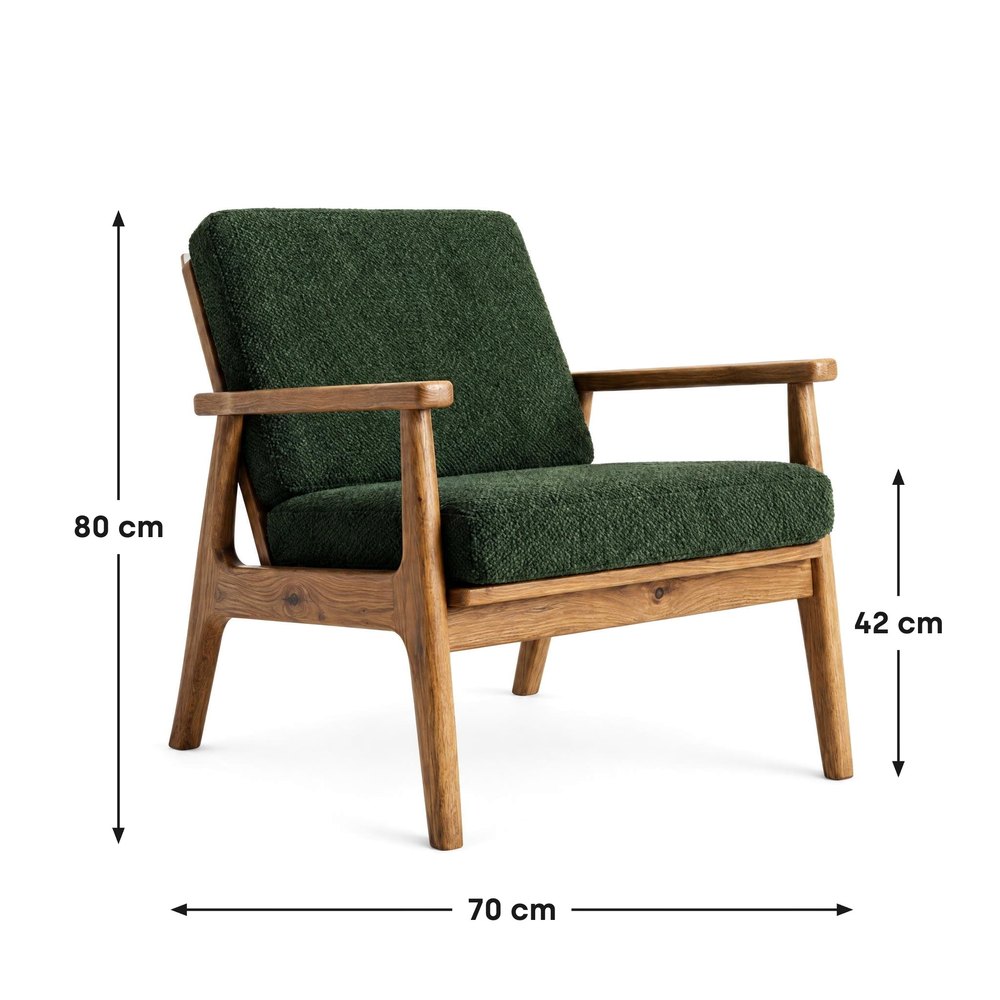 DIMENSIONS
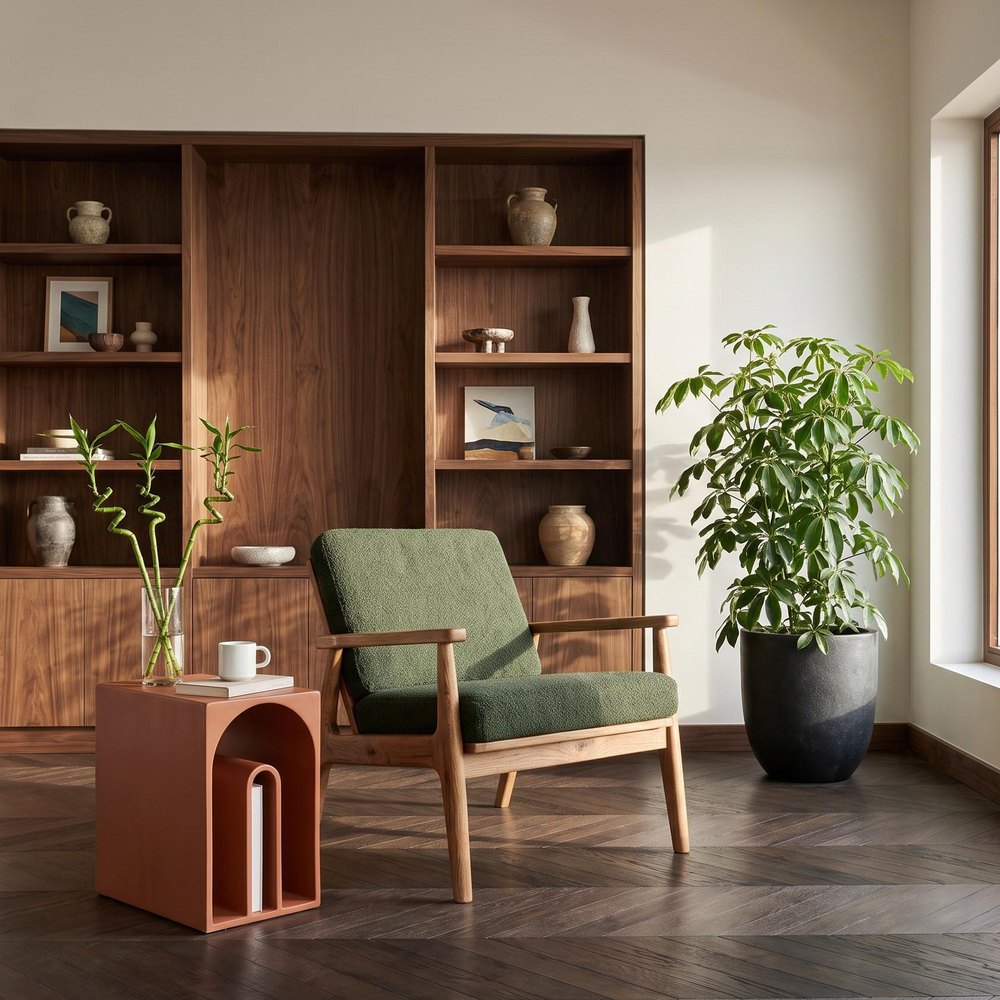 LIFESTYLE
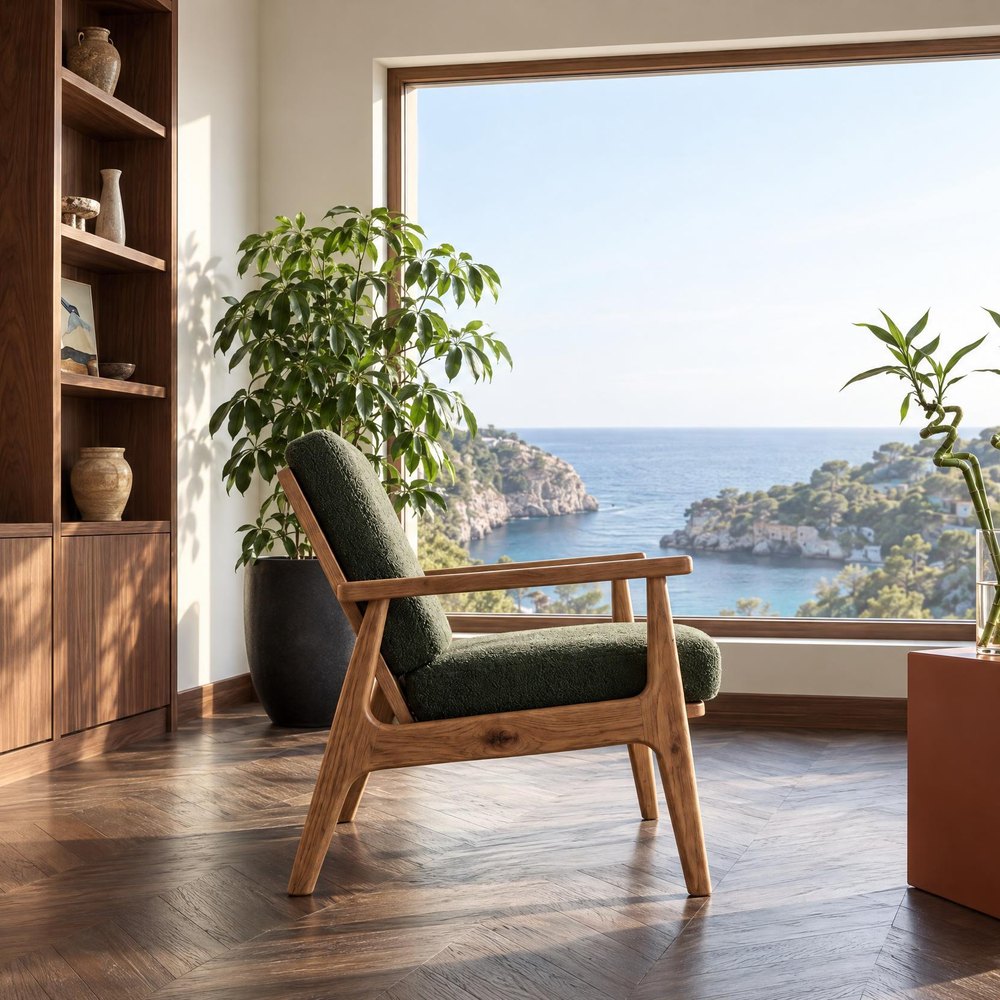 ANGLE
Main image and additional images: what's the difference
Every marketplace splits listing photos into two groups and has different rules for each.
The main image appears in search results next to competing listings. That's why the rules are strict: a white background, the whole piece in frame, one item, no text or graphics. It can also affect where your listing shows up: Etsy, for example, places listings lower in search when the first photo is smaller than 635 px.
Additional images make up the gallery on the product page. Here you have more freedom: any background, the piece in a furnished room, close-ups of the material, other sides of the piece and, on many platforms, dimensions. These are the photos that answer the buyer's question of how the piece will look in their home.
| Main image | Additional images | |
|---|---|---|
| Background | White RGB 255, 255, 255 | Any: a room, a studio background, white |
| What it shows | The whole piece, one item | Rooms, details, other sides, dimensions |
| Text and graphics | Not allowed | Dimensions on many platforms, none on eBay |
| Shop logo | Not allowed | Best left out |
Marketplace image requirements in 2026
We checked the requirements on the seller help pages on 14 November 2026. Platforms change them from time to time, so check the current rules before a large upload.
| Platform | Main image | Size | Number of images |
|---|---|---|---|
| Amazon | Pure white RGB 255, product fills about 85% of the frame; lifestyle only for a few product types, including sofas and beds | Min. 500 px, zoom from 1000 px, max. 10,000 px | Recommended: 6 or more extra, plus a video |
| Wayfair | Recommended: a mix of white silo and room shots | Min. 1000 × 1000 px, 2000 × 2000 px recommended | 3 or more |
| Walmart | White RGB 255; large items such as furniture may be shown in a setting | Square 1:1, zoom from 1500 × 1500 px, 2200 × 2200 px recommended | At least 4 recommended |
| eBay | Any background; no borders, text or watermarks | Min. 500 px, about 1600 px recommended | Up to 24 |
| Etsy | No background rule; first photo landscape or square | At least 2000 px recommended, first photo min. 635 px | Up to 20 |
| Google Shopping | Product fills 75-90% of the frame, no promotional text or borders | Min. 500 × 500 px, about 1500 × 1500 px recommended | Up to 10 additional |
JPG and PNG files work on all of these platforms except Wayfair, which doesn't list file types on its public pages. Amazon asks for RGB rather than CMYK, and Etsy for the sRGB colour profile. Walmart accepts files up to 5 MB, eBay up to 12 MB and Google up to 16 MB. The Google Shopping rules apply in Google Merchant Center, which shops use to send products to Google ads and free listings. Etsy also requires every listing to include at least one unedited photo of the actual item against a real background, so keep one original photo next to the ones you create.
In the UK, B&Q expects square images of at least 500 × 500 px, and OnBuy's listing API accepts images of up to 1000 × 1000 px, so OnBuy needs a smaller copy of your files. In the US, Target Plus is open by invitation only and prefers square images of 2400 × 2400 px.
The table gives you a simple rule: a square main image on a white background, 2048 × 2048 px, meets the requirements of every platform in it, including zoom on Amazon, Walmart and Google. That's the size of Sopla photos in the standard 2K resolution.
A complete set of marketplace photos in 4 steps
Below we prepare a complete set of photos for one armchair: the main image, a photo with dimensions, lifestyle photos and details. The same approach works for a sofa, a table or a chest of drawers.
Step 1. The main image: a packshot on a white background
Have a packshot from a photographer on a pure white background? Use it as the main image. If the background is grey or uneven, or the photo was taken in a warehouse, click NEW PHOTO, upload the photo of the piece, open the STUDIO tab in the style step and choose PACKSHOT. Sopla removes the background and places the piece on exact white, RGB 255, 255, 255 (10 credits). Choose a 1:1 aspect ratio: a square is the safest option for thumbnails on every platform. Check the margin: on Amazon the piece should fill about 85% of the frame, and on Google Shopping 75-90%. We explain how to prepare a good packshot in our guide Furniture packshot.
Step 2. A photo with dimensions
The question buyers ask most often about furniture online is whether it will fit in their room. Open the packshot and click DIMENSIONS. Drag across the photo to draw a dimension line and type a number: Sopla adds the unit for you, for example “80 cm”, and you can switch to inches. Choose the label style, colour and text size, and if the piece stands close to the edge, add a margin. Click DOWNLOAD WITH DIMENSIONS: the JPG file has the full resolution of the photo. DIMENSIONS costs no credits.
A photo like this suits Wayfair, which lists dimensional images among its common image types, and Amazon, where the no-text rule applies to the main image. Add the photo with dimensions to the gallery, not as the main image. eBay doesn't allow text on any photo, so there you put the dimensions in the listing description.
Step 3. Lifestyle photos and details
Create two or three lifestyle photos from the packshot in different interior styles, for example WARM MINIMAL, SCANDINAVIAN or OLDTOWN (10 credits each). You can show another side of the piece in the same room with the ANGLE edit, and the material up close with the ZOOM edit (5 credits each). A photo is usually ready in about a minute. Compare each one with the packshot: the angle of the piece or a detail may differ slightly, and then you simply create another photo with the same settings. We cover the whole process step by step in our guide Furniture lifestyle photos from a packshot.
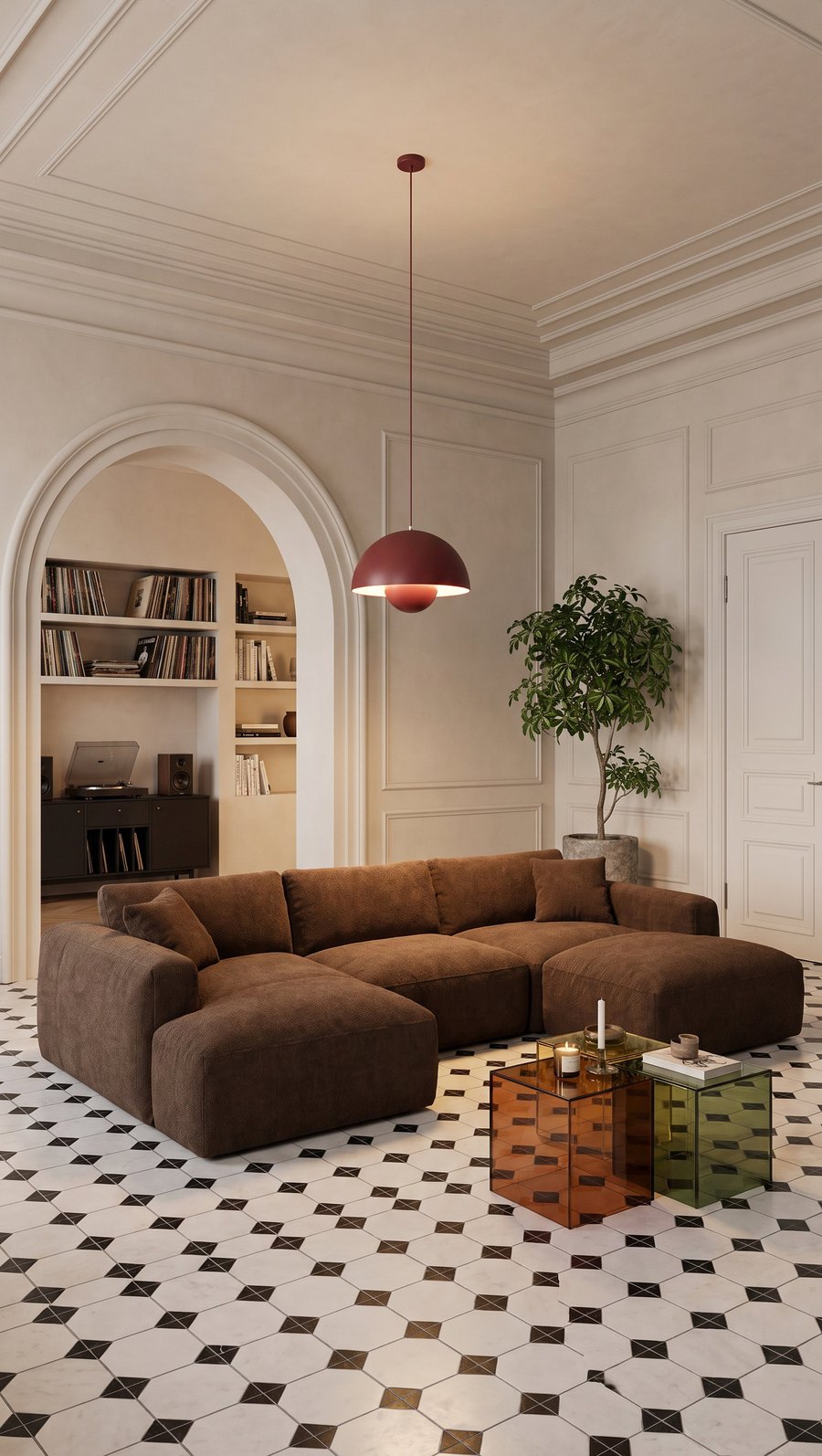 LIFESTYLE
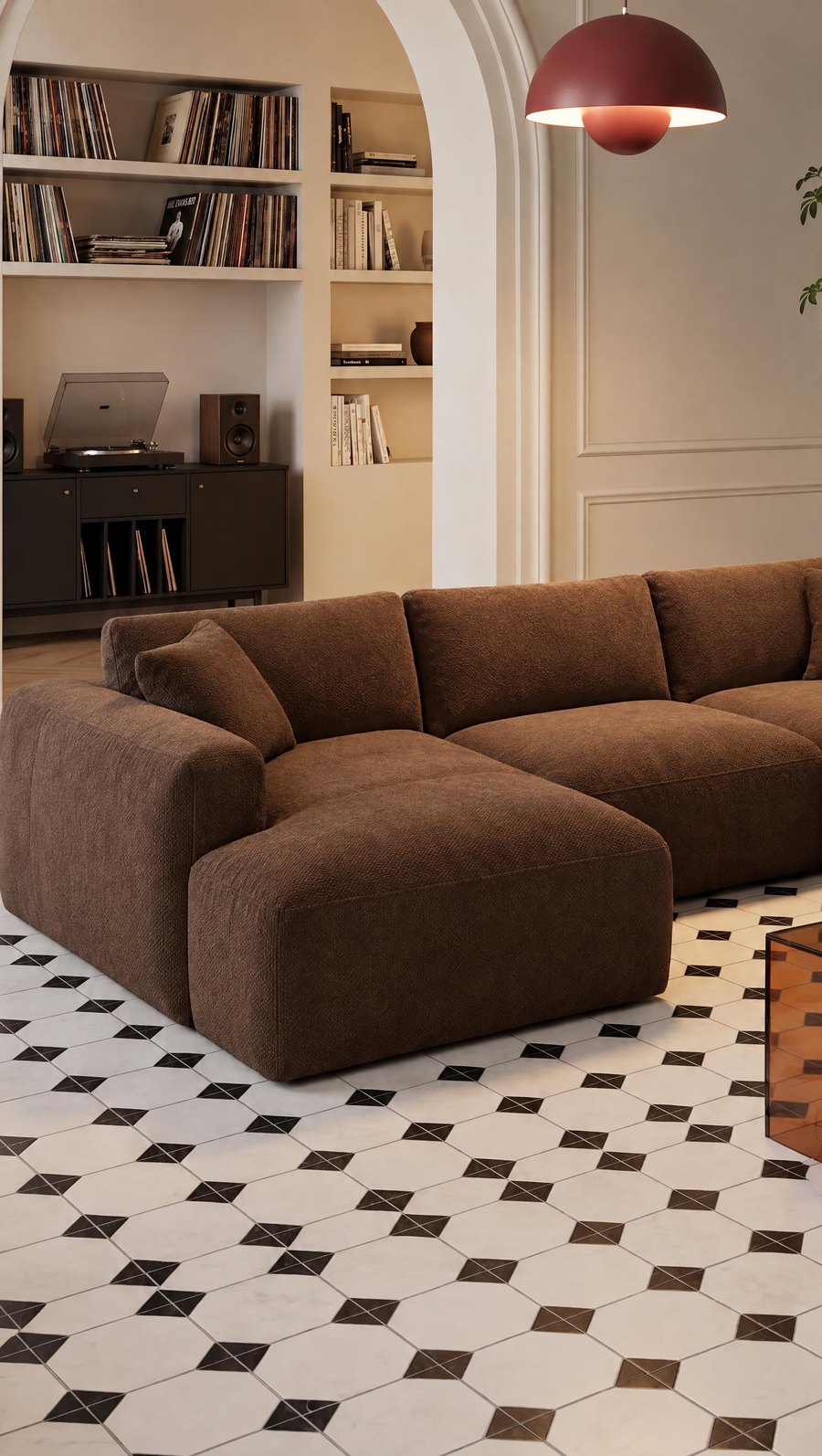 CLOSER
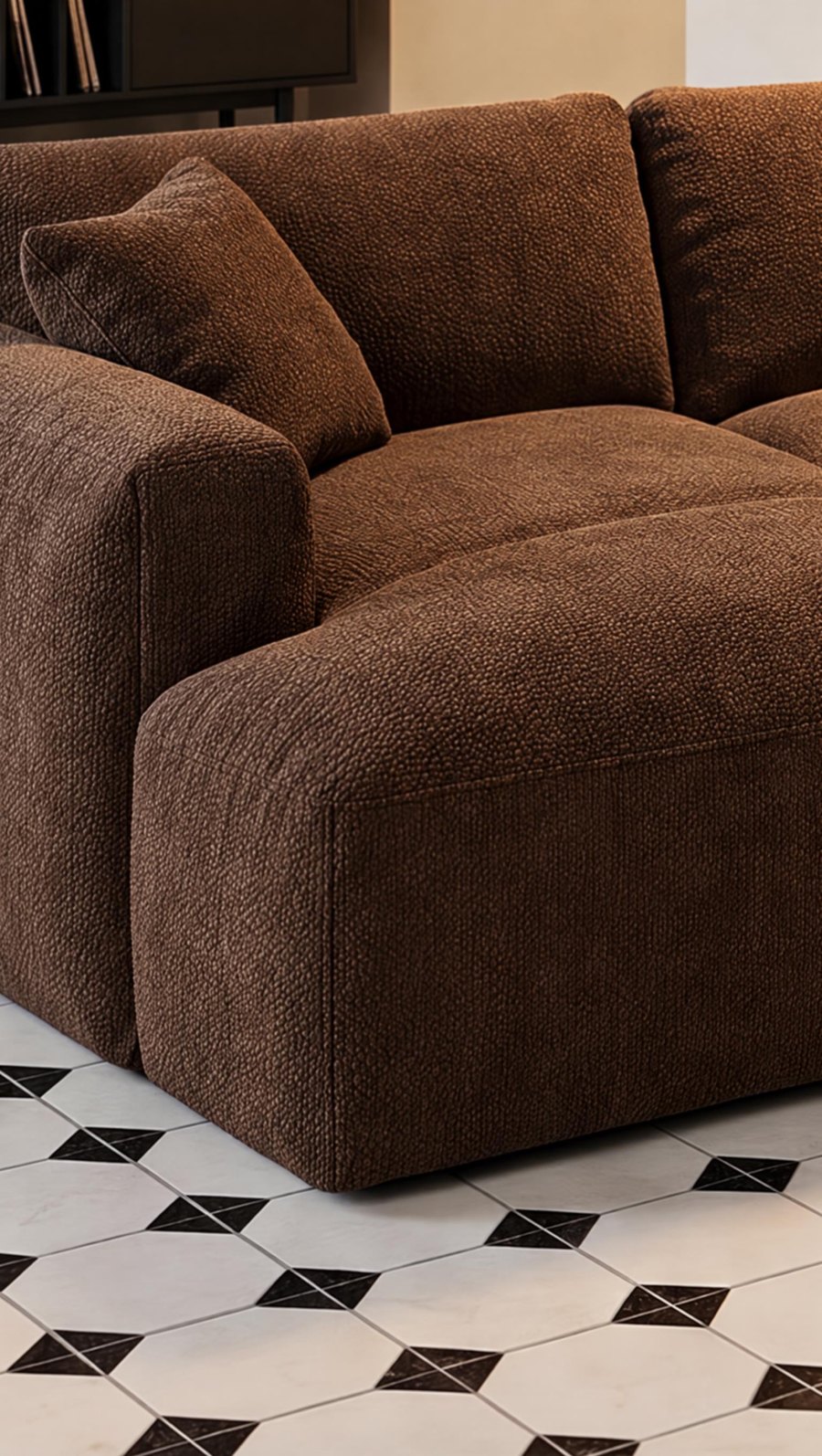 CLOSE-UP
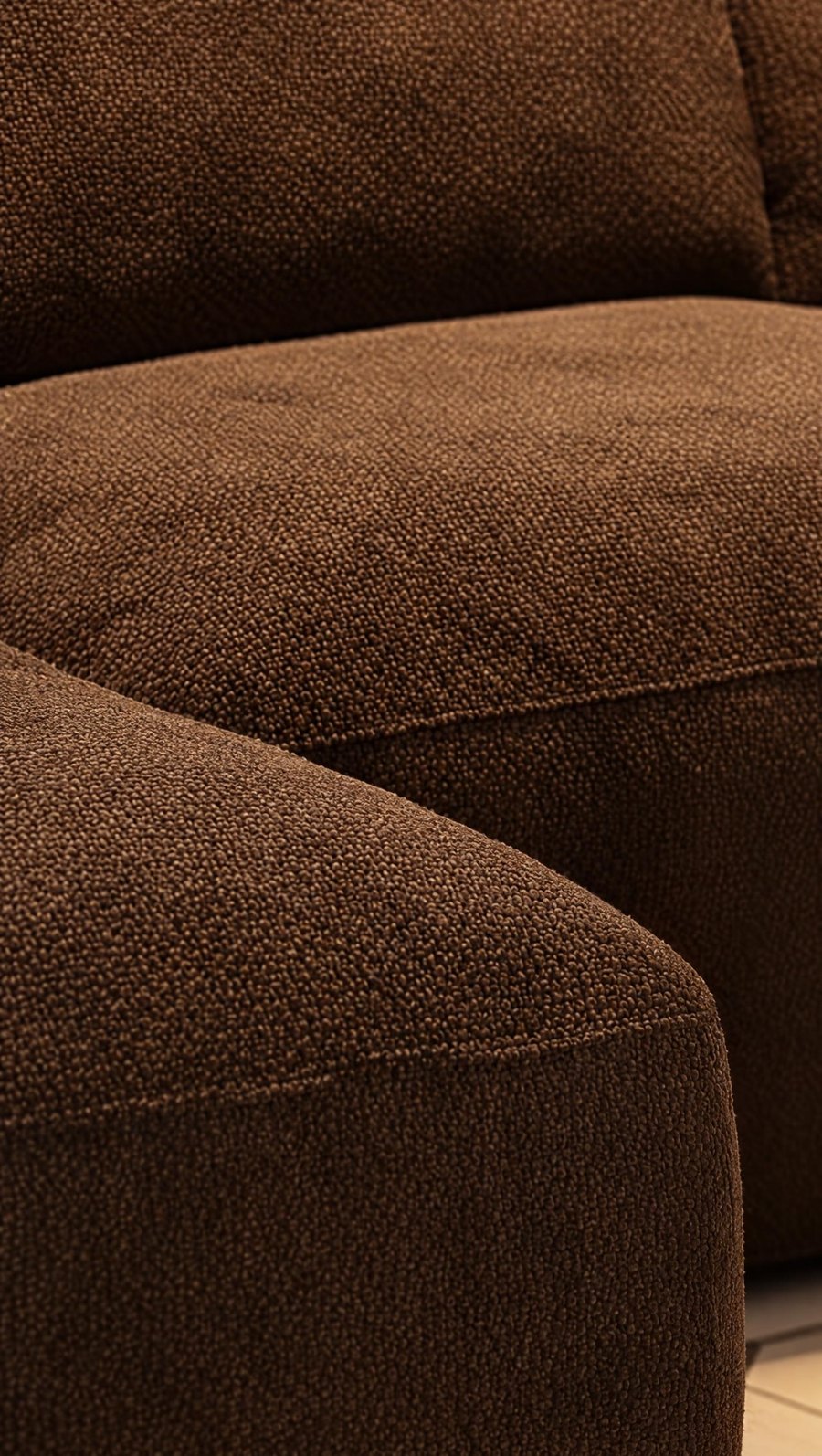 DETAIL
Step 4. Format and size for each platform
You choose the aspect ratio in the photo creator before you create the photo. You can crop the finished photo yourself or change it with the RATIO edit: Sopla sets the exact framing in the new format and fills in the missing parts of the photo (5 credits per frame, up to 6 frames at once). 2K resolution is enough for every marketplace in the table.
 3:2
 4:51:1
Formats and sizes of Sopla photos
Sopla creates photos in 7 aspect ratios. Here are their sizes in the standard 2K resolution and where each works best:
| Aspect ratio | 2K size | Where it works |
|---|---|---|
| 1:1 | 2048 × 2048 px | Main image on Amazon, Wayfair, Walmart, eBay and Google Shopping |
| 4:5 | 1792 × 2240 px | Listing gallery, Instagram and Facebook posts |
| 5:4 | 2240 × 1792 px | Listing gallery, catalogue |
| 3:2 | 2496 × 1664 px | Etsy listing photos, listing gallery, website |
| 2:3 | 1664 × 2496 px | Listing gallery, Pinterest |
| 16:9 | 2720 × 1536 px | Banners, website headers, listing video |
| 9:16 | 1536 × 2720 px | Reels and vertical ads; the free space above and below the piece leaves room for text and buttons |
What else is useful in a listing
You can keep changing a finished Sopla photo, and most of these changes help in listings with variants:
- Colour and material variants: the COLOR and MATERIAL edits create up to 5 versions at once, each in the same framing. They help in a listing with variants, where every colour has its own photos (5 credits each).
- People for scale: the ADD PEOPLE button adds one of 13 scenes to the photo, for example a family or a dog. Buyers see the size of the piece straight away (10 credits).
- Video: a short 1080p video from a photo, 5 or 10 seconds (from 10 credits). Amazon recommends a video in the listing, Etsy allows up to 2 videos of 5 to 15 seconds, and Walmart and eBay let you add one.
- A whole collection at once: when you list many pieces, a photo batch creates photos of the whole collection in one go.
How much it costs in Sopla
| What you create | Credits |
|---|---|
| Packshot on a white background (PACKSHOT style) | 10 |
| Photo with dimensions (DIMENSIONS) | 0 |
| Lifestyle or studio photo | 10 |
| ANGLE, ZOOM, COLOR or MATERIAL edit | 5 |
| RATIO | 5 per frame |
| The set from the example: packshot, dimensions, 2 lifestyle photos, ANGLE and ZOOM | 40 |
Plans differ only in the number of credits, and every plan includes all styles and features. See the plans.
Frequently asked questions
What are Amazon's image requirements for furniture?
The main image needs a pure white background, RGB 255, 255, 255, with the product filling about 85% of the frame and no text, logos or borders. The minimum size is 500 px on the longer side, zoom works from 1000 px and the maximum is 10,000 px. Amazon also recommends at least 6 additional images and a video.
Can the main image of a sofa on Amazon be a lifestyle photo?
Yes, sofas and beds are among the few product types where Amazon allows a lifestyle main image. A single chair, table or chest of drawers needs a white background in the main image, and you add lifestyle photos to the gallery. Walmart is more flexible: large items such as furniture may be shown in a setting.
What are Wayfair's image requirements?
At least 1000 × 1000 px, with 2000 × 2000 px recommended so that every detail shows. Wayfair asks for 3 or more images per product and recommends a mix of silo shots on white and room shots. Dimensional images are one of its common image types.
What aspect ratio should marketplace photos be?
A 1:1 square for the main image, because it looks good in search results on most platforms. On Etsy, landscape photos such as 3:2 work well too. In the gallery, 4:5, 5:4 and 3:2 are also good choices. Sopla creates photos in 7 aspect ratios, and you can change a finished photo with the RATIO edit.
Can I show dimensions on furniture photos?
Yes, in the additional images on Amazon and Wayfair, but not in the main image. eBay doesn't allow text on any photo, so put the dimensions in the description there. You can draw a photo with dimensions in Sopla with DIMENSIONS, in centimetres or inches, at no credit cost.
How many photos should a furniture listing have?
Enough for the buyer to see the piece from every side, in a room and up close: usually 6 to 8. Amazon recommends at least 6 additional images, Wayfair at least 3, Walmart at least 4, and eBay and Etsy allow up to 24 and 20.
Is 2K resolution enough for marketplaces?
Yes. 2K photos are at least 2048 px on the longer side, which is more than any platform in the table requires and enough for zoom on Amazon, Walmart and Google.
Does the furniture in a lifestyle photo look the same as in the packshot?
In most photos, yes, because Sopla starts from your packshot. Sometimes the angle of the piece or a detail changes, so compare every photo with the packshot before you upload it to a marketplace.
Prepare a complete set of listing photos: packshot, dimensions and lifestyle photos in one place.
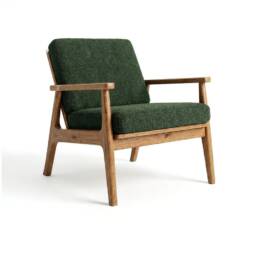
Furniture packshot: what it is, how to prepare one and what to do with it next
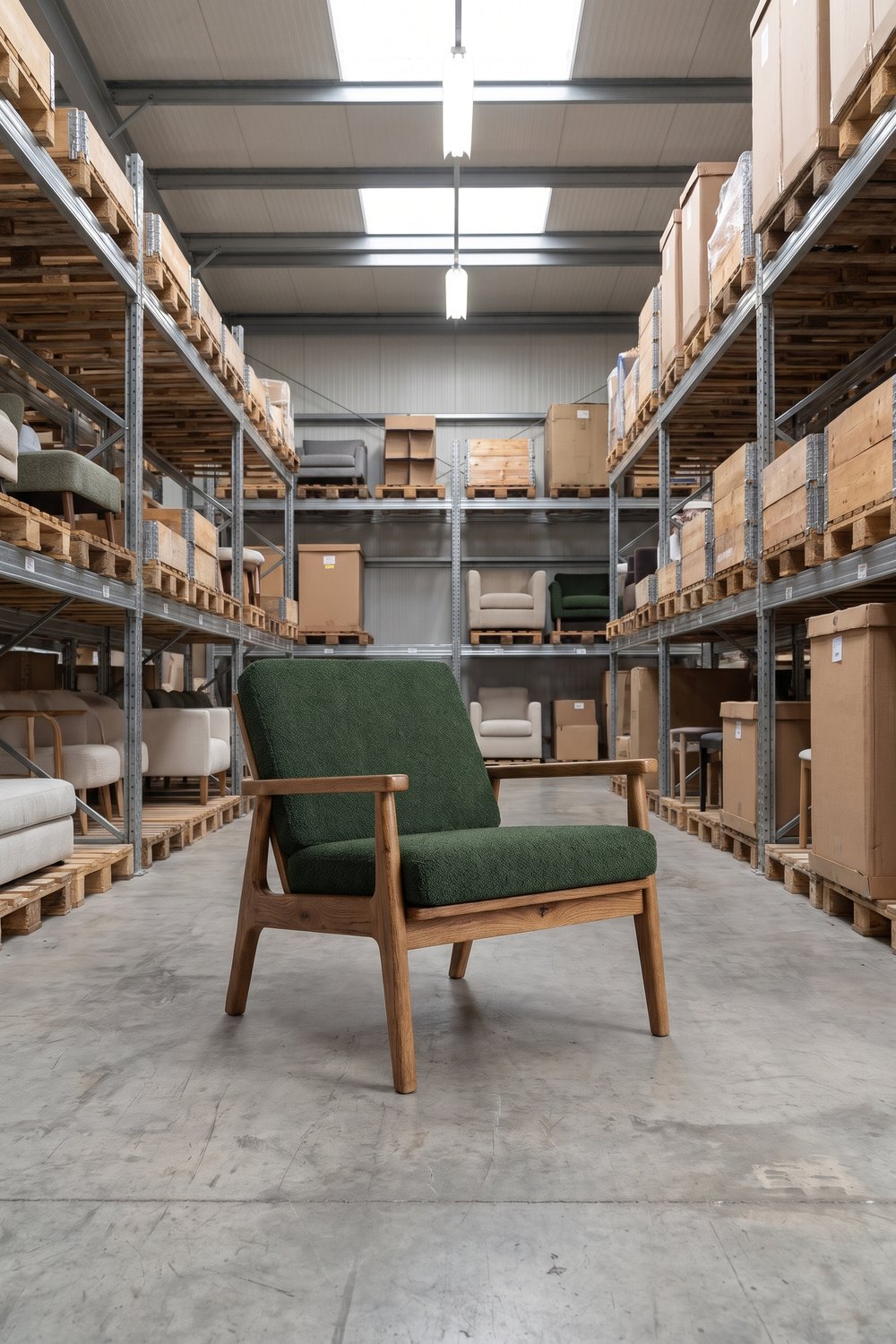
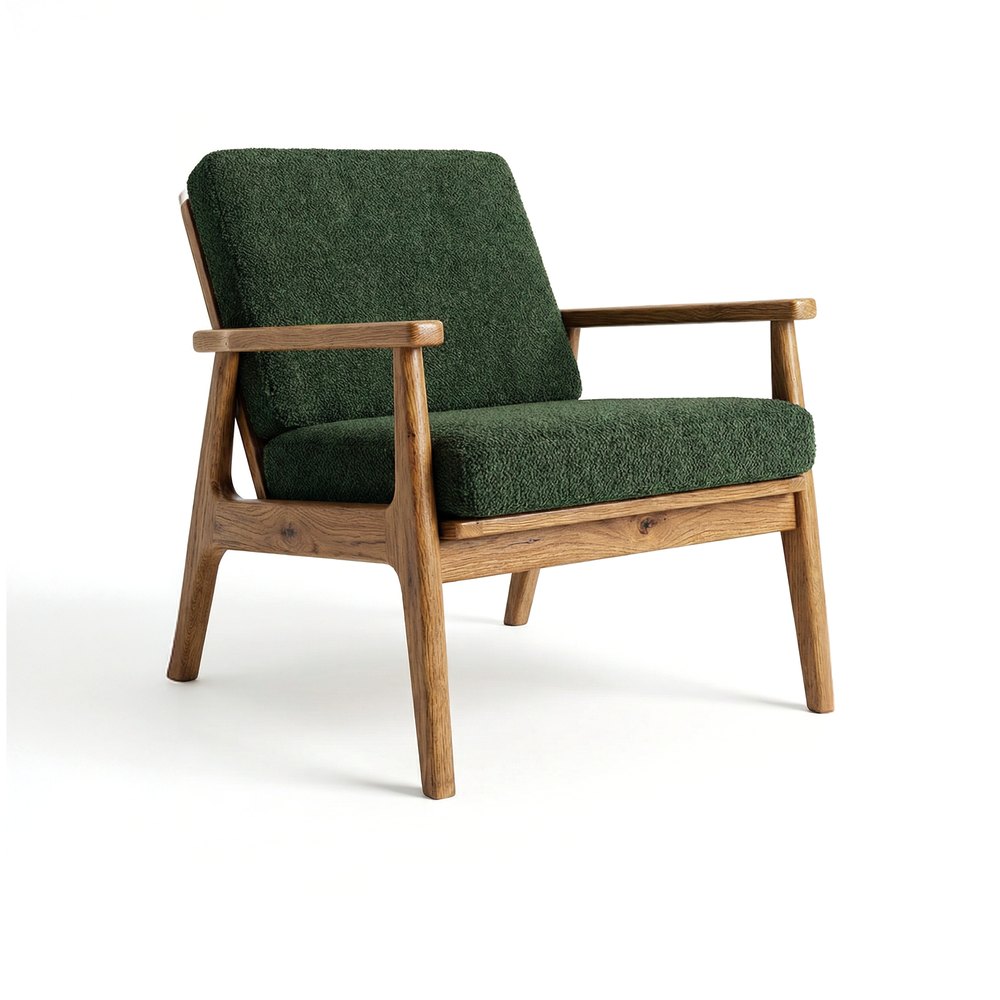
A packshot is a product photo on a white or plain background, showing the product on its own with no interior or props. In the furniture industry it's the basic photo of every model: it shows the shape, material and colour of the piece, and online shops and marketplaces use it as the main image. A furniture packshot doesn't have to come from a studio: in Sopla.app you can create one even from an ordinary photo of the piece taken in a warehouse. From there, you can create photos on a coloured studio background, lifestyle photos in furnished rooms and photos with people.
 WAREHOUSE PHOTO
 PACKSHOT
What is a packshot
A packshot is a photo of a product cut out from its surroundings: the piece stands on a white or single-colour background, in even light, with nothing else in the frame. The name comes from advertising, where the “pack shot” was the shot of the product in its packaging at the end of a commercial. Today the term covers any catalogue photo of the product on its own.
A packshot answers the question “what exactly does this piece look like?”. The question “how will it look in my home?” is answered by other types of photos, which you create from the packshot:
| What it shows | Where it works | |
|---|---|---|
| Packshot | The piece alone on a white or plain background | Main image in an online shop or on a marketplace, variant overviews, catalogue |
| Studio photo | The piece on a coloured studio background, with shadow and light like in a studio | Social media, ads, banners, catalogue covers |
| Lifestyle photo | The piece in a furnished room | Product page gallery, catalogue, seasonal campaigns |
| Photo with people | The piece in use, with people or pets | Ads, social media, showing the scale of the piece |
A packshot from a warehouse or showroom photo
Not every piece has a studio photo. Often all you have is a phone photo taken in a warehouse, on the production floor or in a showroom, with shelving, boxes and other furniture in the background. You can make a packshot from that photo too:
- upload the photo of the piece as a packshot and choose the furniture type,
- in the style step, open the STUDIO tab and choose PACKSHOT,
- set the aspect ratio and click CREATE.
Sopla removes the background and places the piece on white. The photo costs 10 credits and is usually ready in about a minute. You download the finished packshot and use it like any other photo, including as the starting point for more photos.
For a good result, the warehouse photo should show the whole piece, in focus and unobstructed: no boxes in front of the legs and no other furniture touching the sides. Compare the finished packshot with the original photo: the angle of the piece or a detail may differ slightly.
Furniture packshot photography: how to take a good photo
A packshot is usually taken by a photographer in a studio or by the manufacturer in its own facility. You can also take one yourself if you have a light background and even light. Whoever takes the photo, check five things:
- The whole piece in frame. No cropped legs, sides or backrests, with a small margin around the piece.
- A plain, light background. White or a single colour, with no creases, no shadows on the wall and no other objects.
- Even, soft light. You can see the fabric texture, the wood grain and the stitching, and the shadows are subtle.
- Sharp focus across the whole piece. From the front edge of the seat to the backrest. A phone on a tripod works too, if there's enough light.
- The same conditions for every shot. The same distance, camera height and light, so that packshots from different sides match.
One packshot isn't enough for a product page. Customers want to see the piece from several sides, so it's worth preparing a full set of shots for every model:
| Shot | What it's for |
|---|---|
| Front at an angle (3/4) | Main image: shows the shape of the piece best |
| Straight on | Comparing variants and colour overviews |
| Side | Profile, seat depth, leg shape |
| Back | Finish of the back, important for pieces placed in the middle of a room |
| Detail | Fabric, stitching, hardware, legs |
| Another version of the piece | Sofa bed opened out, wardrobe open, table extended |
What to do with a packshot next: studio backgrounds
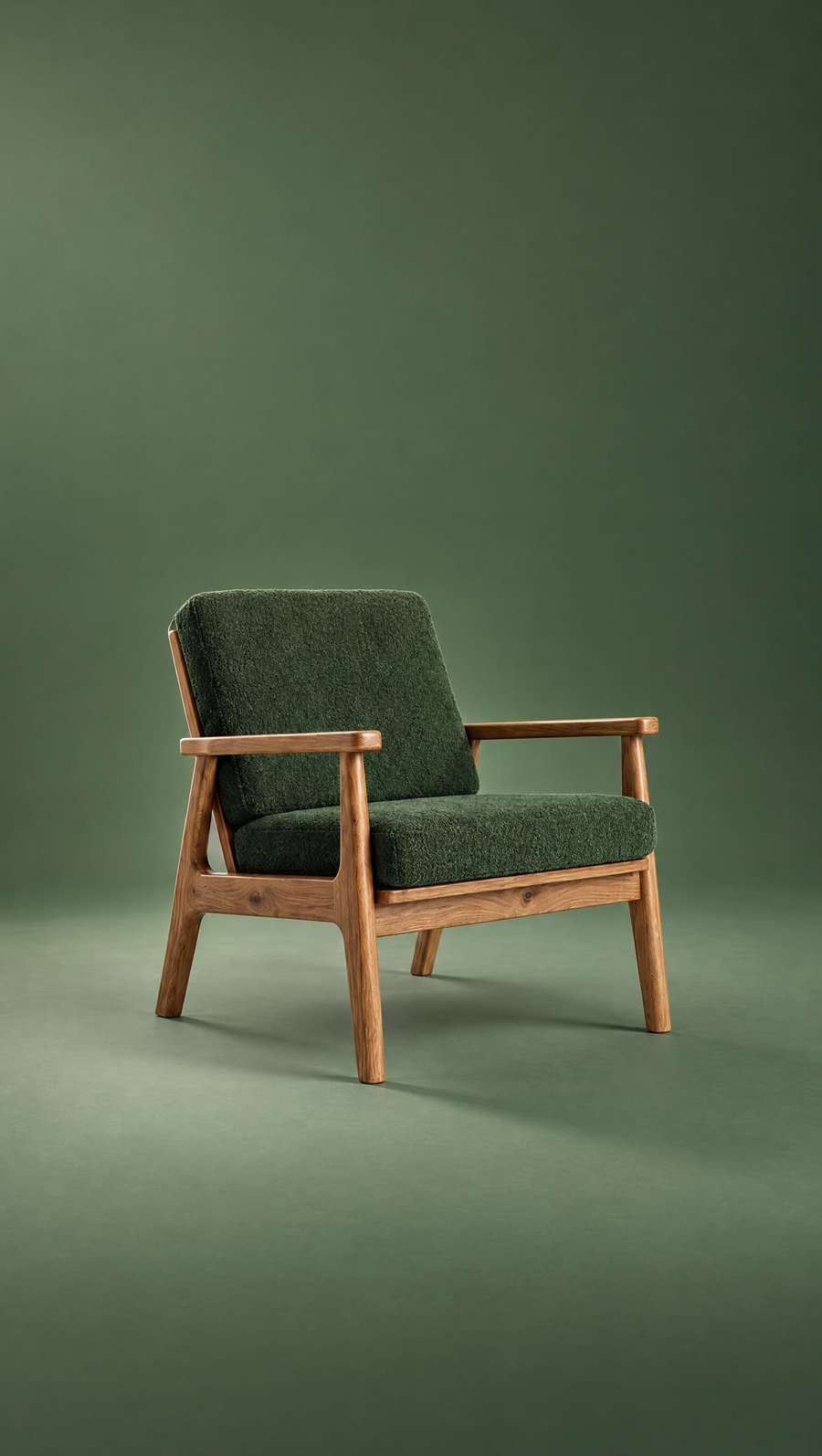
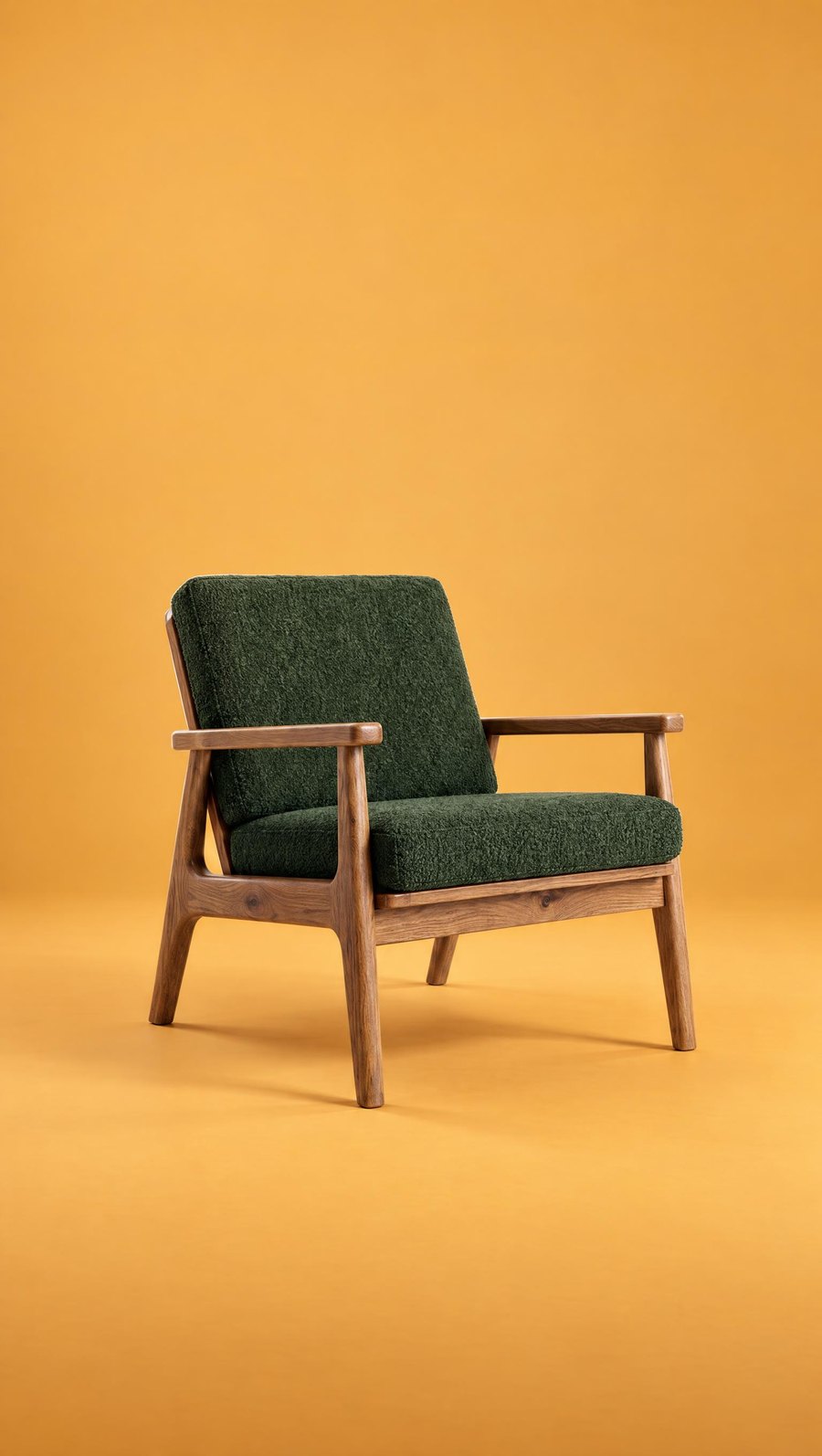
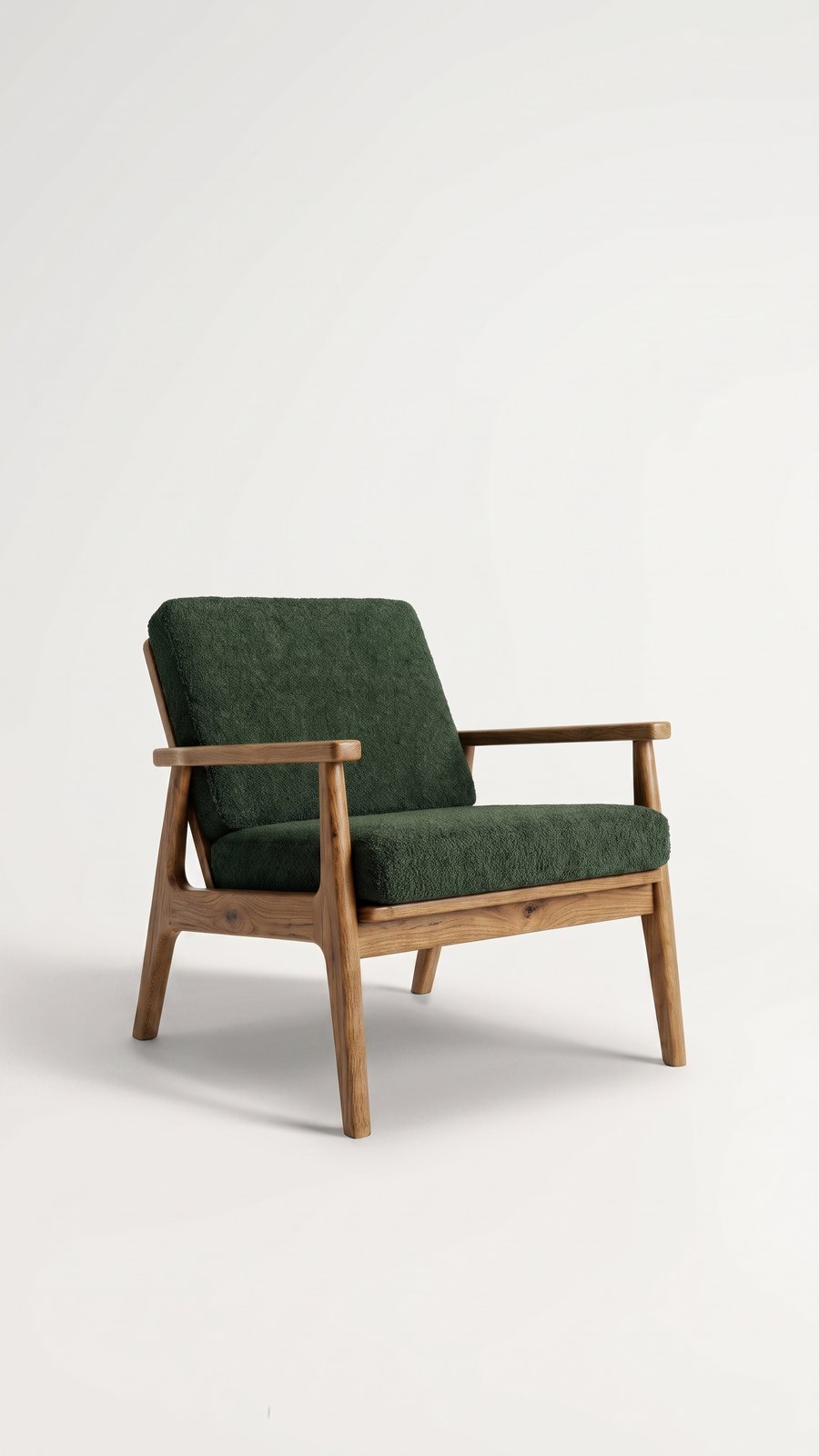
The simplest next step after a packshot is a studio photo. The piece stays alone in the frame, but it gets a coloured background, a shadow and light like in a photo studio. These photos stand out more on social media and in ads than a white background, while keeping the focus on the product.
In Sopla, studio backgrounds are in the style step, on the STUDIO tab:
| Style | Background | When to choose it |
|---|---|---|
| MATCH | In the colour of the piece | Calm, elegant photos, tone on tone with the product |
| CONTRAST | In a colour that contrasts with the piece | Ads and posts that need to catch the eye |
| LIGHT | Light, off-white | Catalogue, website, photos for light layouts |
| DARK | Dark | Premium collections, strong contrast with light wood and fabric |
| PACKSHOT | White, background removed | Main marketplace image, a clean packshot from any photo |
 MATCH
 CONTRAST
 LIGHT
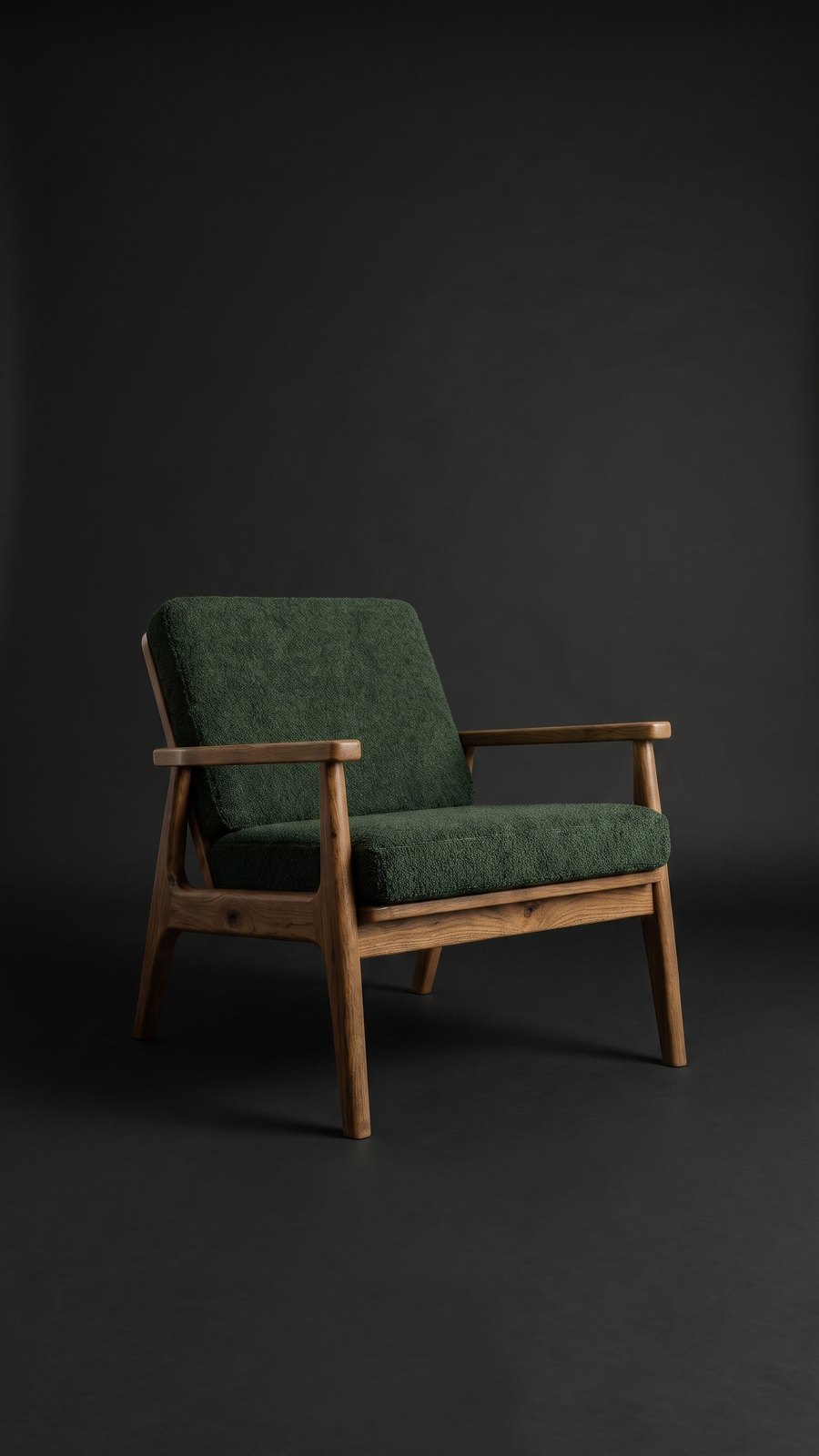 DARK
A studio photo costs the same as any other photo in Sopla: 10 credits. It's usually ready in about a minute.
One background for every shot: a studio photo series in 4 steps
Got packshots of a piece from several sides and want to show them all on the same coloured background? You could create a studio photo from each packshot separately, but each of those photos is created from scratch: the shade of the background, the colour gradient and the shadow will differ a little. In a product gallery, that shows straight away.
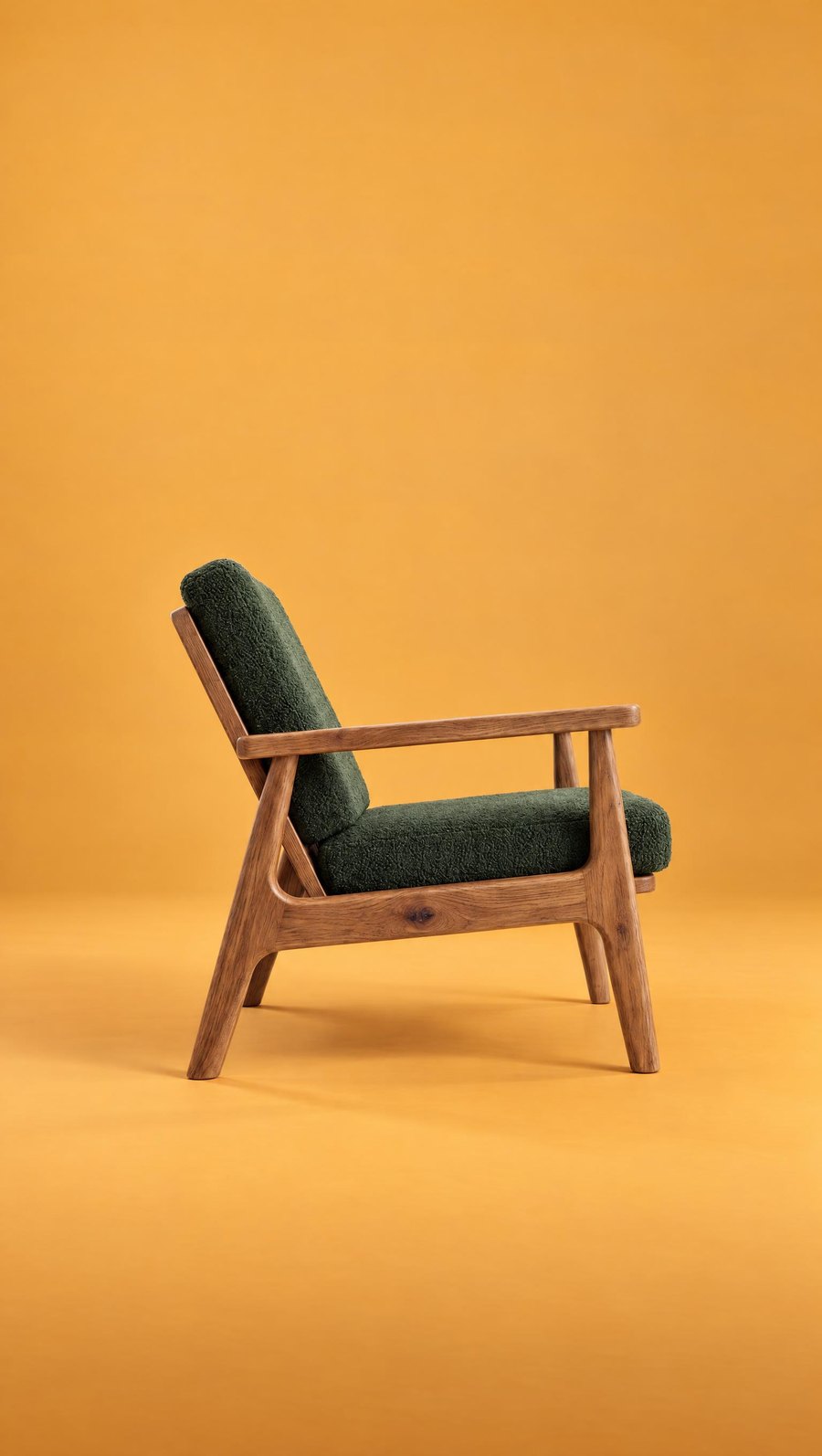
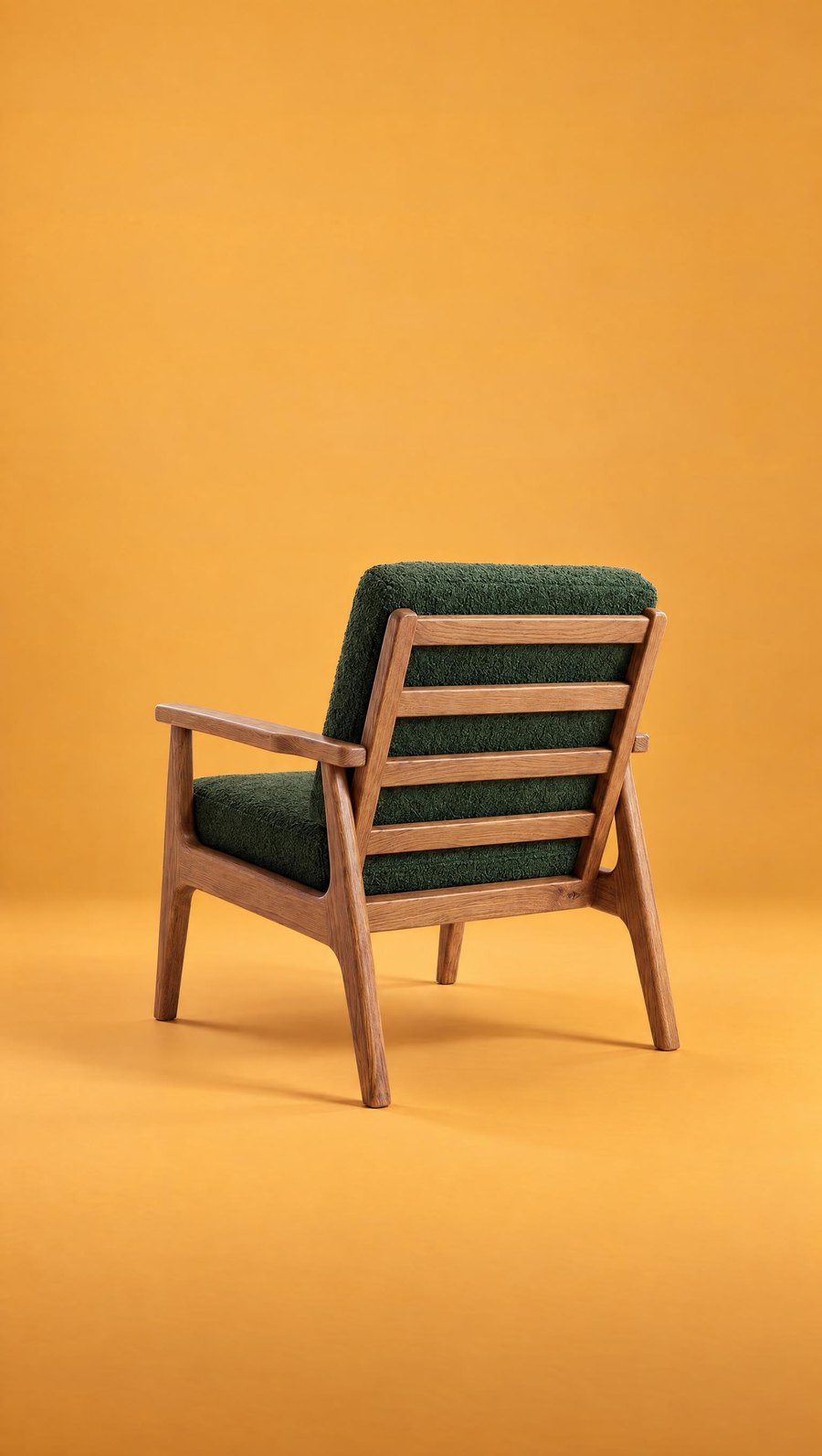
A better way: create one studio photo, then create the other shots on it with the ANGLE edit. The piece turns in place to match the uploaded packshot, while the background, light and framing stay the same. That's how the four armchair photos below were created.
Step 1. Prepare packshots from several sides
Front at an angle, both sides and the back, each shot on a light background and in the same conditions.
FRONT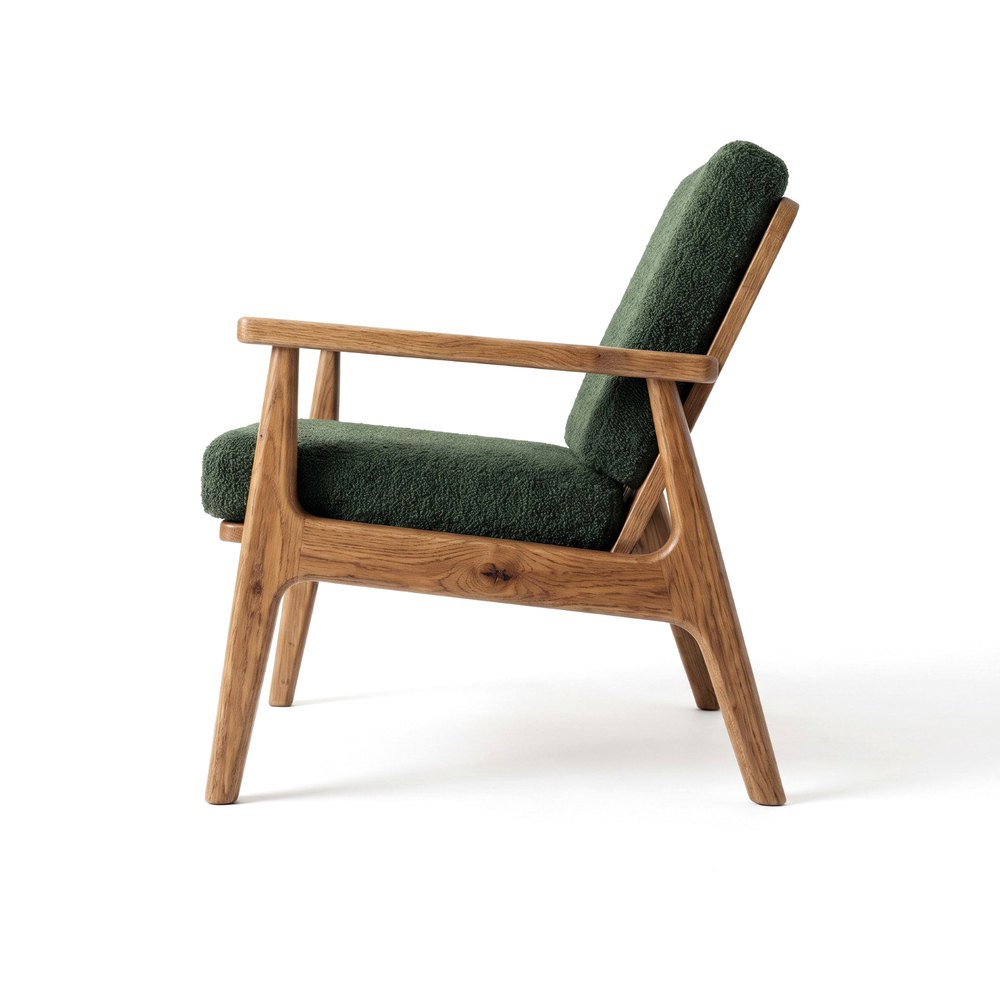 SIDE
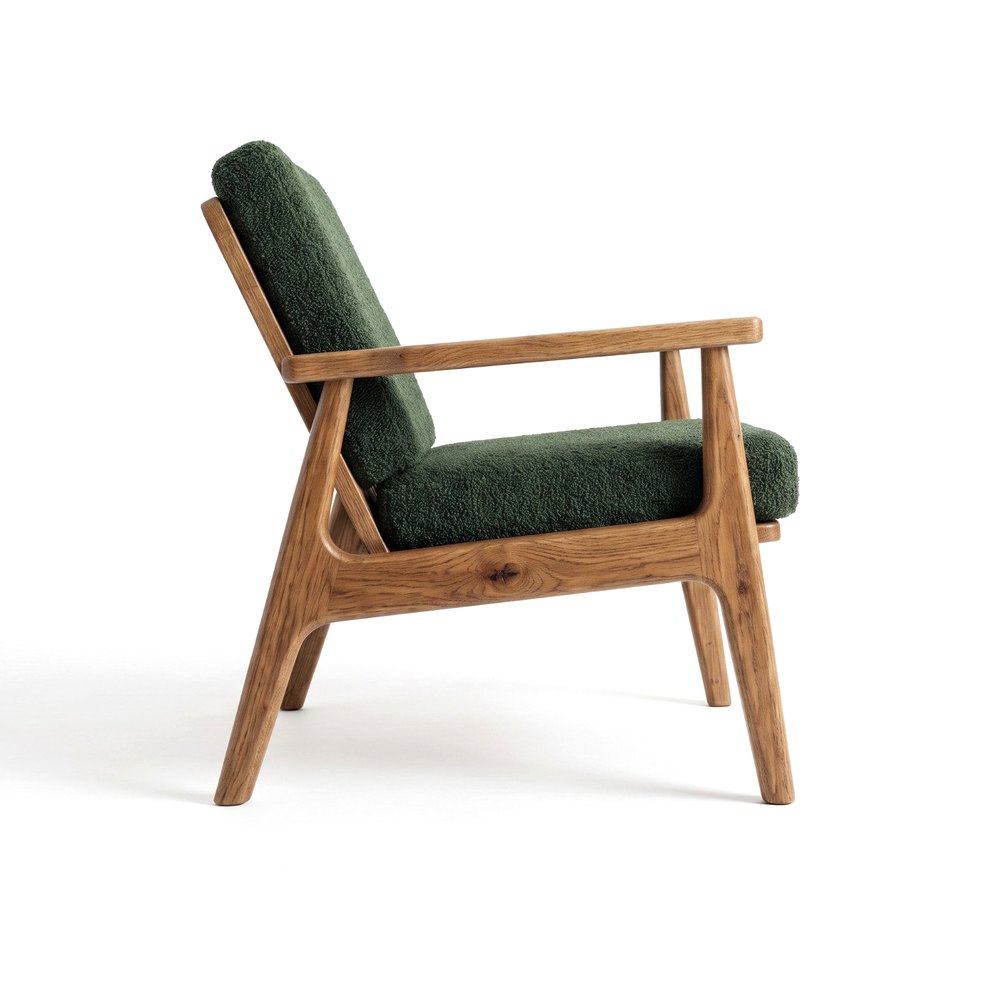 SIDE
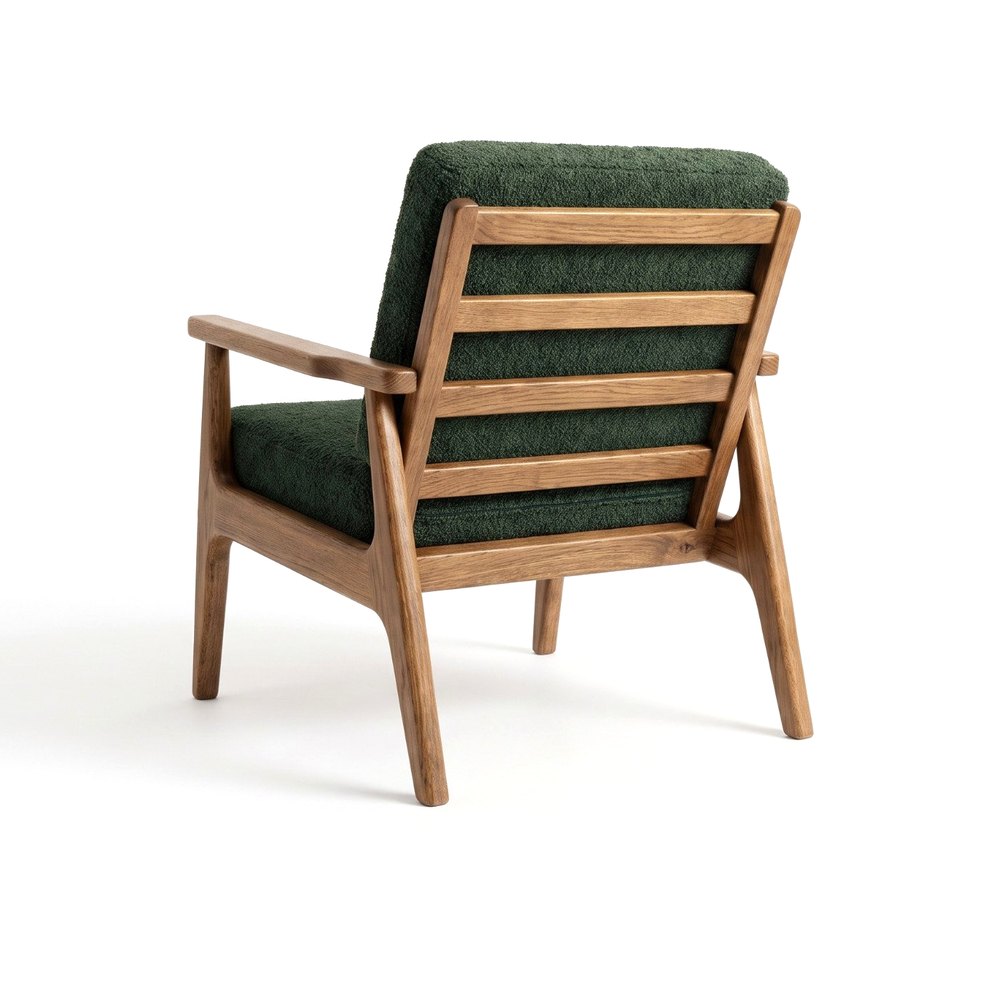 BACK
Step 2. Create a studio photo from the front packshot
Click NEW PHOTO, upload the front packshot and choose the furniture type. In the style step, open the STUDIO tab and choose a background, for example CONTRAST. Set the aspect ratio and click CREATE. This photo will be the base for the whole series (10 credits).
Step 3. Turn the piece with the ANGLE edit
Open the finished photo and choose the ANGLE edit. In the THE PIECE FROM ANOTHER SIDE field, upload the side packshot, and under WHAT TO TURN? select Turn the piece. The armchair turns in place, while the background, light and framing stay unchanged (5 credits).
Step 4. Repeat the edit for the other packshots
Make each ANGLE edit on the first photo, not on the previous edit. That way every shot has the same base and the same background. Compare each photo with its packshot: the angle of the piece or a detail may differ slightly. If something doesn't match, repeat the edit.
CONTRAST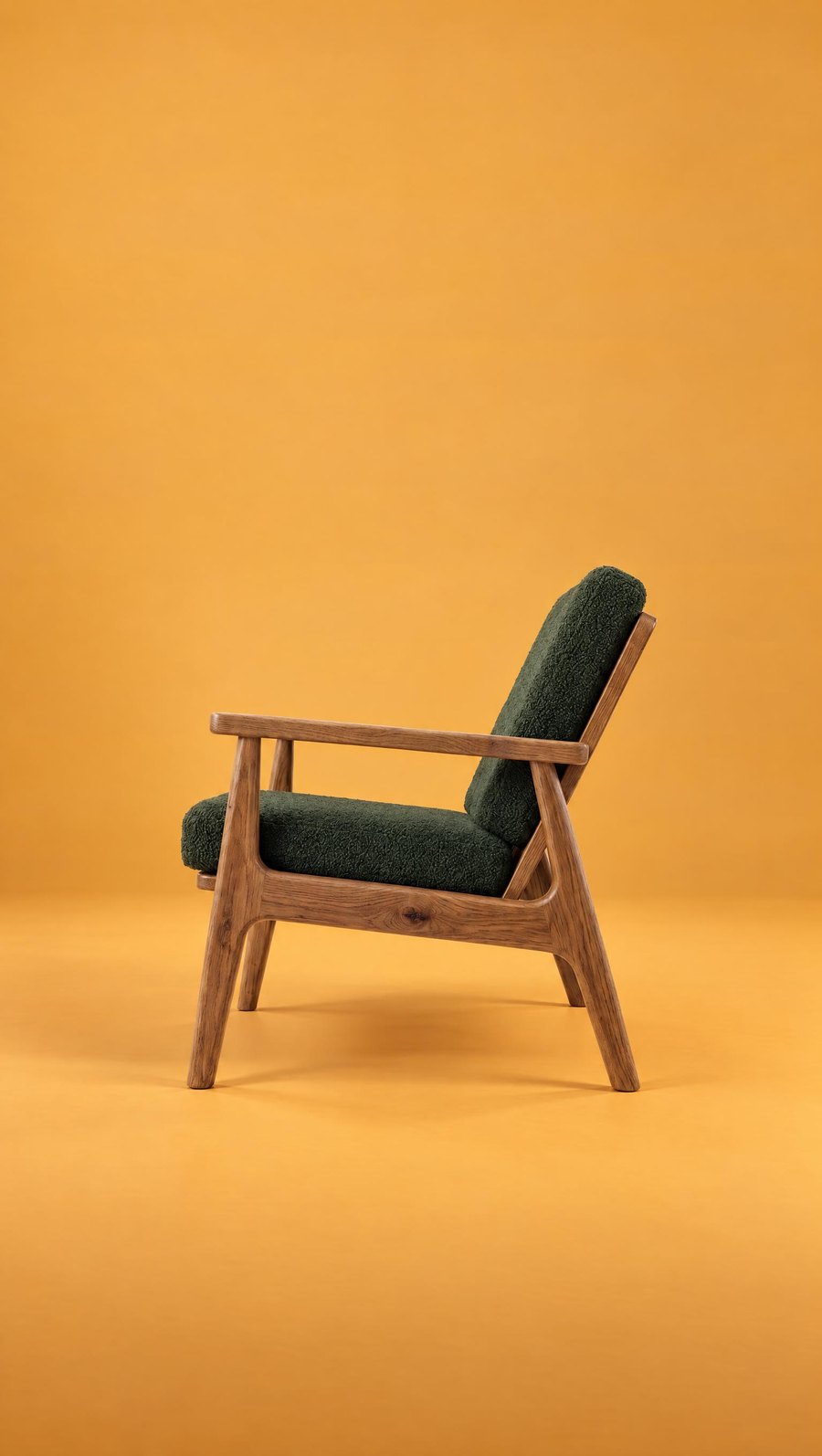 ANGLE
 ANGLE
 ANGLE
The whole series of four shots costs 25 credits: 10 for the first photo and 5 for each ANGLE edit. Four separate studio photos would cost 40 credits and have four slightly different backgrounds.
A packshot in a room: lifestyle photos
From the same front packshot you can also create lifestyle photos. Instead of a studio background, you choose an interior style, for example WARM MINIMAL, SCANDINAVIAN, OFFICE or the seasonal WINTER+XMAS, and Sopla places the piece in a furnished room. You can choose from home interiors, an office, outdoor settings and seasonal styles, as well as your own interior, such as your showroom. We cover the whole process in our guide Furniture lifestyle photos from a packshot.
PACKSHOT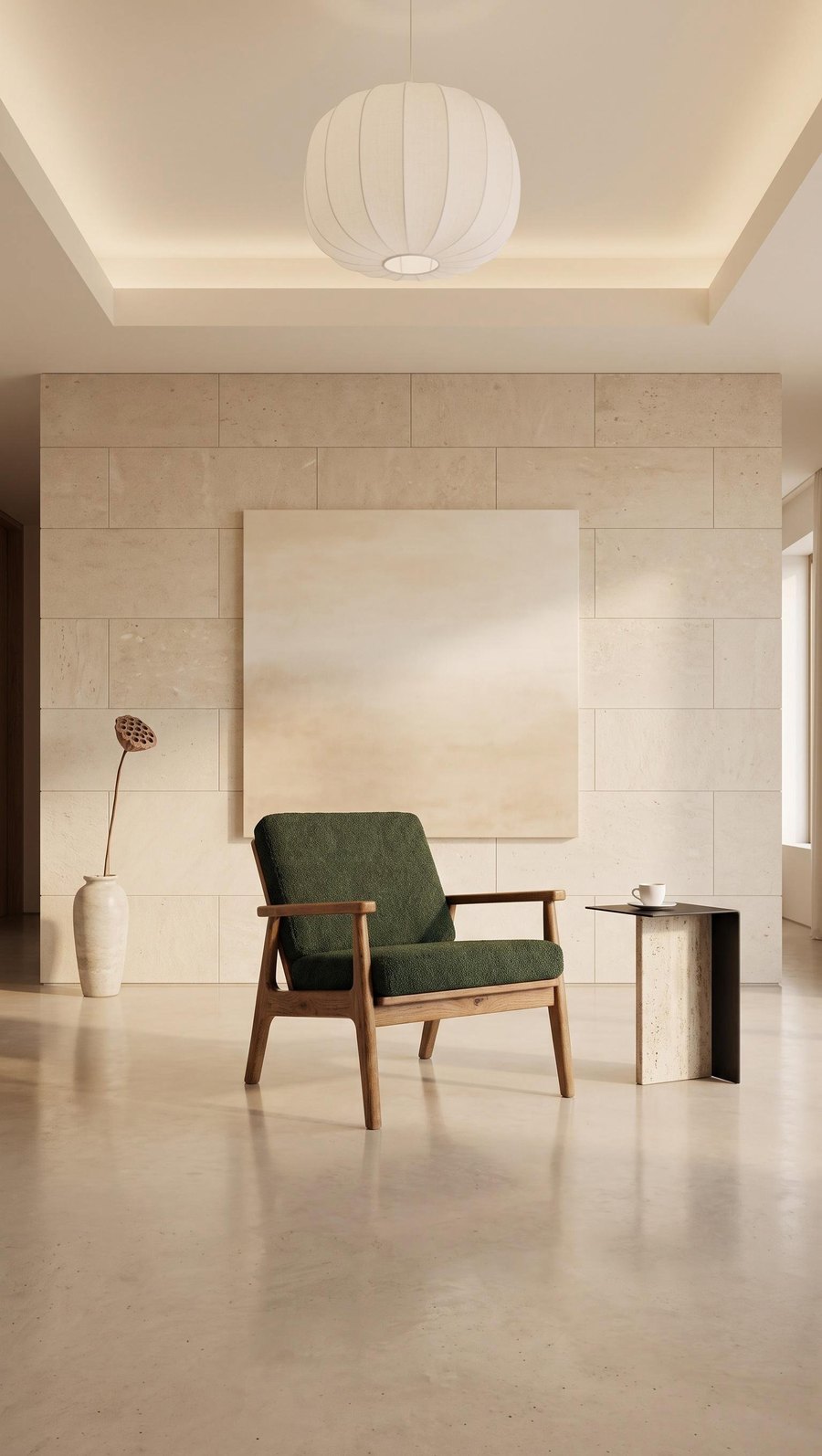 WARM MINIMAL
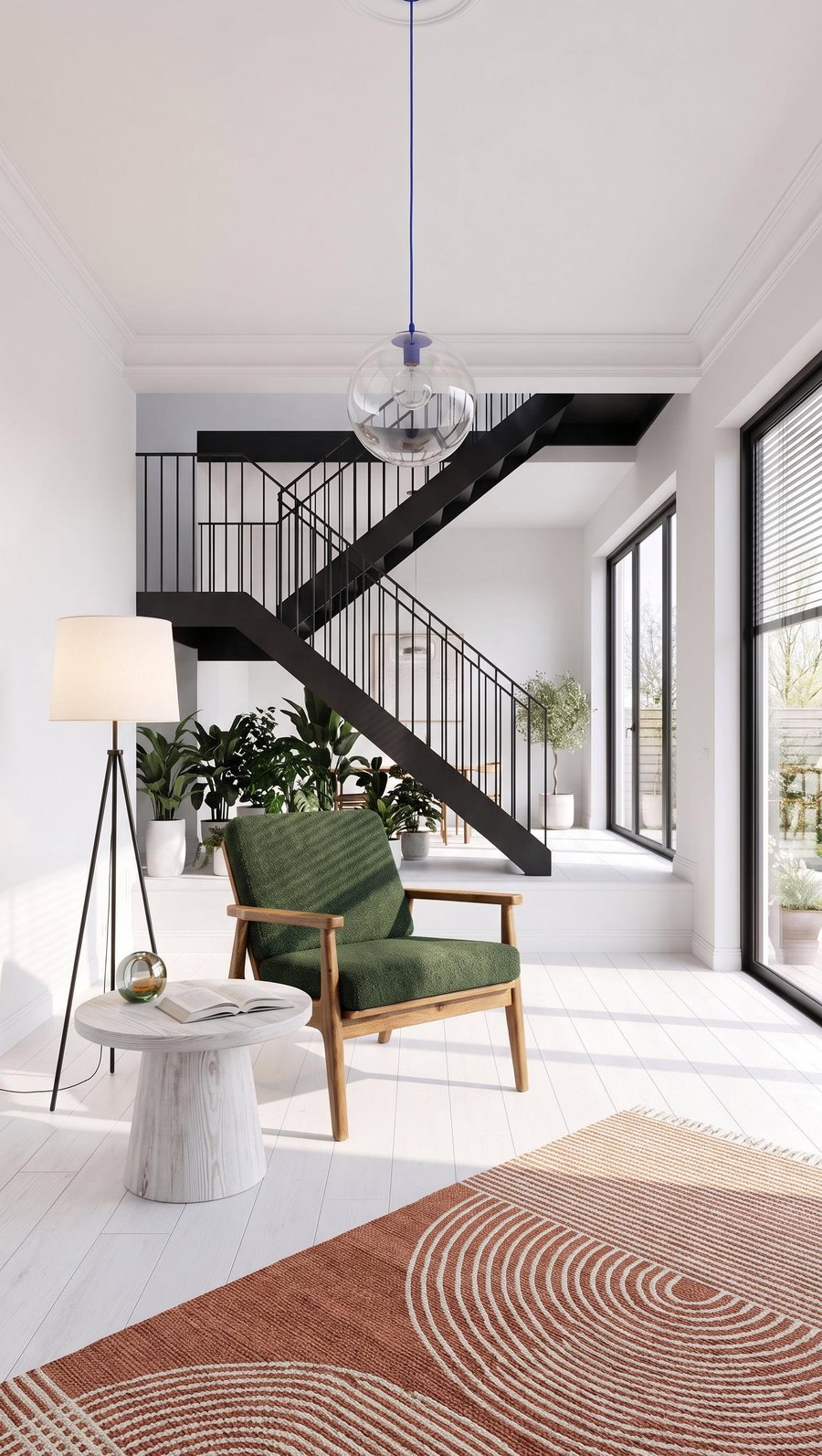 SCANDINAVIAN
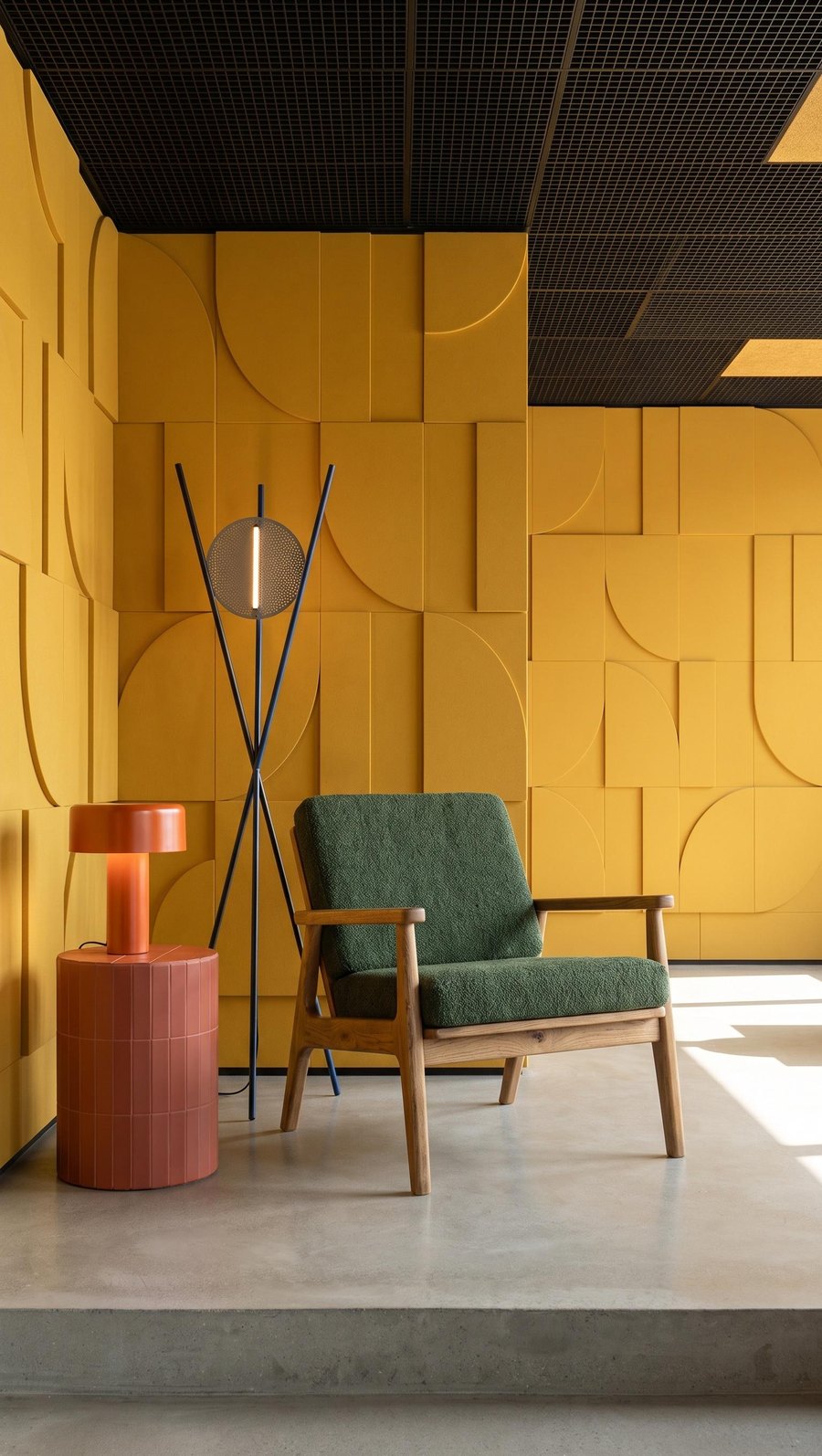 OFFICE
What else you can create from one packshot
You can keep changing a finished studio or lifestyle photo. The most useful options are:
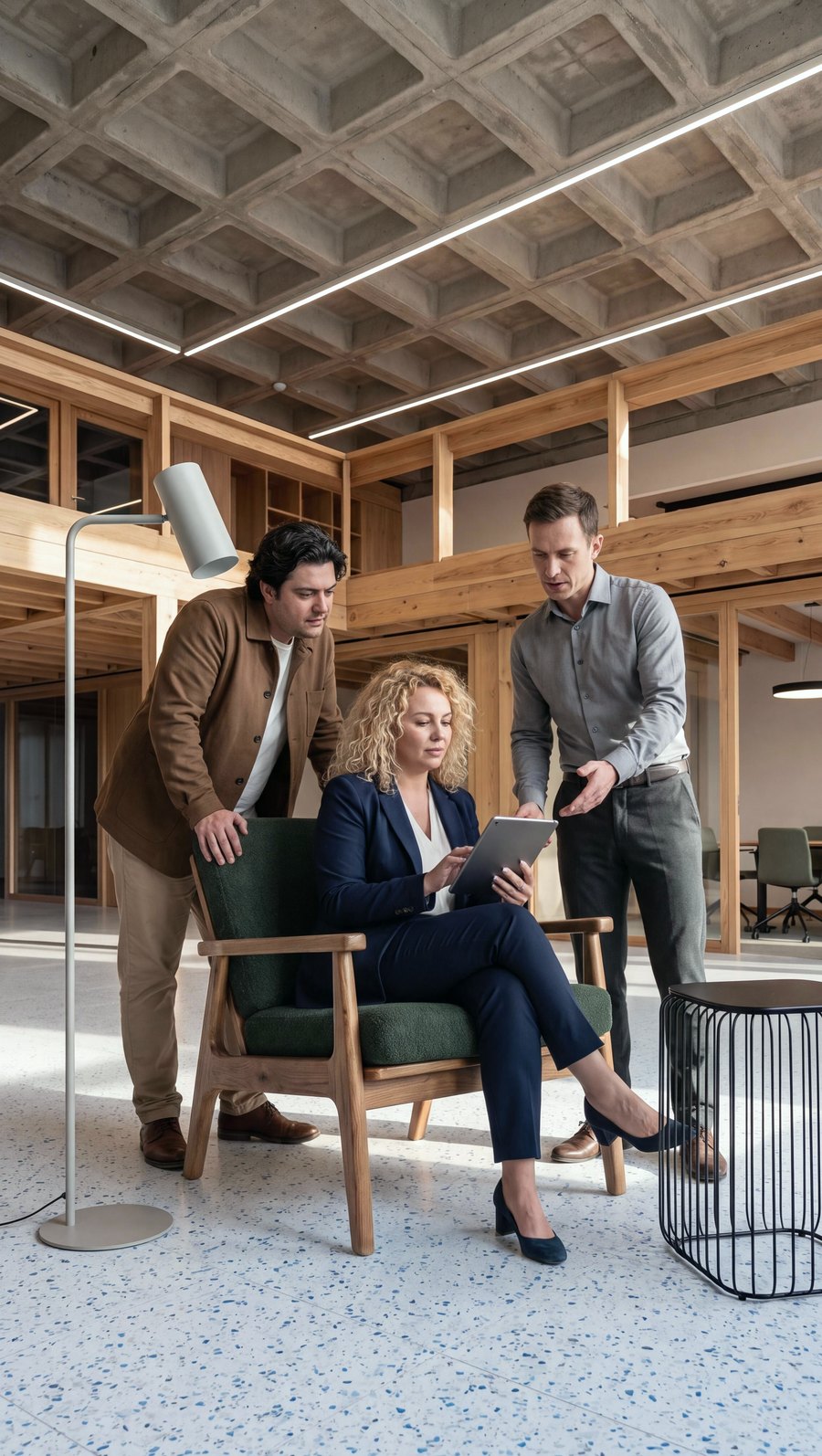
- People and pets: the ADD PEOPLE button adds one of 13 scenes to the photo, for example office workers, a family or a dog. It shows the piece in use and its scale (10 credits).
- Product variants: another colour or material, up to 5 at once, or a photo of another version, for example a sofa bed opened out (5 credits each).
- Versions for each channel: a new aspect ratio, the piece's dimensions in centimetres on the photo (no credits) and a 4K version for print.
- Video: a short 1080p video from a finished photo, for reels and ads.
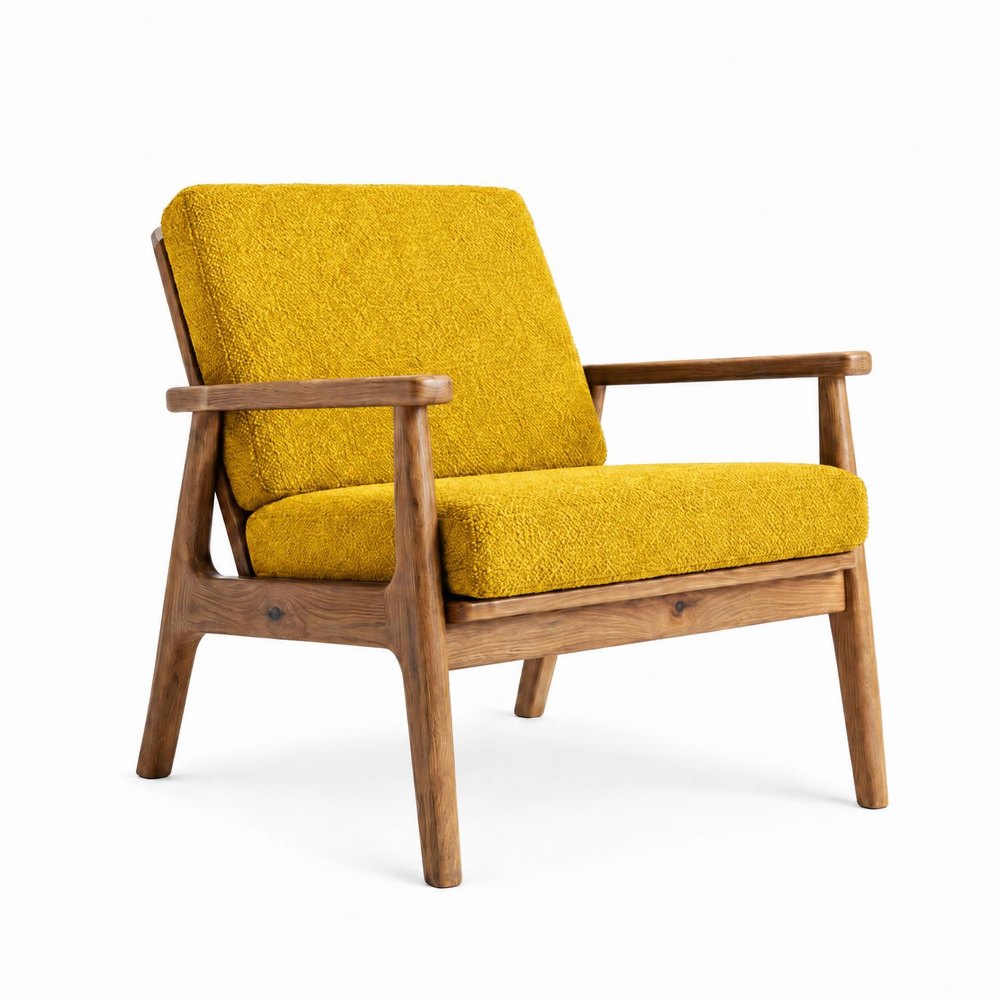 COLOR
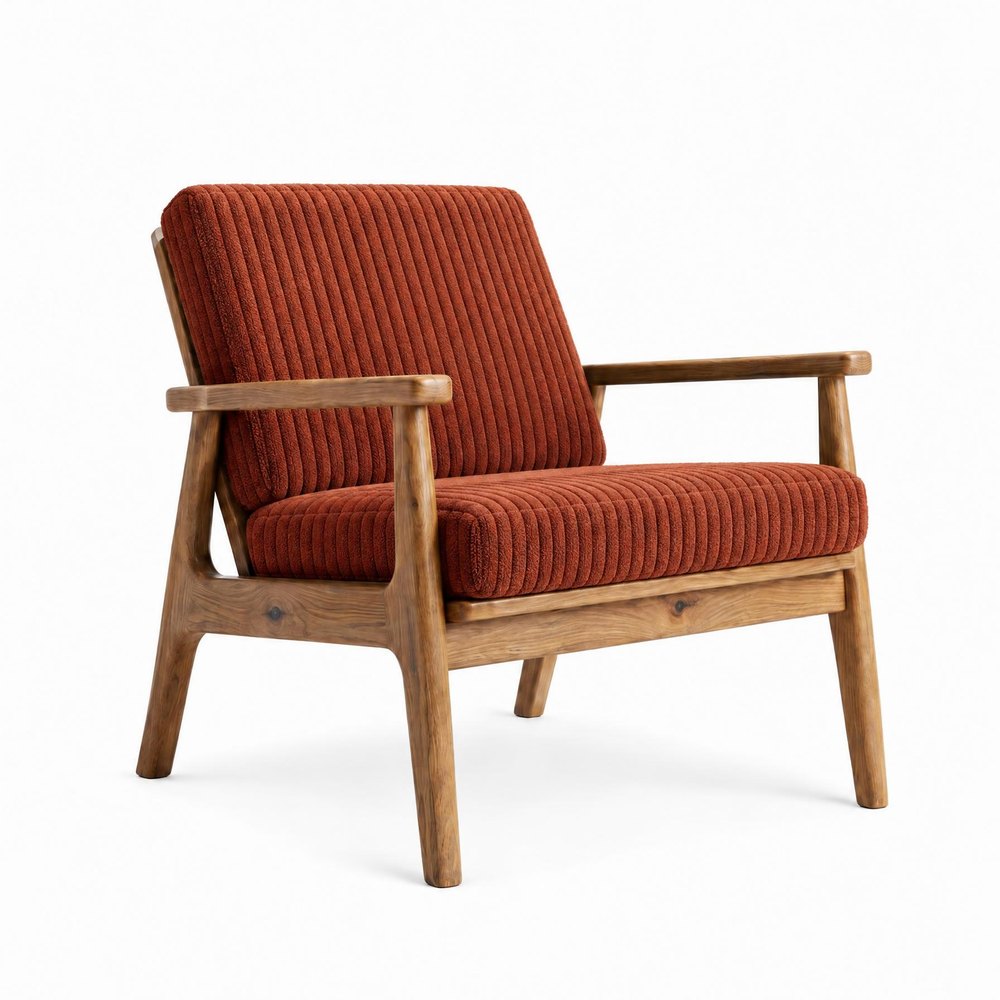 MATERIAL
 PEOPLE
How much it costs in Sopla
| What you create | Credits |
|---|---|
| Studio or lifestyle photo from a packshot | 10 |
| Packshot on a white background (PACKSHOT style) | 10 |
| ANGLE edit | 5 |
| ADD PEOPLE | 10 |
| Series of 4 shots on one background (1 photo and 3 ANGLE edits) | 25 |
Plans differ only in the number of credits, and every plan includes all styles and features. See the plans.
Frequently asked questions
What is a packshot?
A photo of the product alone on a plain, usually white background, with no interior or props. In the furniture industry it's the basic photo of every model, used as the main image in online shops and on marketplaces.
How is a packshot different from a lifestyle photo?
A packshot shows the piece on its own, while a lifestyle photo shows it in a furnished room. A packshot answers the question of what the product looks like, and a lifestyle photo the question of how it will look at home. Online shops usually need both.
What background should I use for a furniture packshot?
White or a light single colour, with no creases and no shadows on the wall. On many marketplaces, Amazon for example, the main image must have a pure white background.
How many packshot angles does one piece of furniture need?
Usually four: front at an angle, side, back and a close-up of the material. For pieces with several versions, such as a sofa bed, add a shot of each version.
Can I take a packshot with my phone?
Yes. What matters most is sharp focus across the whole piece and the whole piece in frame. The background doesn't have to be perfect: even from a warehouse photo, the PACKSHOT style in Sopla will create a packshot on a white background.
What format should a packshot be?
Any. You can upload a packshot in any aspect ratio, and you create the finished photos in one of 7 formats: 9:16, 4:5, 1:1, 5:4, 3:2, 2:3 and 16:9. You can also download a photo and crop it yourself.
Which packshot software should I choose?
To remove the background and nothing else, a background removal tool is enough. If you then want to create studio photos, lifestyle photos and video from your packshot, choose an app that does it all in one place. In Sopla you upload a packshot once and use it for every photo that follows.
How do I create several studio photos of a piece on the same background?
Create one studio photo from the front packshot, then add the other shots with the ANGLE edit and the “Turn the piece” option, uploading packshots from the other sides. The background, light and framing stay the same.
Does the furniture in a studio photo look the same as in the packshot?
In most photos, yes, because Sopla starts from your packshot, not from a description. Sometimes the angle of the piece or a detail changes, so it's worth comparing every photo with the packshot before you publish.
Got packshots? Upload them and create your first studio photo series.
Furniture lifestyle photos from a packshot: how to create them step by step
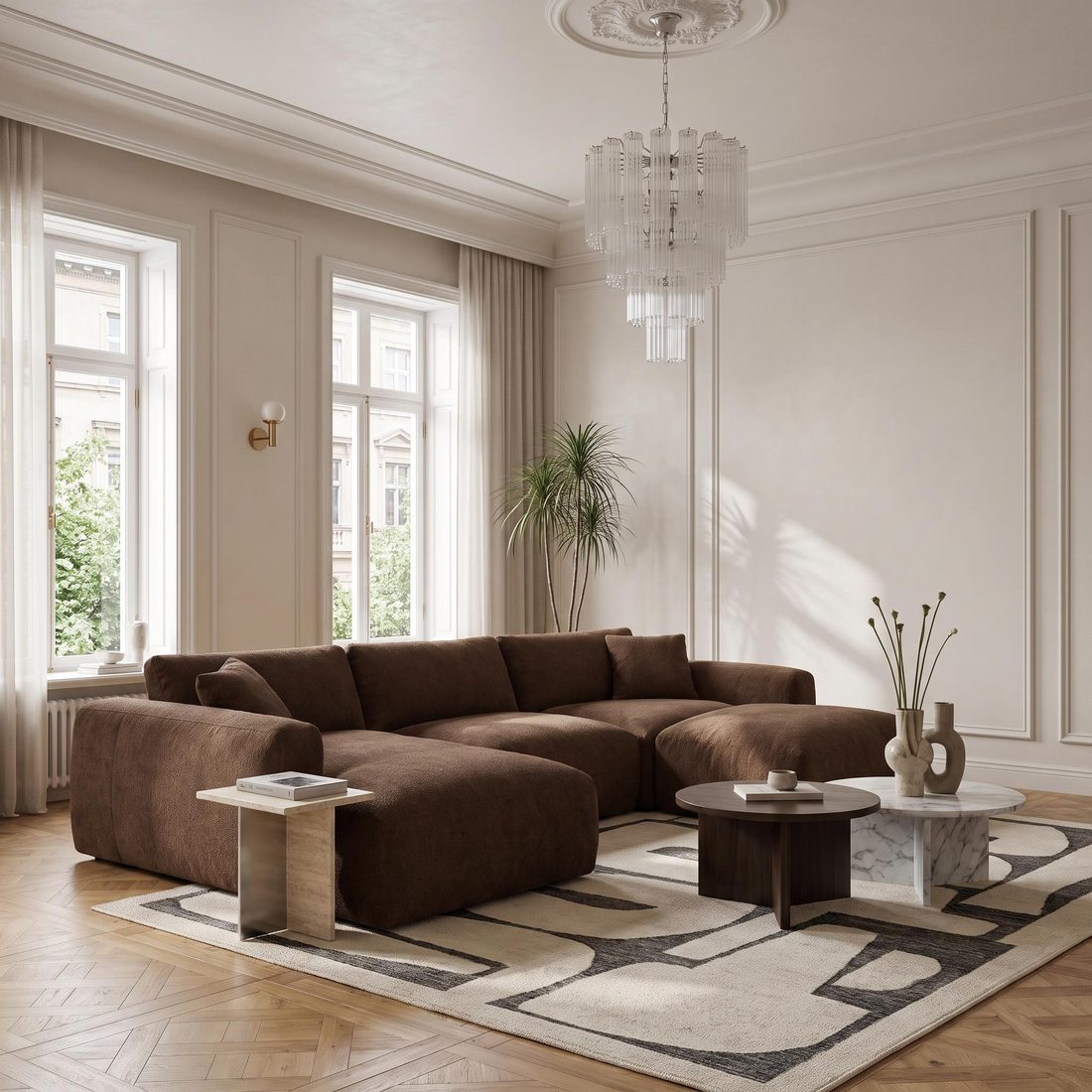
A lifestyle photo shows a piece of furniture in a furnished room instead of on a white background. To create one from a packshot, you need one good photo of the piece on a plain background and a tool that places it in a finished interior. In Sopla.app it takes five steps and a few clicks, with no prompts to write, and the photo is usually ready in about a minute.
PACKSHOT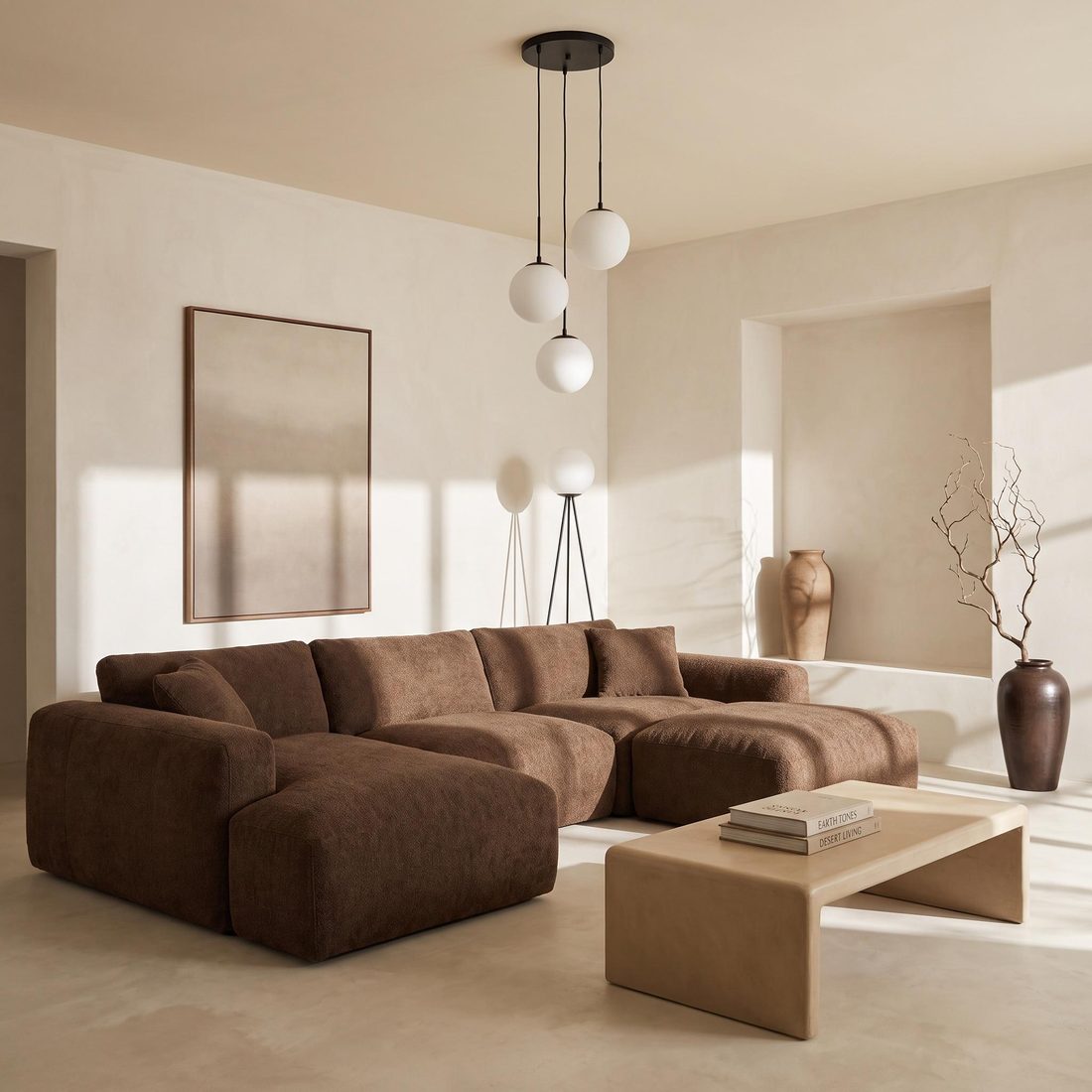 WARM MINIMAL
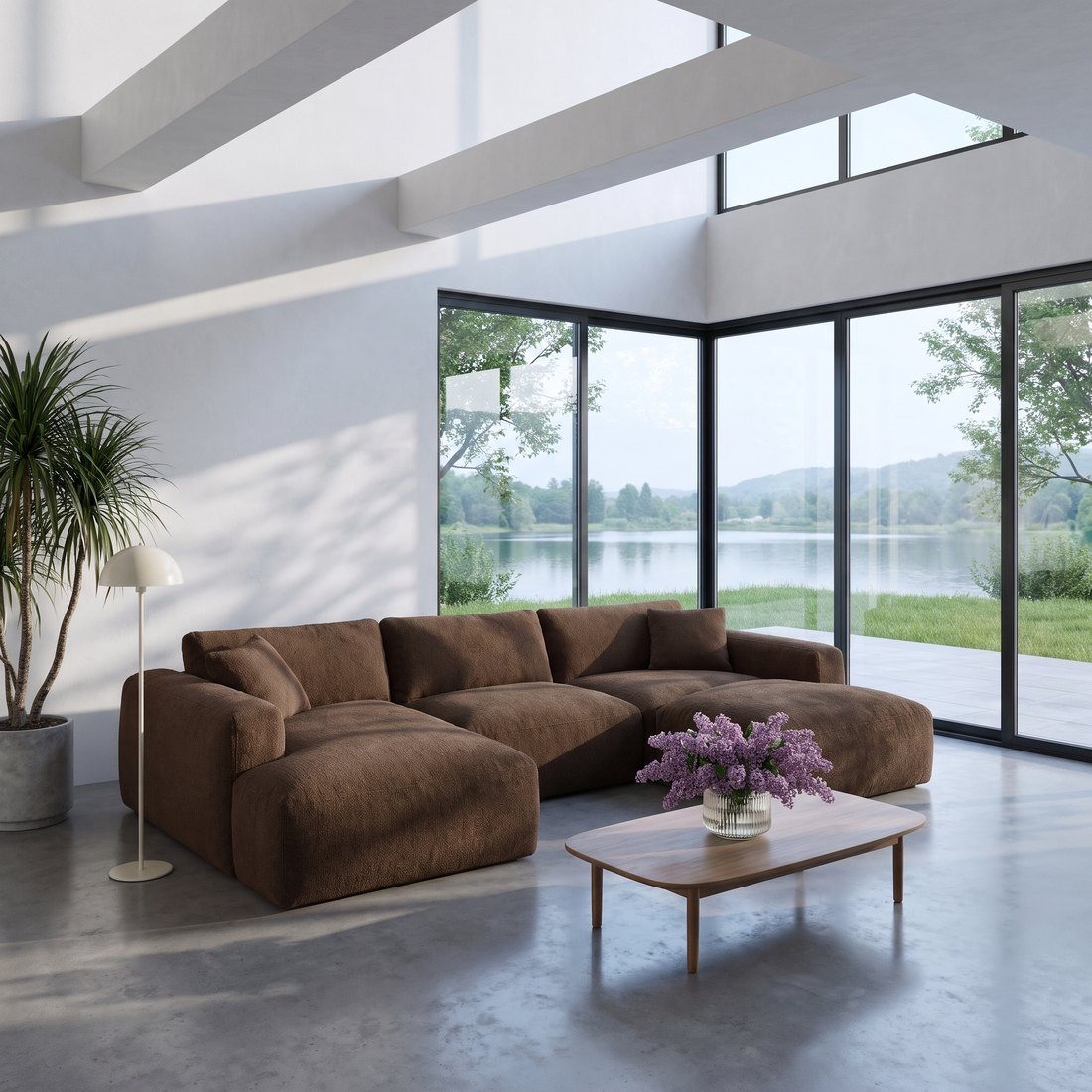 MODERN
 OLDTOWN
What a furniture lifestyle photo is
A lifestyle photo shows furniture in a furnished room: a sofa in a living room, a bed in a bedroom, a table in a dining room. You may also hear it called a room scene, an in-situ photo or an interior visualisation.
A packshot shows the product on its own. A lifestyle photo shows how it looks at home: its scale, the light and what it goes with. The two work together:
| Packshot | Lifestyle photo | |
|---|---|---|
| What it shows | The piece alone on a white or plain background | The piece in a furnished room |
| The question it answers | What exactly does the product look like? | How will it look in my home? |
| Where it works | Main image in an online shop or on a marketplace, variant overviews | Product page gallery, catalogue, social media, ads |
| How many you need | Usually one per variant and angle | Several: different styles, formats and seasons |
What to prepare: a good packshot
Your starting point is a packshot, a photo of the piece on a white or plain background. The better the packshot, the better the starting point. Check four things:
- The whole piece in frame. No cropped legs, sides or backrests.
- A plain, light background. White or a single colour, with nothing else in the shot.
- Sharp focus and even light. You can see the fabric texture, the wood grain and the stitching.
- An angle close to the one you want in the room. Sopla usually keeps the angle of the packshot, though not always exactly. You can also change the angle later, on the finished photo.
The file can be a JPG or PNG of up to 10 MB. If you don't have a packshot, you can create one in Sopla and reuse it.
How to create a lifestyle photo from a packshot: 5 steps
Here are the steps in Sopla.app, a browser-based app for the furniture industry.
Step 1. Upload the packshot
Click NEW PHOTO and upload the file. The photo stays in your library, so for more photos of the same piece you simply pick it from the list.
Step 2. Choose the furniture type
Tell Sopla what is in the photo: sofa, armchair, bed, table, chair, desk, wardrobe or one of the other types (23 in total). This tells Sopla how to place the piece in the room. If the packshot shows several pieces, choose FURNITURE SET.
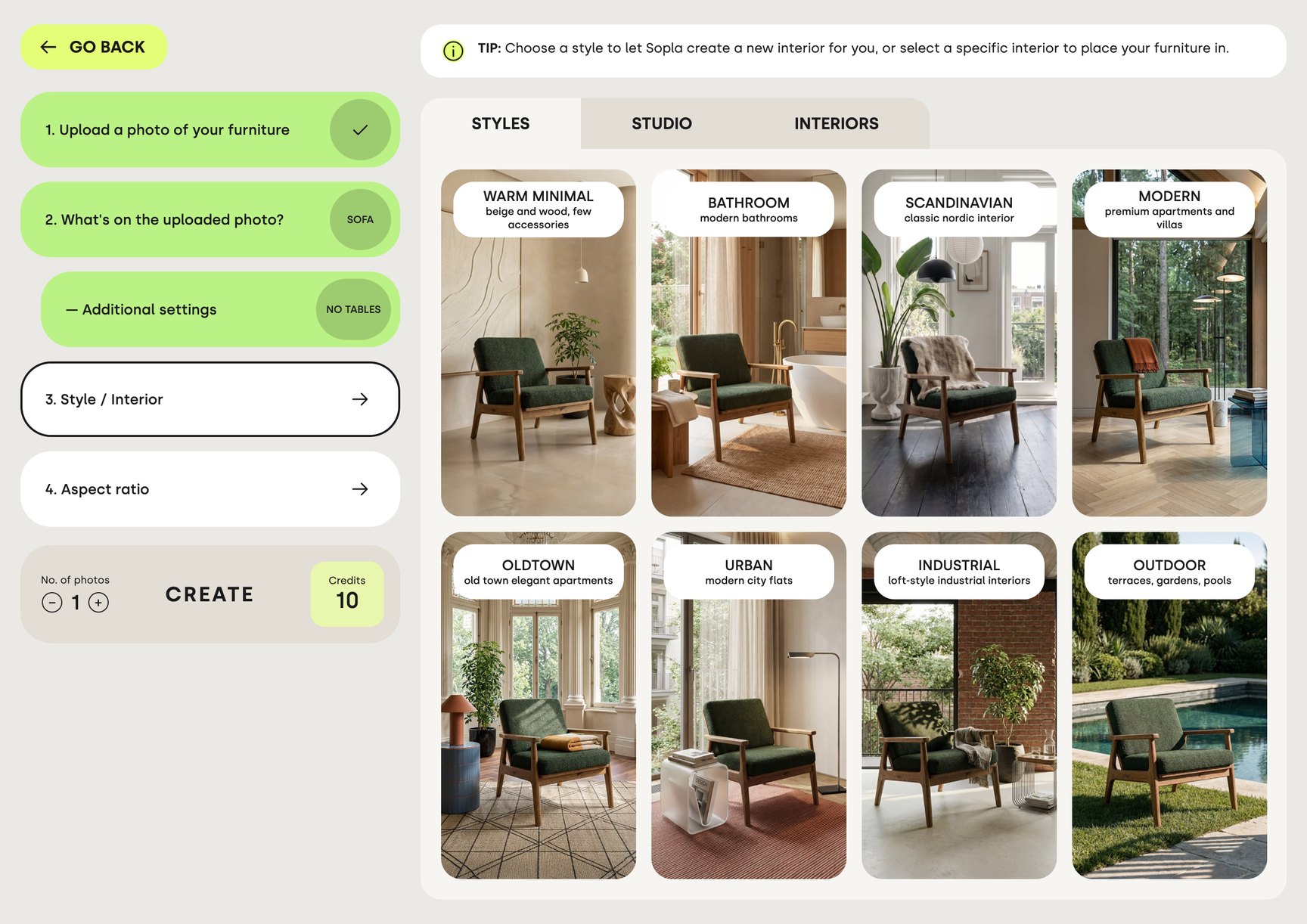
Step 3. Choose an interior style
There are 23 styles:
- home interiors, including SCANDINAVIAN, MODERN, OLDTOWN, INDUSTRIAL and WARM MINIMAL,
- seasonal: AUTUMN, WINTER and WINTER+XMAS,
- OFFICE, and OUTDOOR for garden furniture,
- five studio backgrounds: MATCH, CONTRAST, LIGHT, DARK and PACKSHOT.
The interiors are designed in advance by the Sopla team, so you choose a style instead of describing one. For most styles you can also choose the light and shadows, for example MORNING or GOLDEN HOUR. This step is optional. Want to show the piece in your own interior, such as your showroom? Upload a photo of the room and choose it instead of a style.
Step 4. Choose the aspect ratio
Choose the format based on where you will use the photo:
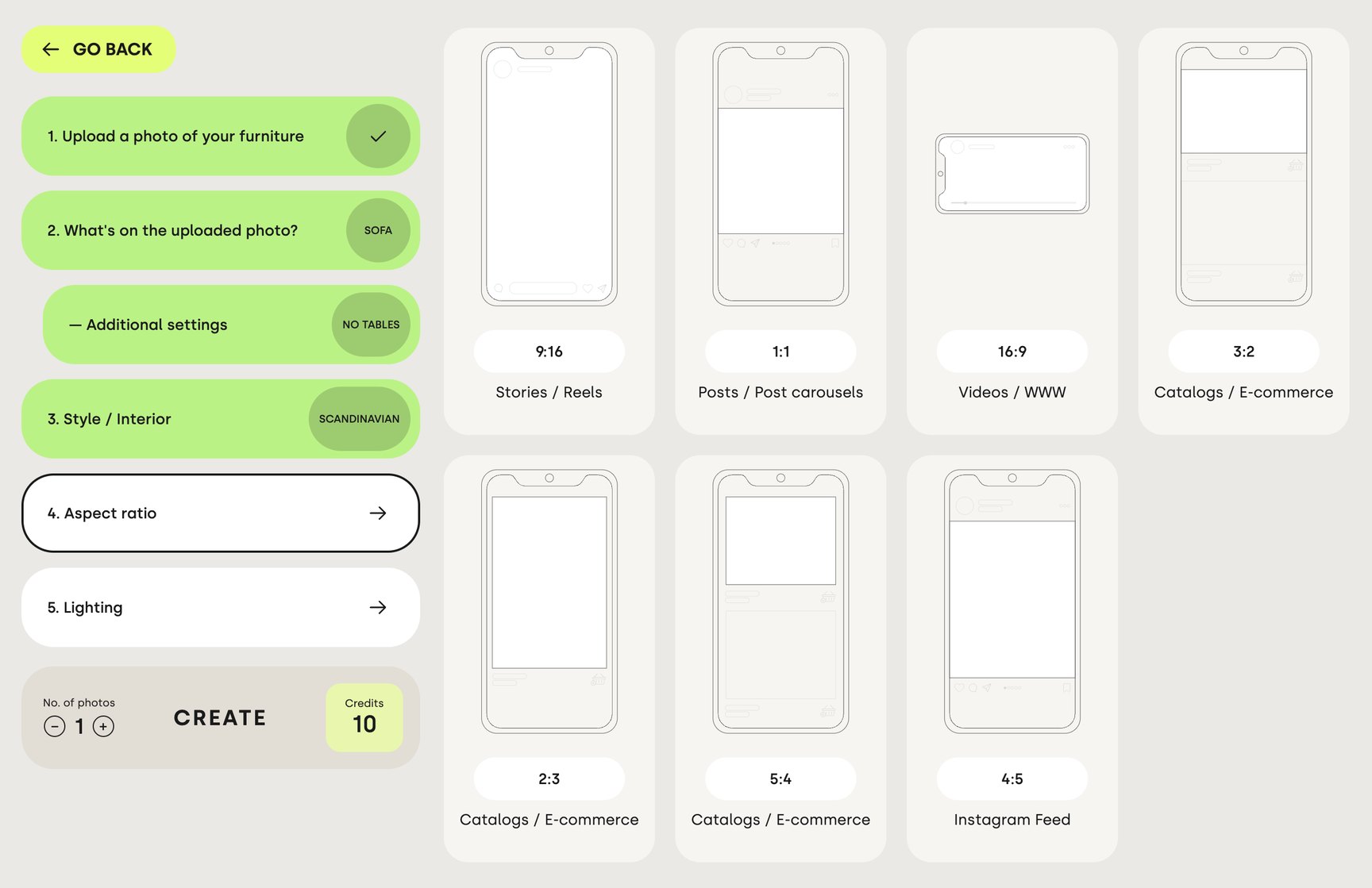
| Aspect ratio | Where it works |
|---|---|
| 1:1 | Posts and carousels |
| 4:5 | Instagram feed |
| 9:16 | Stories, reels and vertical ads. The free space above and below the piece leaves room for text and buttons |
| 16:9 | Website and landscape video |
| 3:2, 2:3, 5:4 | Catalogues and online shops |
Step 5. Click CREATE
Set the number of photos (1 to 5) and click CREATE. The photo is usually ready in about a minute and appears in your gallery. Meanwhile you can start the next one.
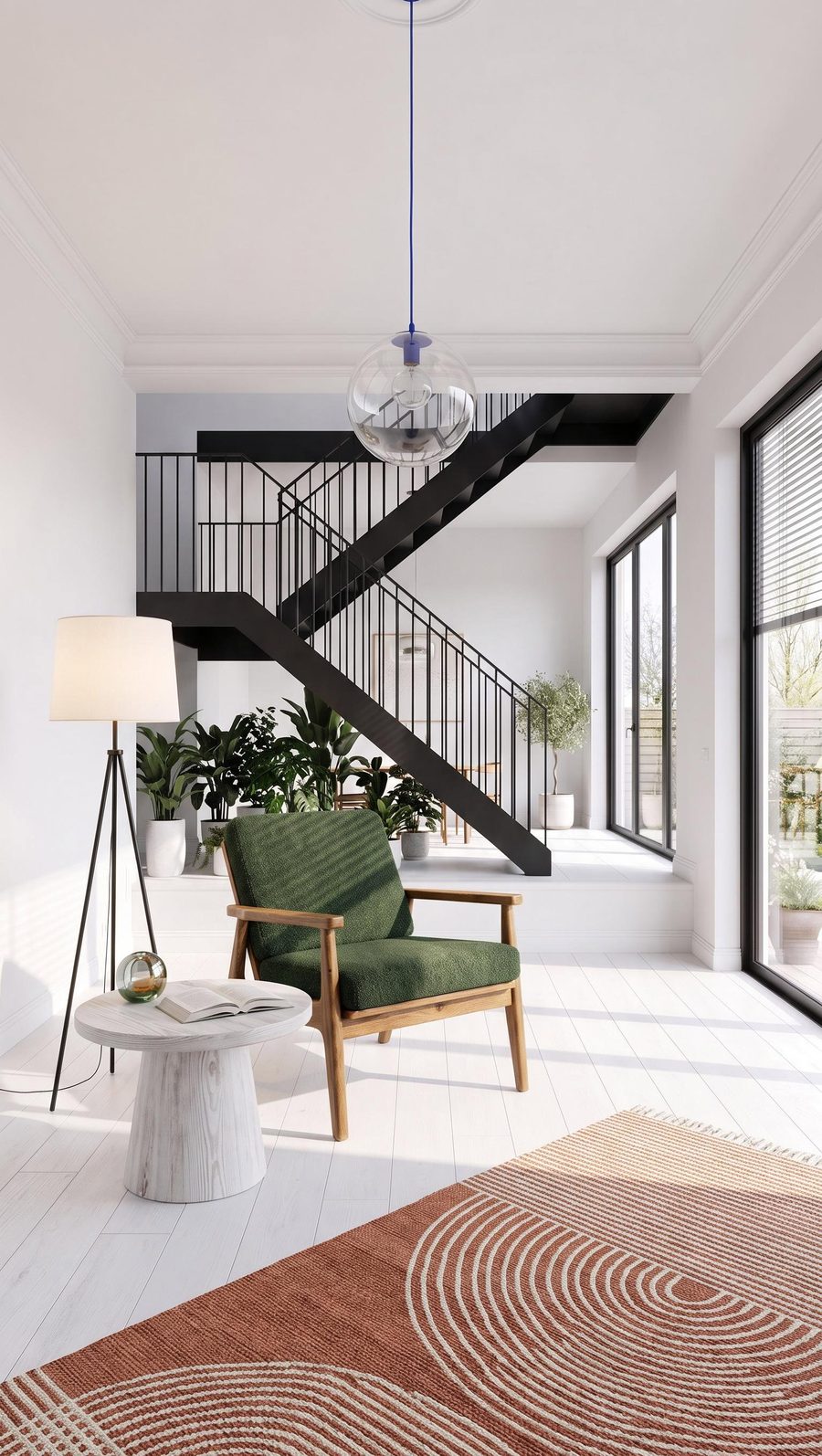
One packshot, many lifestyle photos
You can use the same packshot as many times as you like, so a set of photos for your shop, social media and campaigns takes just a few minutes. A sample set for one sofa:
- 3 lifestyle photos in different styles for the product page gallery,
- 1 photo in 4:5 for Instagram,
- 1 photo in 9:16 for reels,
- 1 seasonal photo for an autumn or Christmas campaign.
That's 6 photos, or 60 credits.
For a whole collection, a saved interior helps: you reuse the same room for every piece, so your catalogue and marketplace listings look consistent. That is how the Danish brand Furnhouse worked. Its 2026 catalogue runs to 174 pages and 263 product variants, and 99% of the images in it were created in Sopla. Read the Furnhouse case study.
 9:16
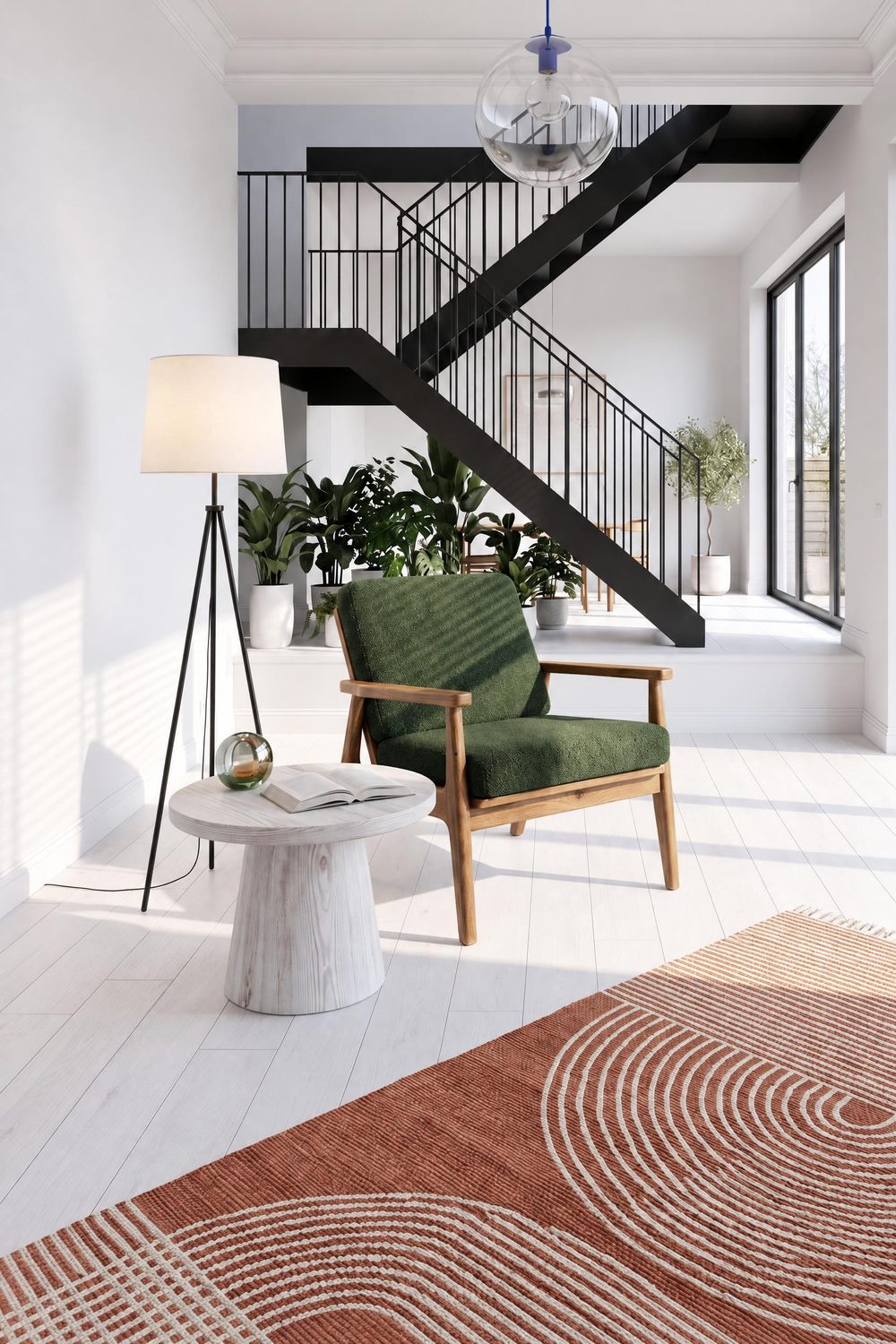 2:3
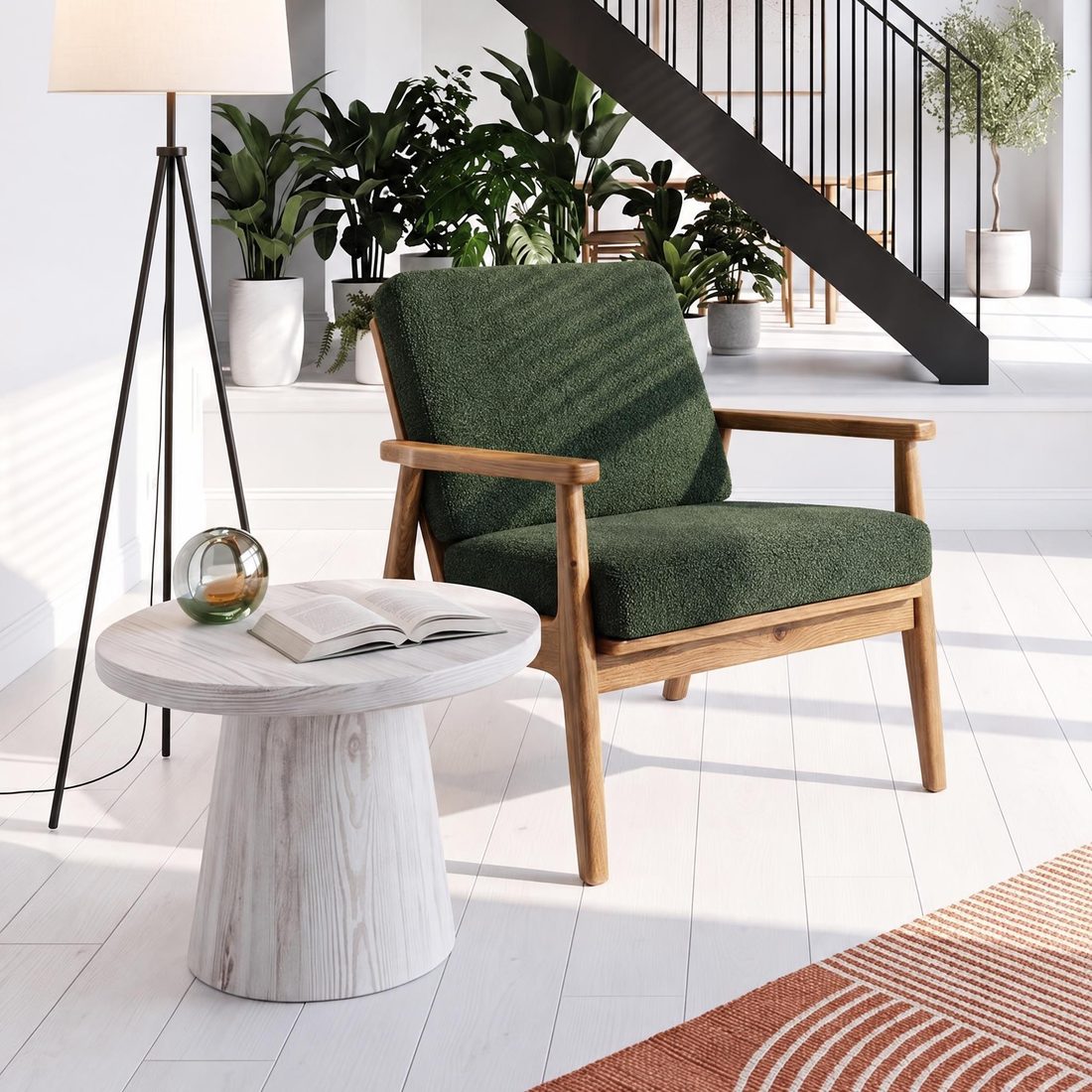 1:1
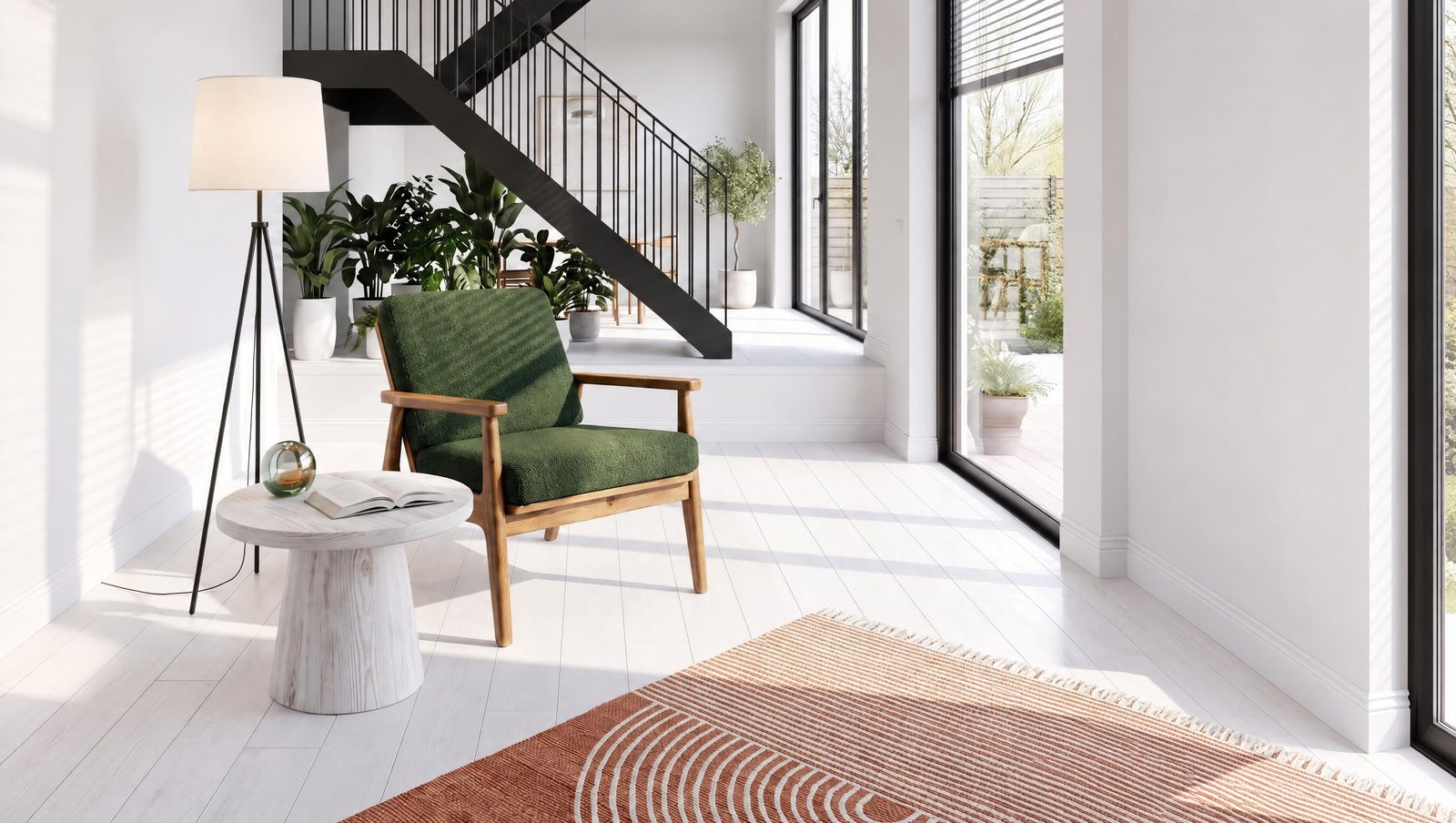 16:9
What to check before you publish
A lifestyle photo has to sell the real product, so compare it with the packshot before you publish:
- Shape and proportions: the silhouette, back height, leg length.
- Colour and material: fabric shade, wood grain, sheen.
- Details: stitching, legs, handles, buttons.
- Scale in the room: the piece looks natural next to the window, doors and other furniture.
Sopla starts from your packshot instead of creating the piece from a description, and in most photos it stays faithful to it. Sometimes, though, the angle of the piece or a detail changes, so it's worth comparing every photo with the packshot. If something doesn't match, create another photo with the same settings: each one comes out a little different.
What to do with the finished photo
A finished lifestyle photo is a starting point for more content:
- Product variants: change the colour or material of the piece, up to 5 at once, or upload a photo of another variant, for example the piece opened up.
- Other shots: change the angle of the piece, show the whole room from another viewpoint or create a close-up of a detail.
- Versions for each channel: change the aspect ratio with precise cropping, add the piece's dimensions in centimetres to the photo (handy for marketplaces) and adjust the colours. Dimensions and colour adjustments cost no credits.
- More life in the scene: add people and pets, change the decor in your own words or create a 1080p video (one 5s shot, one 10s shot or three 5s shots).
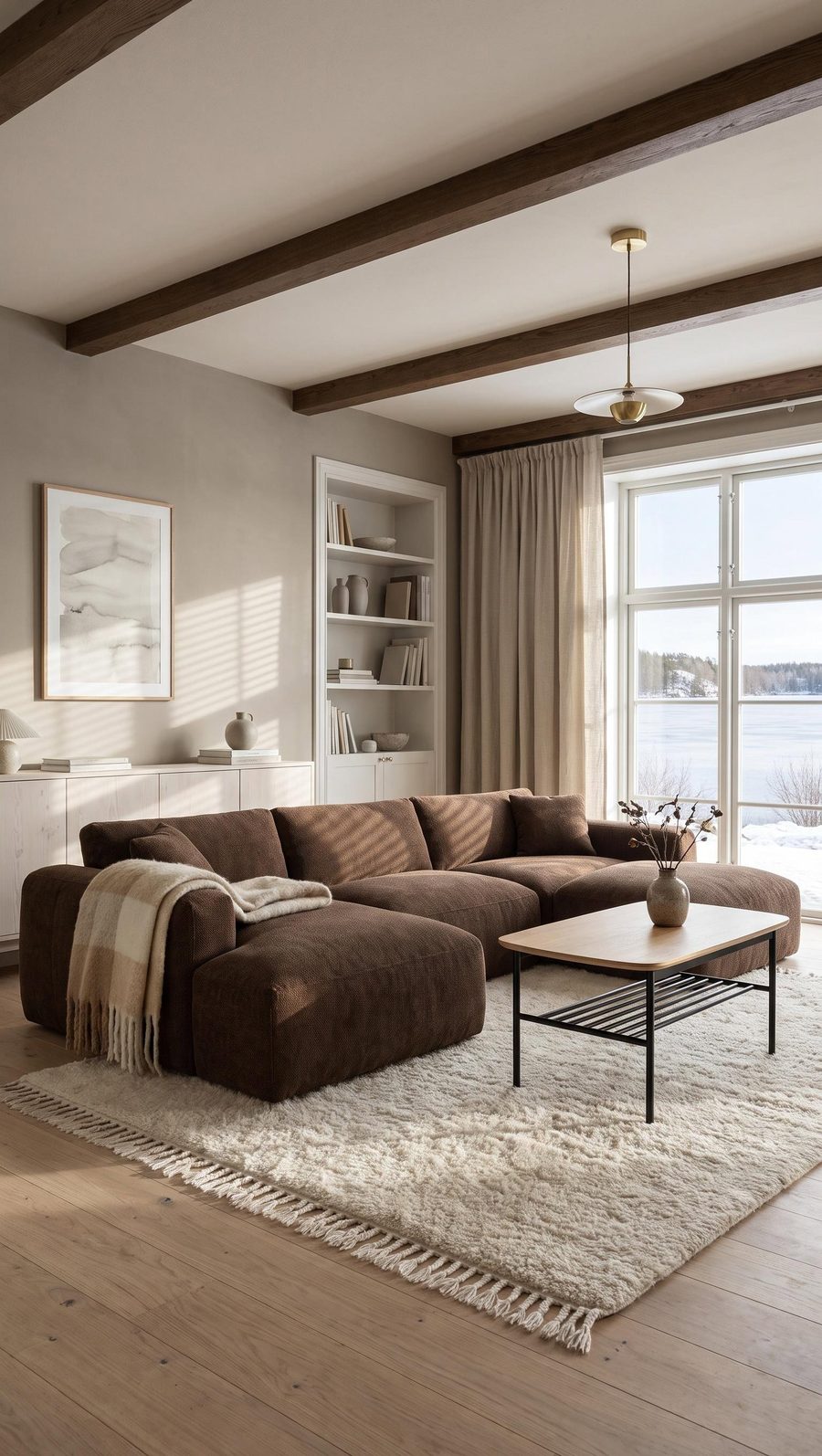 WINTER
 ZOOM
How much a lifestyle photo costs in Sopla
One photo costs 10 credits.
| Plan | Net price | Credits | Photos | Cost per photo |
|---|---|---|---|---|
| START | 29€ a month | 200 | 20 | 1.45€ |
| BUSINESS | 99€ a month | 800 | 80 | approx. 1.24€ |
Every plan includes all styles, all features and full commercial use. Plans differ only in the number of credits. See the plans.
Frequently asked questions
Does the furniture in a lifestyle photo look the same as in the packshot?
In most photos, yes. Sopla starts from your packshot, not from a text description, so it usually keeps the proportions, materials and colour of the piece. Sometimes the angle of the piece or a detail changes, so compare the photo with the packshot before you publish.
Do I need a packshot on a white background?
A white or plain background and the whole piece in frame are enough. If you don't have a packshot, you can create one in Sopla and reuse it.
How long does it take to create a lifestyle photo?
Usually about a minute. Meanwhile you can start the next photo.
Do I have to write prompts?
No. You choose the furniture type, the style and the aspect ratio. The only time you type is to describe a decor change on a finished photo, if you want one.
Can I show the furniture in my own interior?
Yes. Upload a photo of your room, for example your showroom, and choose it instead of a ready-made style.
What furniture can I show?
23 types, including sofas, armchairs, beds, tables, chairs, bar stools, desks, office chairs, wardrobes, sideboards, sunbeds, swings and complete furniture sets. Lamps and sanitary ware are not yet supported as products.
Can I use the photos in my shop, on marketplaces and in ads?
Yes. On every plan, you own everything you create in Sopla from the moment it's created. You can publish the photos on your website, in marketplace listings, in catalogues, in paid ads and on social media, with no extra licence to buy.
Got a packshot? Upload it and create your first lifestyle photo.