


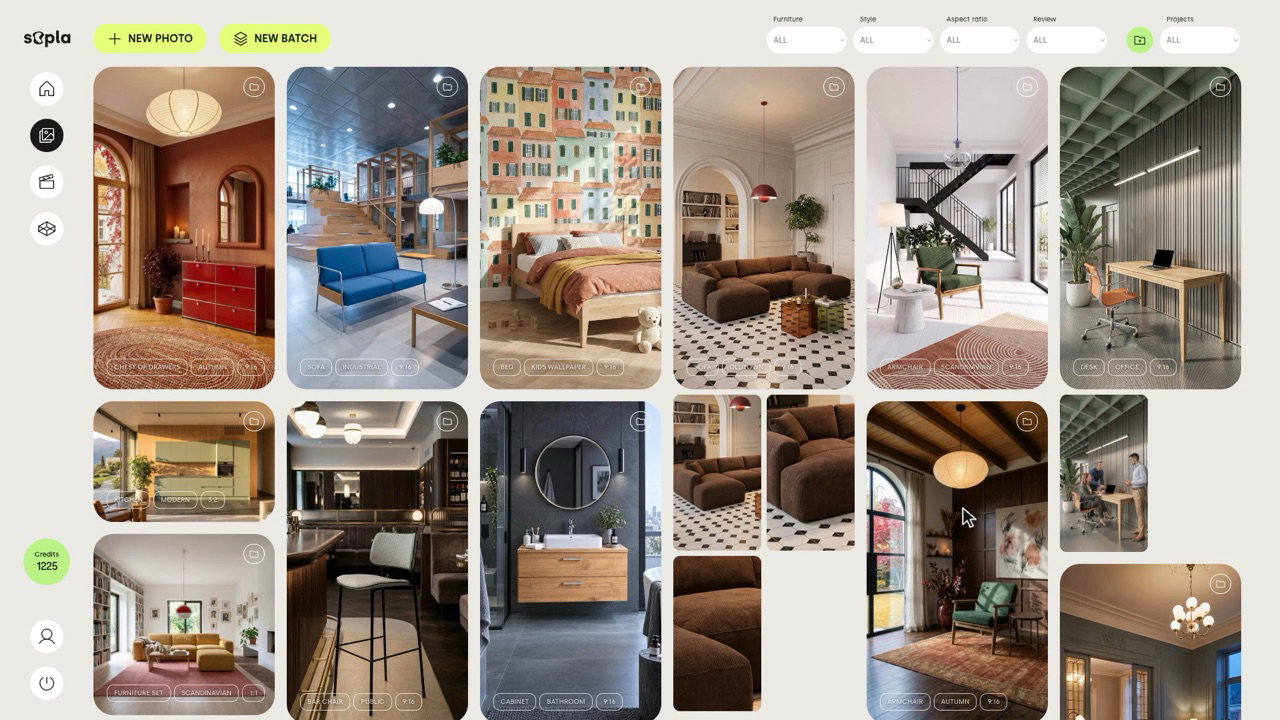
A photo batch in Sopla.app creates photos of many furniture items in one go. You choose your packshots, Sopla recognises the type of each item, and you assign styles, aspect ratios and settings to a whole group at once or to each item separately. One click on CREATE orders the whole batch, from three photos of a single item to 200 photos of an entire collection. Below, you’ll find everything step by step.
What is a photo batch
A photo batch is the second way to create photos in Sopla, alongside the photo creator for single photos. You’ll find the NEW BATCH button in the gallery, next to NEW PHOTO. The photo creator takes you through one item and one style. A batch puts many items into one table, and each item can have several styles.
| Photo creator | Photo batch | |
|---|---|---|
| Items in one go | 1 | up to 50 |
| Styles per item | 1 | several, each style is a separate photo |
| Photos in one go | up to 5 | up to 200 |
| Settings | for one item | for a group of items at once or for each one separately |
| Price per photo | 10 credits | 10 credits |
Choose a batch when you have a new collection, a seasonal catalogue update or several models that need photos in the same styles. The photo creator is still there for single photos and quick tests.
Creating a photo batch step by step
Step 1. Choose your furniture
Click NEW BATCH. Choose packshots from your library or upload new files: JPG or PNG up to 10 MB, up to 50 packshots per batch. Sopla recognises the type of each item, for example SOFA, ARMCHAIR or POUF. When it isn’t sure, CHECK appears next to the item, and you confirm the type or choose another one. A packshot that already has a type goes straight into the table.
Step 2. Assign settings in the table
Each item is a row in the table, and the columns are the same choices as in the photo creator: furniture type, settings, style or interior, aspect ratio, lighting and number of photos. Above the table you select items: all at once, all of one type, for example all sofas, or individual rows. Then you assign them a style, aspect ratio, setting and lighting with a single choice. You can also change each item separately, in its own row.
Step 3. Check the cost and the summary
At the bottom of the table you can see right away how many photos you’ll get, how many credits they’ll cost and how many will be left in your account. In the summary you check every photo in the batch, name the project and click CREATE.
Step 4. Get your photos in the gallery
The photos go into a new project in the gallery and appear there one by one. You can close the page and the batch keeps being created. Compare each photo with its packshot: the angle of the piece or a detail may differ slightly. You can fix that photo with the ANGLE edit or create it again in the photo creator.
How to set up many items at once
Selecting in groups saves the most time. A few things worth knowing:
- Select first, then assign. A type pill, for example SOFA 3, selects all sofas. All items selects the whole table. A change applies only to the selected items.
- Styles and interiors: several at once. Each chosen style is a separate photo. An armchair with two styles, for example WINTER and SCANDINAVIAN, gives two photos. If a style doesn’t fit an item, Sopla skips it and tells you which item it skipped.
- Aspect ratio: one per item. Each photo in a batch is created separately, so two formats would give two different scenes. You can create the same framing in another format later with the RATIO edit.
- Count per style: from 1 to 5. With a count of 2, each style gives two different photos, and you pick the better one.
- Your own interiors. In the style window, on the YOUR INTERIORS tab, you can choose a saved interior, for example your showroom. Each interior is a separate photo, at the price of a regular photo.
- Settings as in the photo creator. A sofa with a coffee table, chairs at a table and other settings can be assigned to all items of one type. In the settings window you can also add your own companion item and photos of the back and side of the piece.
- Undo. You can undo any change with the Undo button or with Ctrl+Z (Cmd+Z on a Mac).
Example: five items, eight photos
The batch from the video: three sofas, an armchair and a pouf, all in 9:16. The sofas got the setting with a coffee table, and the whole batch got the WINTER style. We added a second style to three items and swapped WINTER for OFFICE on one sofa.
| Item | Styles | Photos |
|---|---|---|
| U-shaped corner sofa, chocolate | WINTER, MODERN | 2 |
| Modular sofa, yellow | WINTER | 1 |
| Office sofa, blue | OFFICE, CONTRAST | 2 |
| Armchair, green | WINTER, SCANDINAVIAN | 2 |
| Pouf | WINTER | 1 |
| Total | 8 photos, 80 credits |
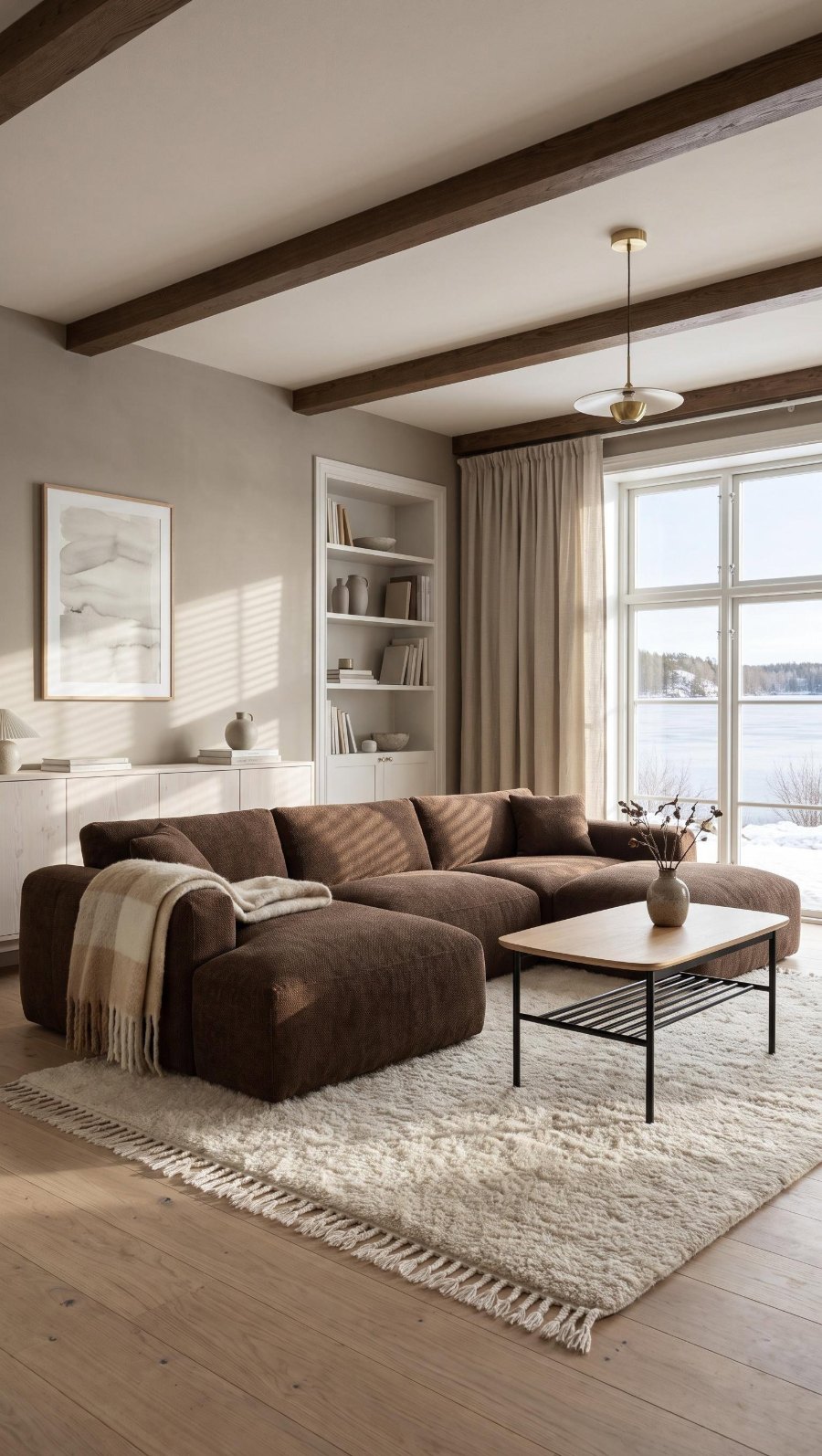 WINTER
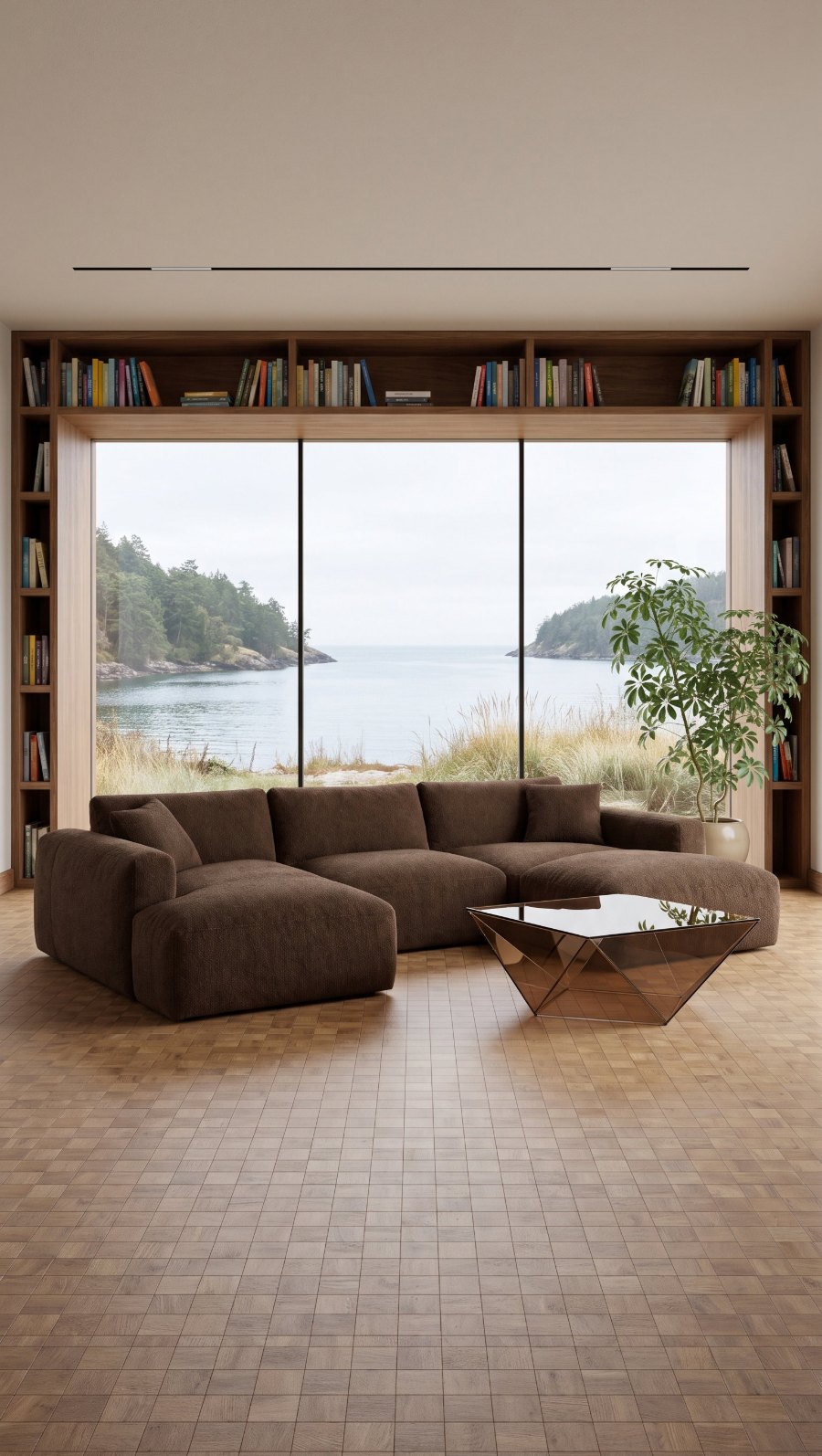 MODERN
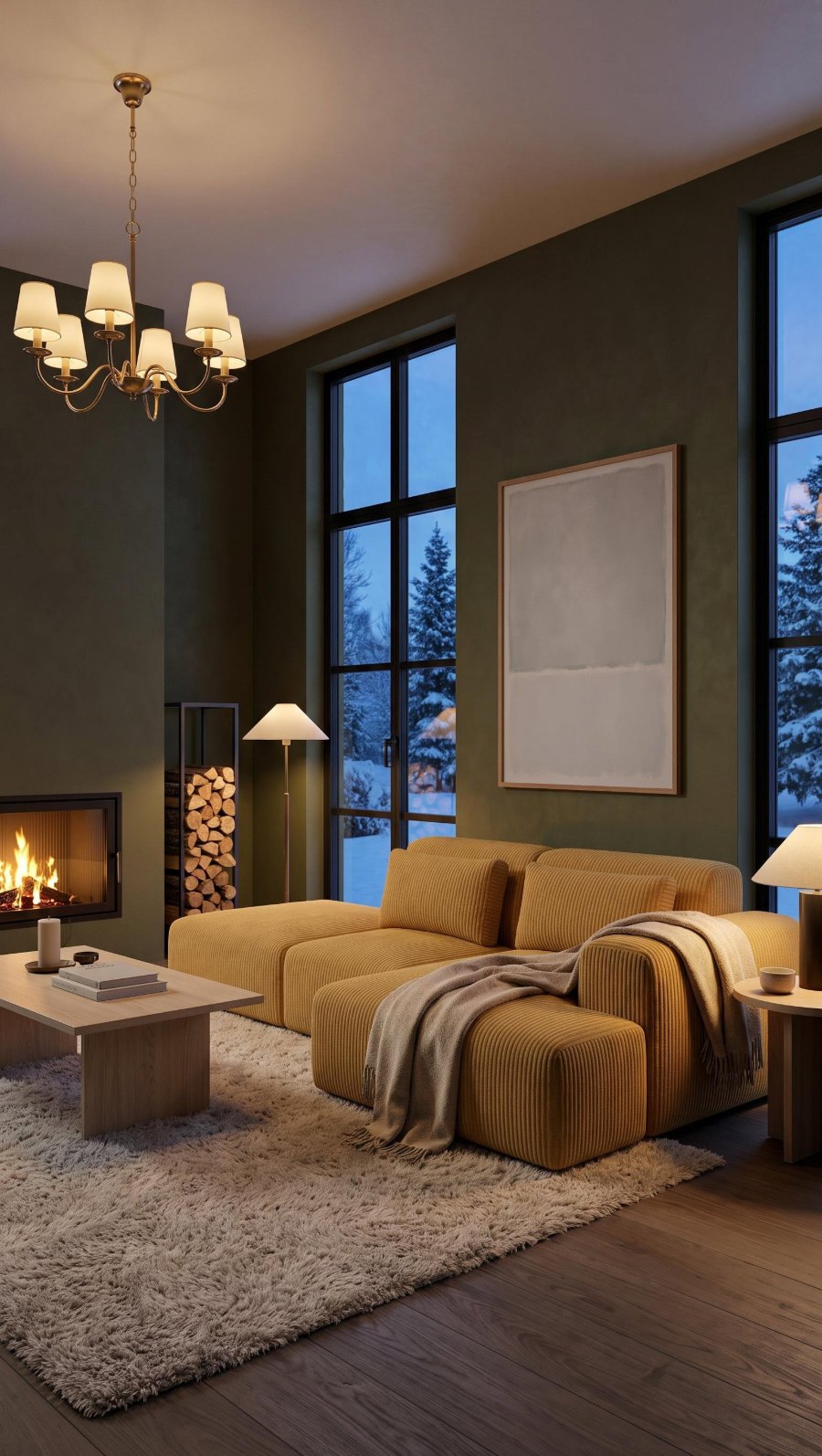 WINTER
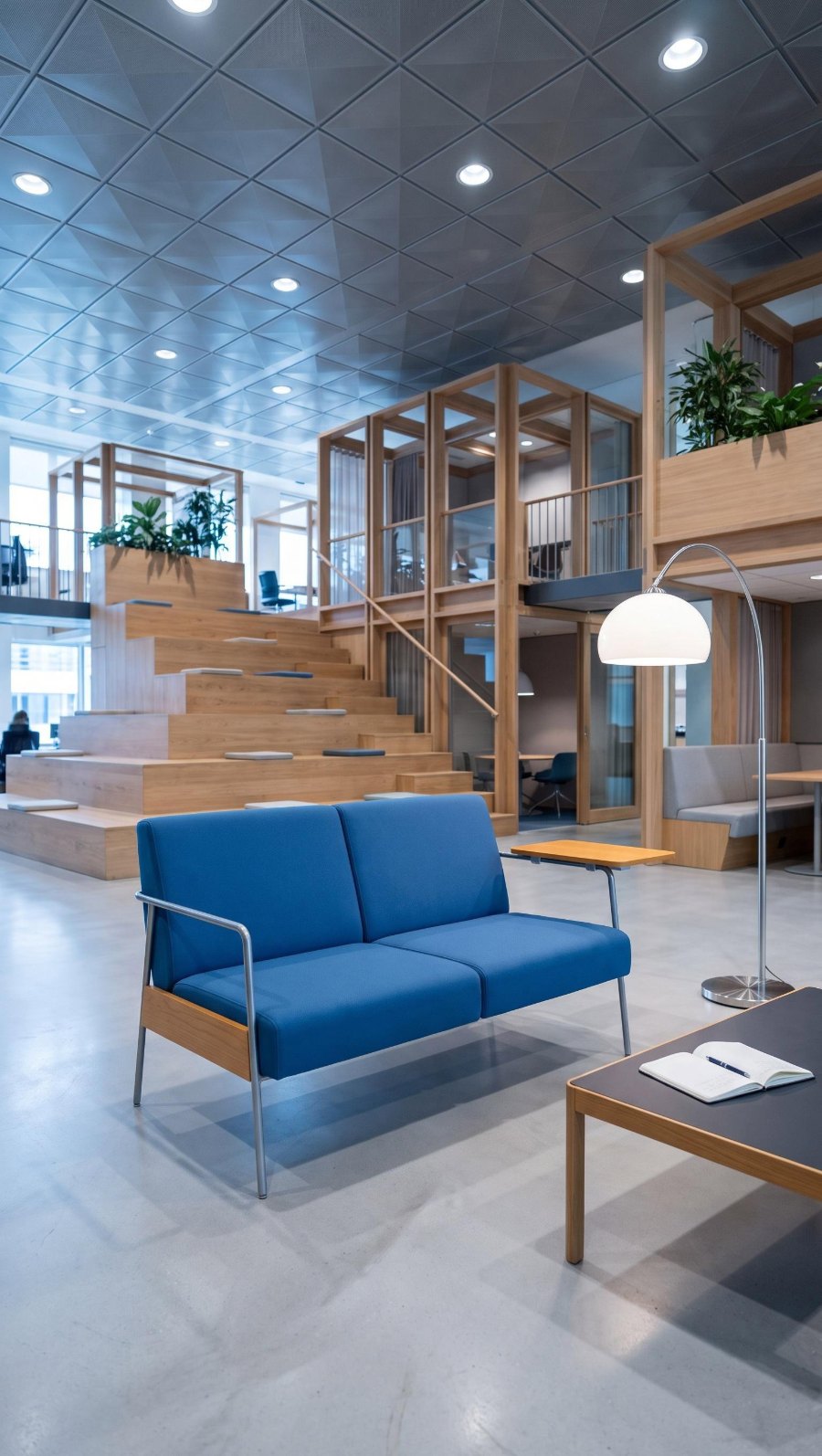 OFFICE
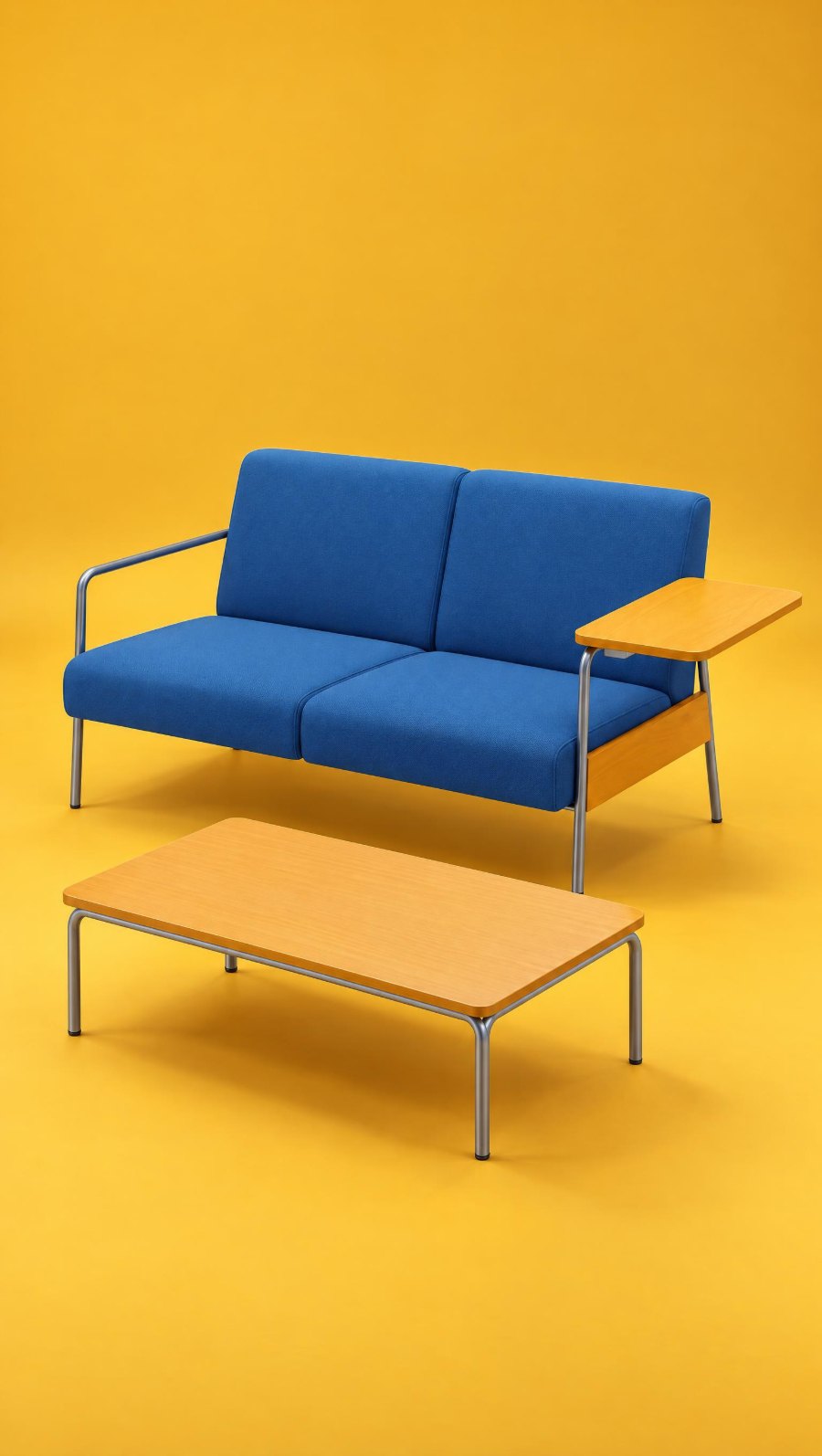 CONTRAST
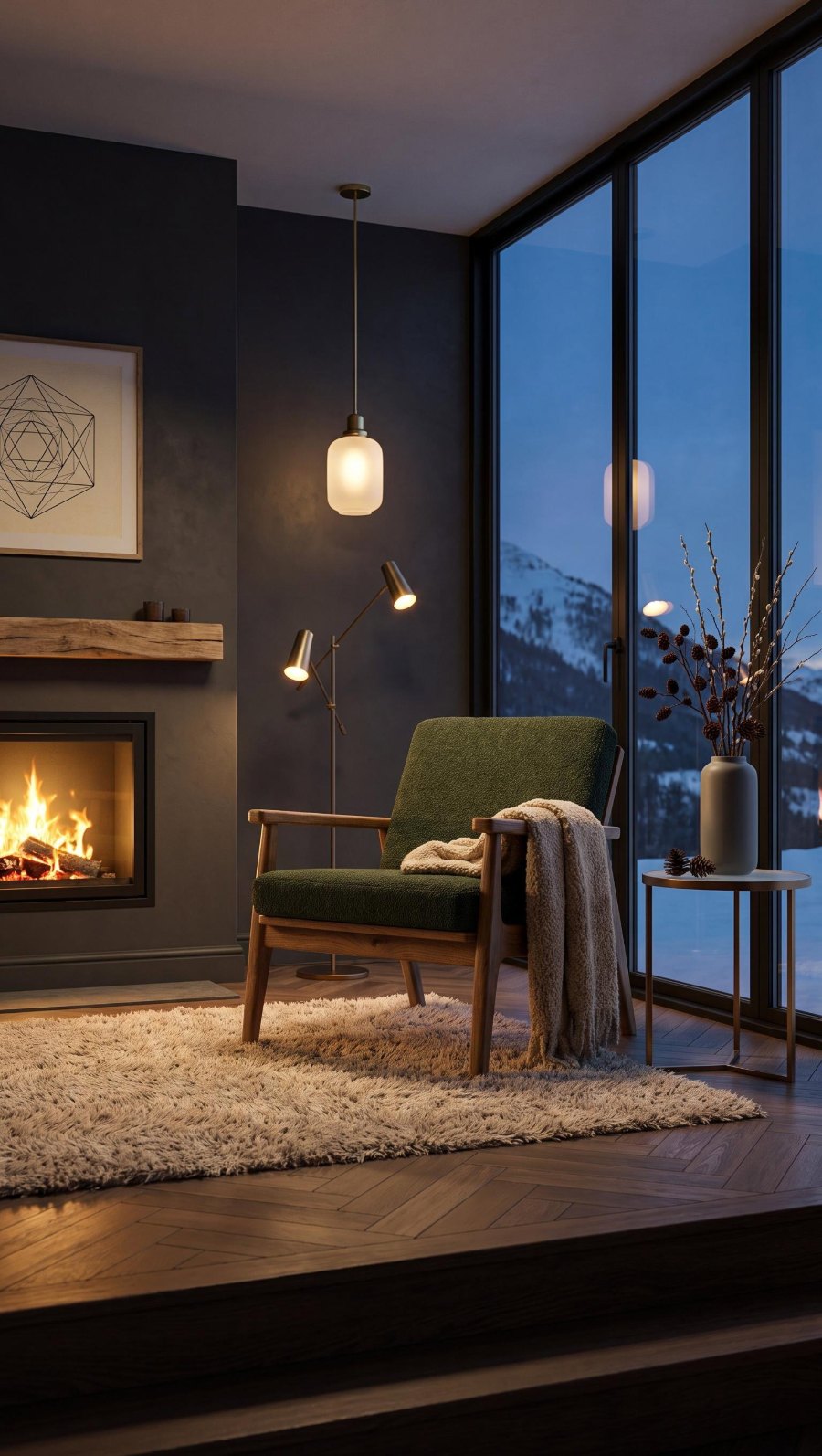 WINTER
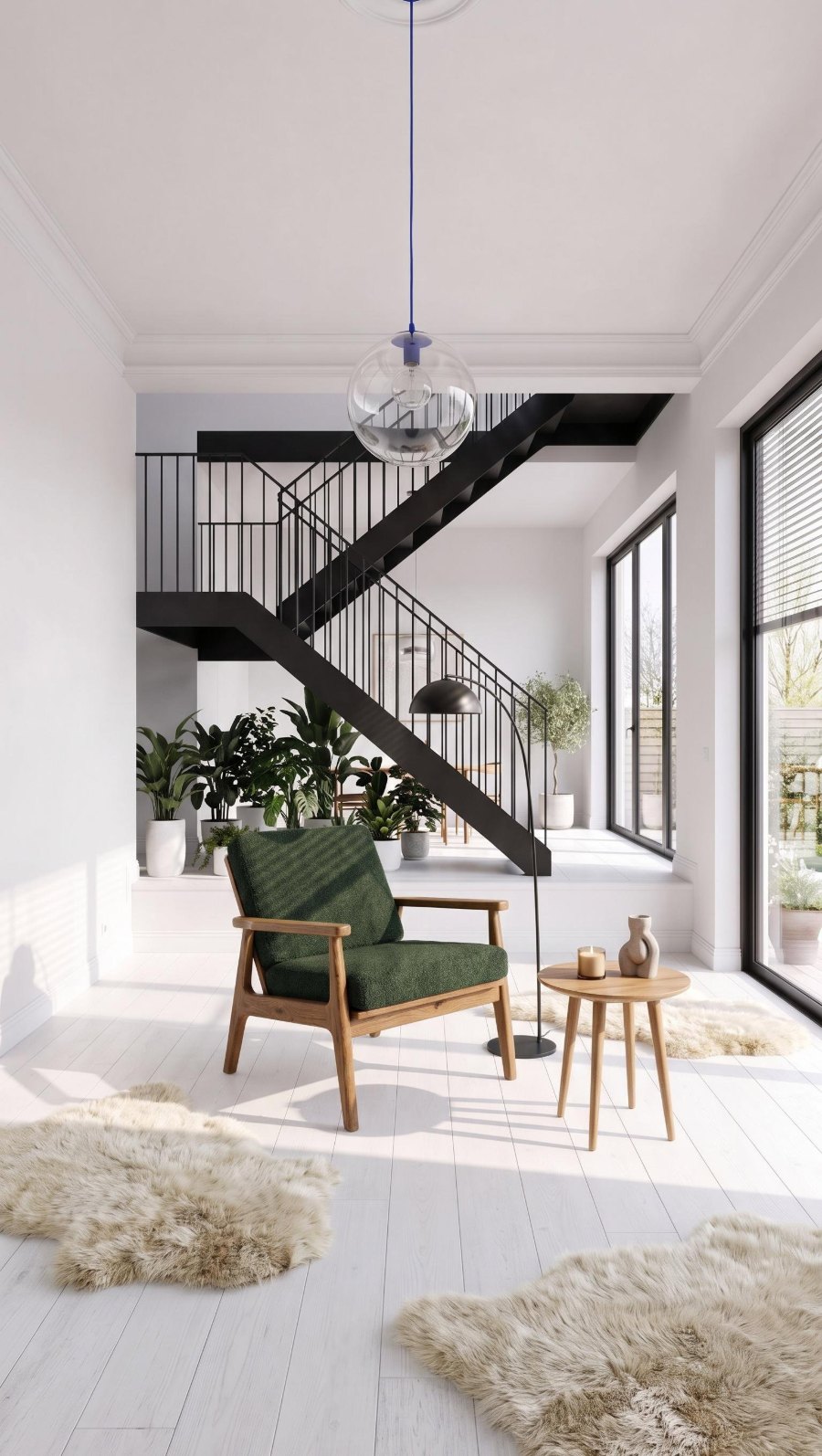 SCANDINAVIAN
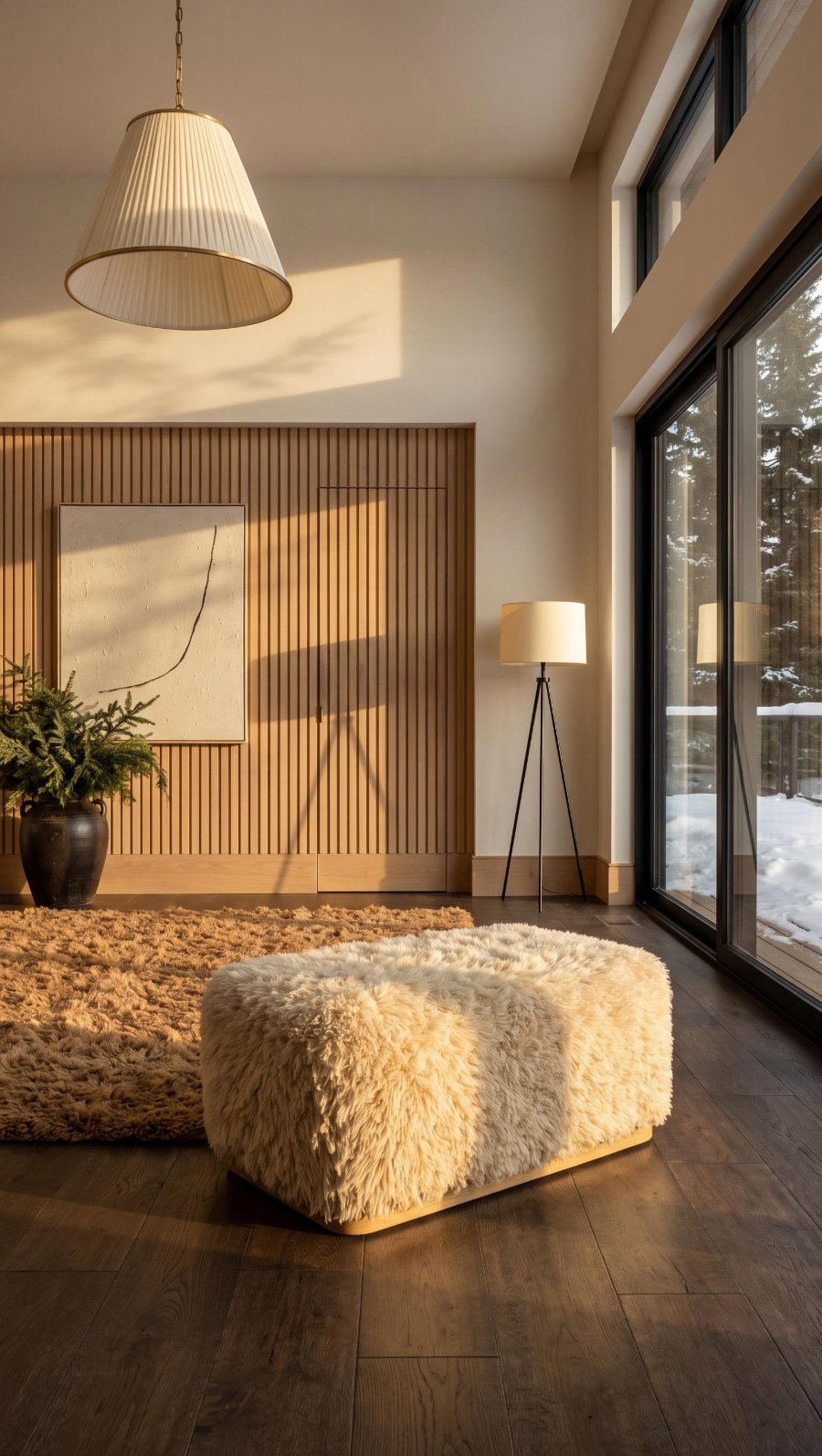 WINTER
How much a photo batch costs
A photo in a batch costs the same as in the photo creator: 10 credits. Credits are taken once for the whole batch, when you click CREATE. If a photo can’t be created, its credits return to your account.
| Batch | Photos | Credits |
|---|---|---|
| 1 item in 3 styles | 3 | 30 |
| 5 items, as in the video | 8 | 80 |
| 20 items in 2 styles | 40 | 400 |
| 50 items in 4 styles (the most in one batch) | 200 | 2000 |
If you don’t have enough credits, the summary shows how many you’re missing. You can top up your account or, with one click, reduce the batch to one that fits your balance: one style per item. Plans differ only in the number of credits, and every plan includes photo batches. See the plans.
What you can do next with batch photos
Batch photos are regular photos in the gallery, so everything that works on photos from the photo creator works on them too:
- RATIO: the same photo in another format, for example 1:1 for your shop and 9:16 for reels.
- ANGLE: the piece from another side on the same background, from your side or back packshot.
- COLOR and MATERIAL: other variants of the piece in the same photo.
- ADD PEOPLE: the piece in use, with people or pets.
- Video: a short video from a finished photo, for reels and ads.
Frequently asked questions
How many items and photos can one batch hold?
Up to 50 packshots and up to 200 photos in one go. Split a larger collection into several batches.
Is a photo in a batch cheaper than in the photo creator?
No, the price is the same: 10 credits per photo. A batch saves time, because you set up many items at once and order everything with one click.
Can each item in a batch have a different style?
Yes. You can assign a style to a group of items or to a single item, and each item can have several styles. Each style is a separate photo.
Can I use my own interior in a batch?
Yes. In the style window, choose the YOUR INTERIORS tab. An interior counts like a style: each one is a separate photo at the price of a regular photo.
How does Sopla know what type of furniture it is?
It recognises the furniture type from the packshot. When it isn’t sure, it marks the item with a CHECK pill, and you confirm the type or choose another one. Your choice is saved with the packshot for future photos.
How long does a batch take?
A single photo is usually ready in about a minute. Batch photos appear in the project one by one, and a larger batch takes longer. You don’t have to wait on the page: you can close it.
Can I create one photo in several formats?
In a batch, each item has one format. You can create the same framing in another format later with the RATIO edit on the finished photo.
What if I don’t like a photo from a batch?
Compare it with the packshot. You can fix the angle of the piece with the ANGLE edit, or create the whole photo again in the photo creator with the same settings.
Can I create a batch on my phone?
No. The Sopla app works on a computer, in a web browser.
Got a collection to photograph? Upload your packshots and create your first batch.